Appearance
Flowra
Overview
Flowra lets you build automated workflows that connect your processes and run repetitive tasks for you. Every workflow starts with a trigger - the event that kicks it off - followed by the steps you want run automatically.
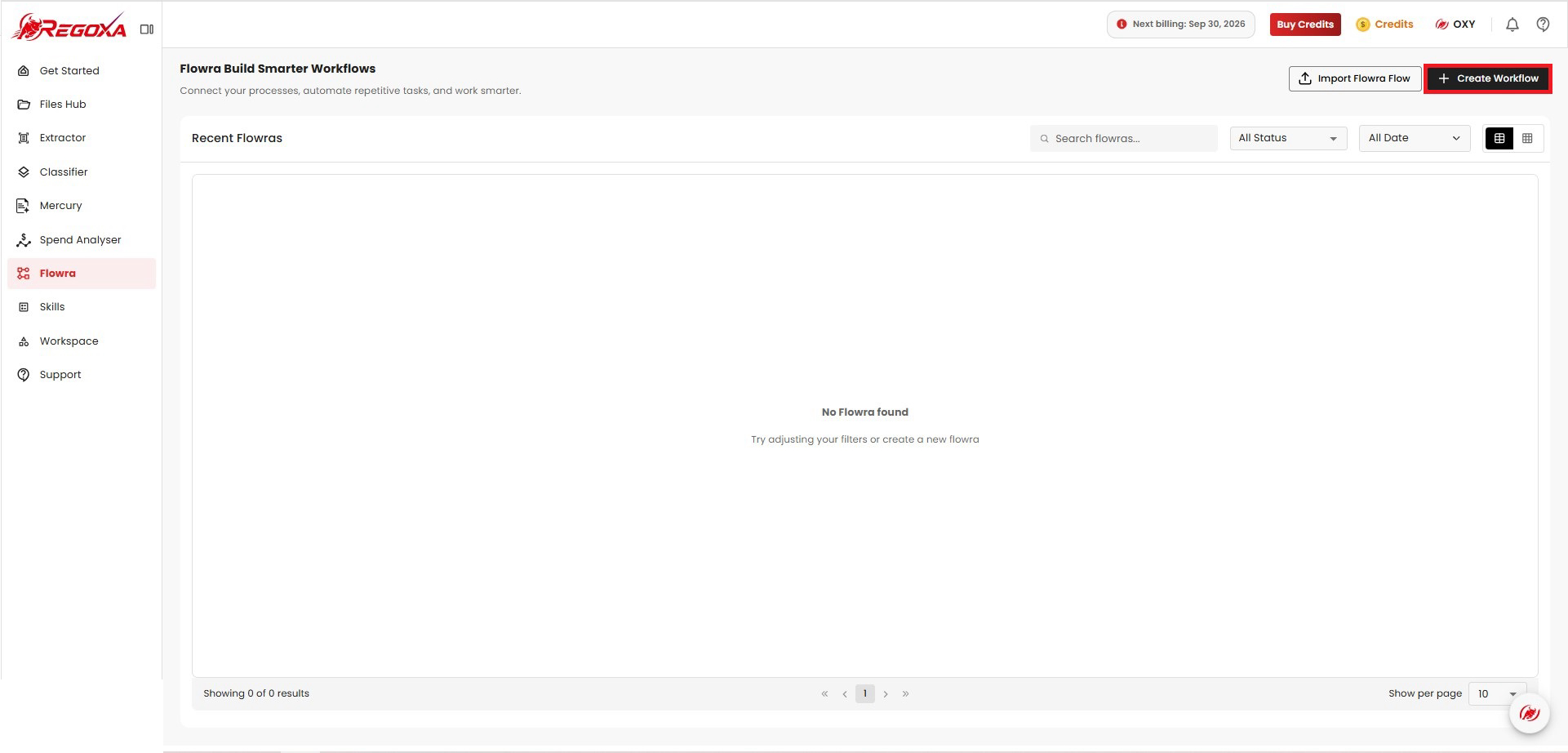
Create a workflow
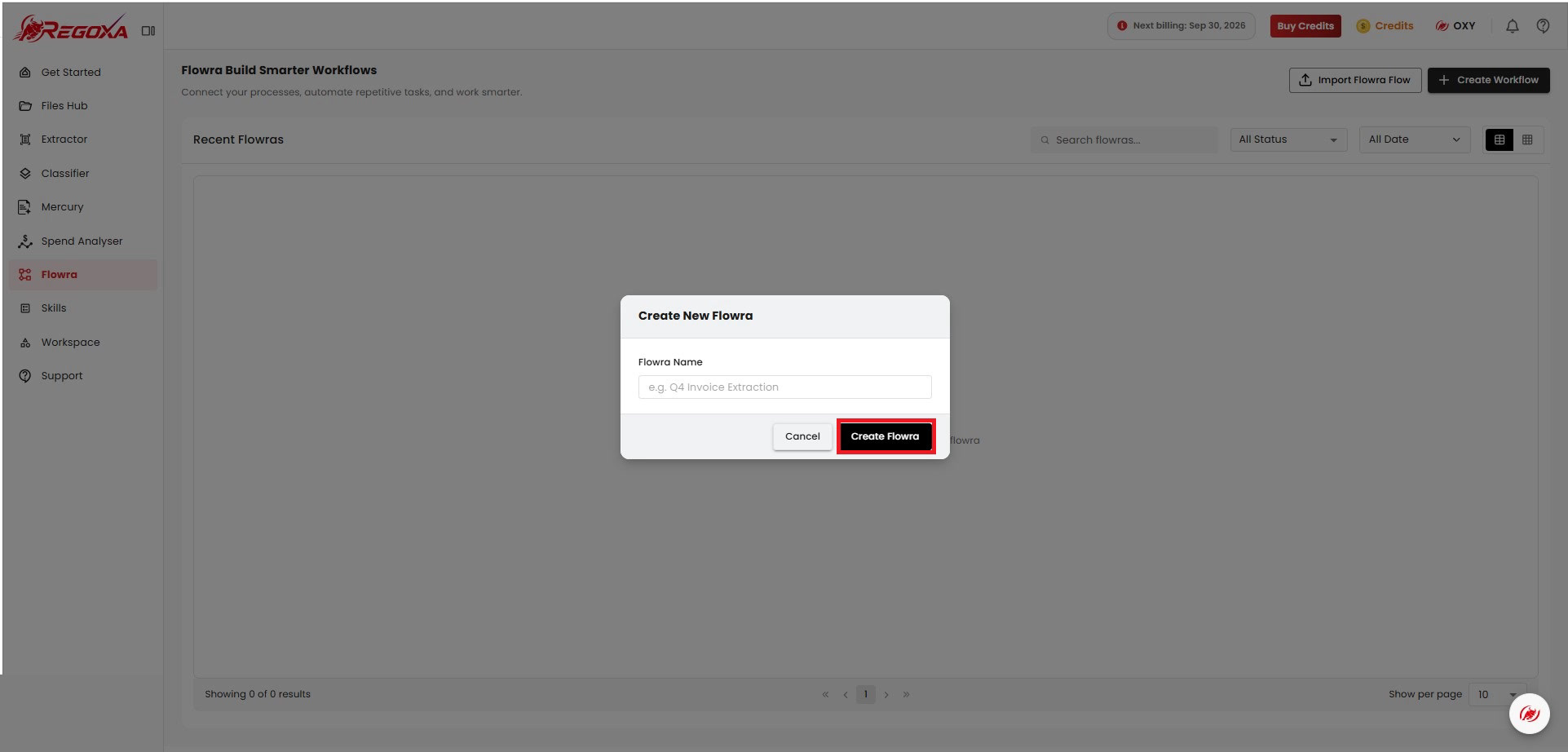
To create a Flowra, enter a name for your flow and click Create Flowra.
Pick a Trigger - the initial step for your flowra.
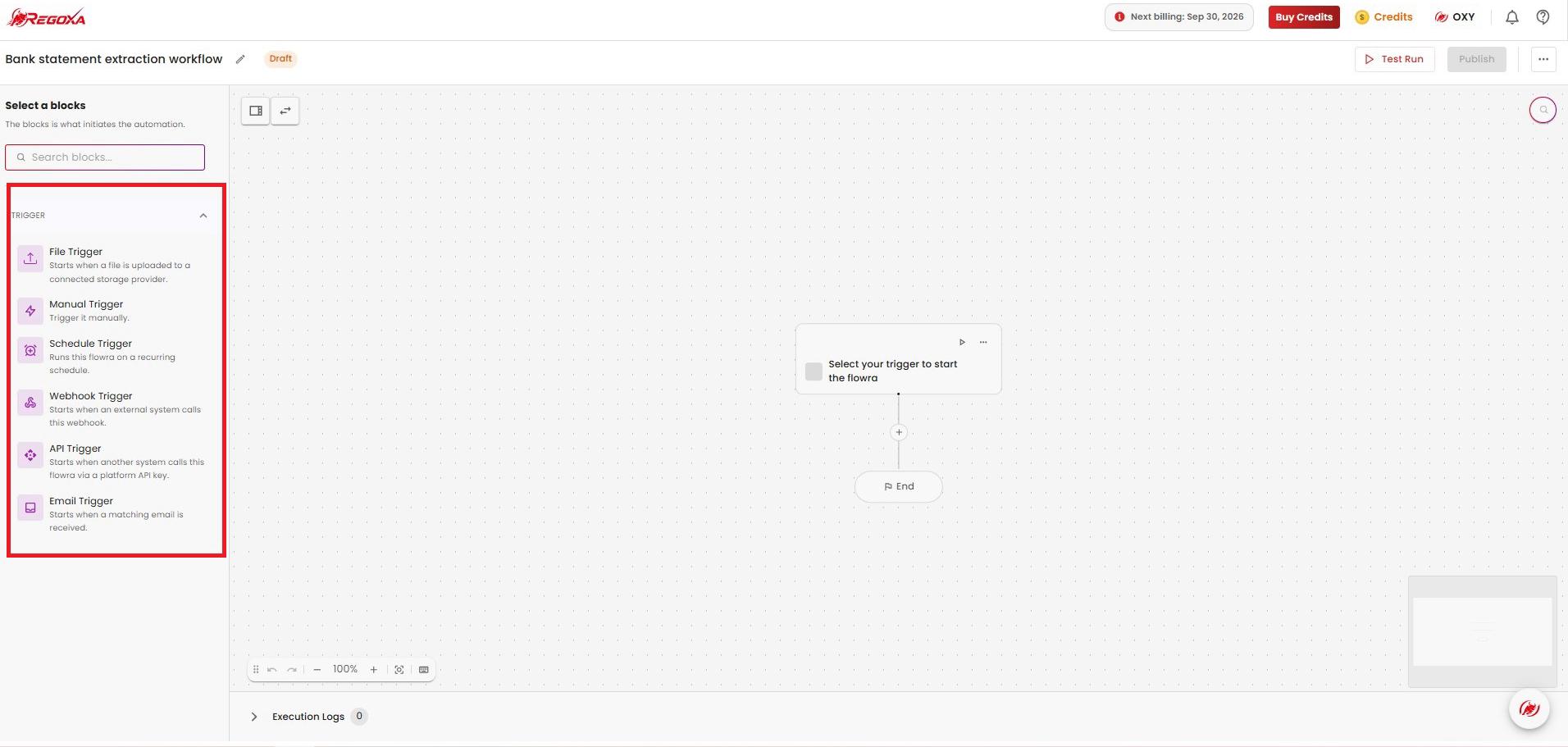
Continue to Trigger to pick what starts your flowra.
Test, publish, and monitor
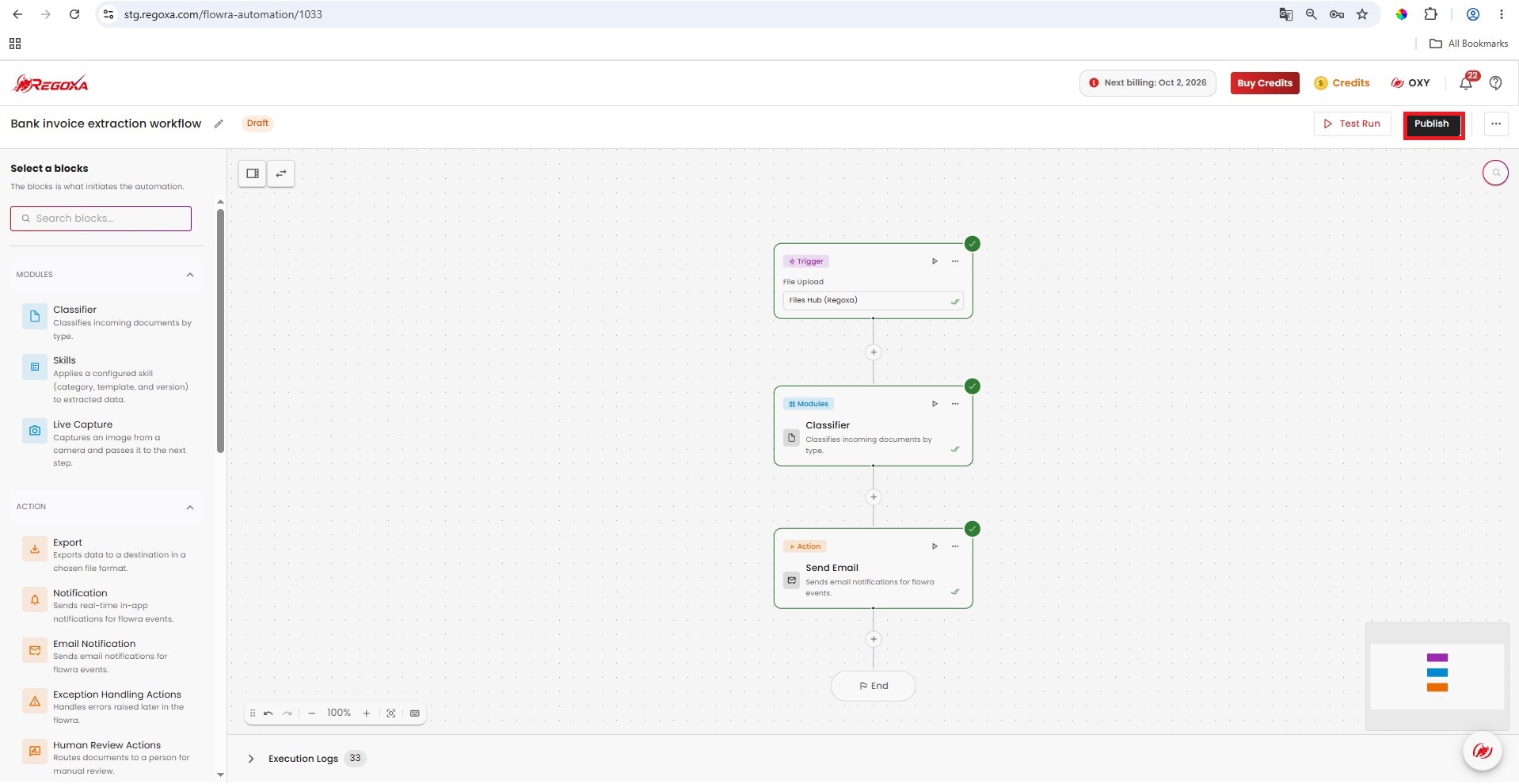
Once your blocks are in place, use Test Run and Publish in the top-right of the builder.
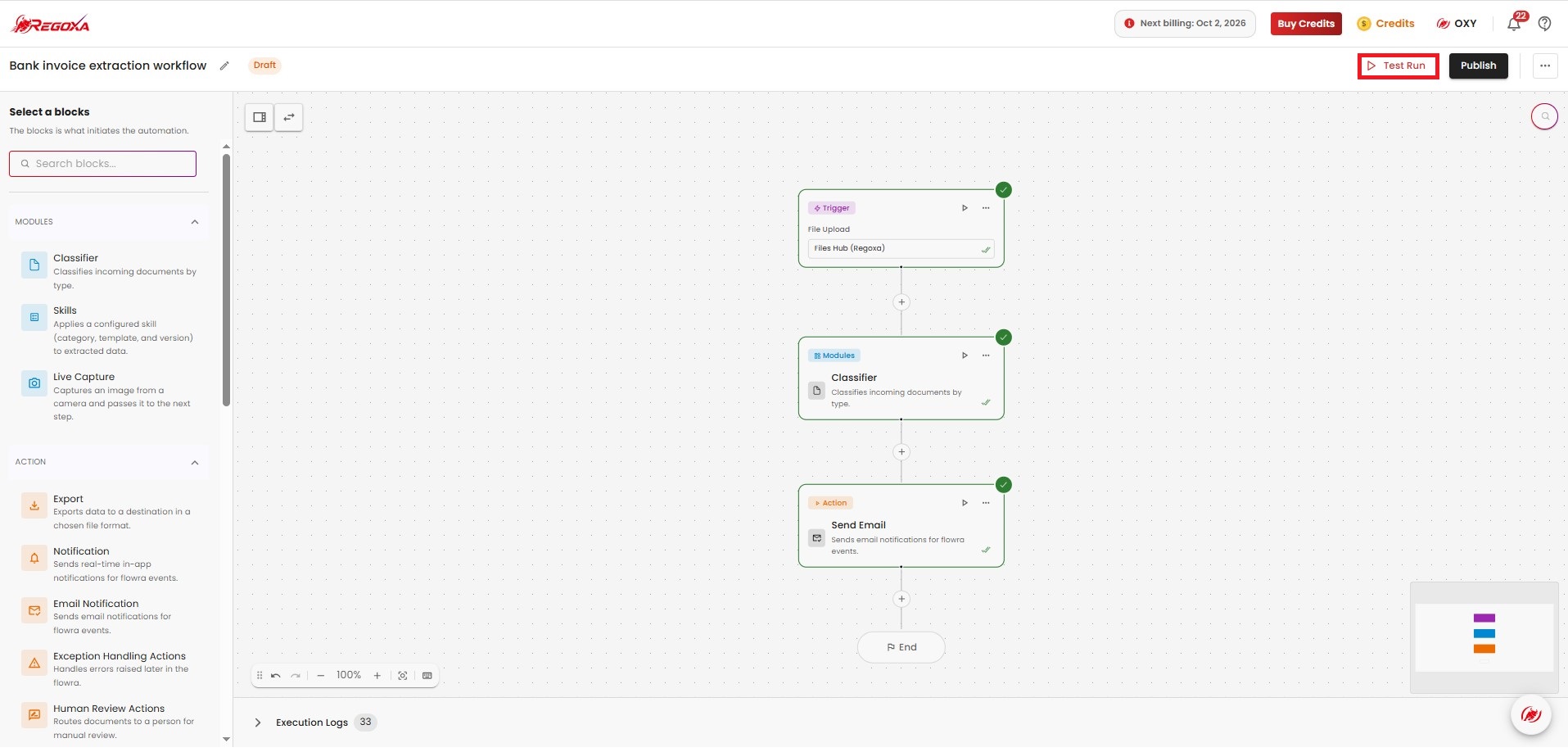
- Test Run - runs the flowra once against real data, without publishing it. Each block lights up with a green check as it completes, so you can confirm the flow works end to end before anyone else sees it.
- Publish - makes the flowra live and available to the organization's users. A flowra stays in Draft until you publish it.
Execution Logs
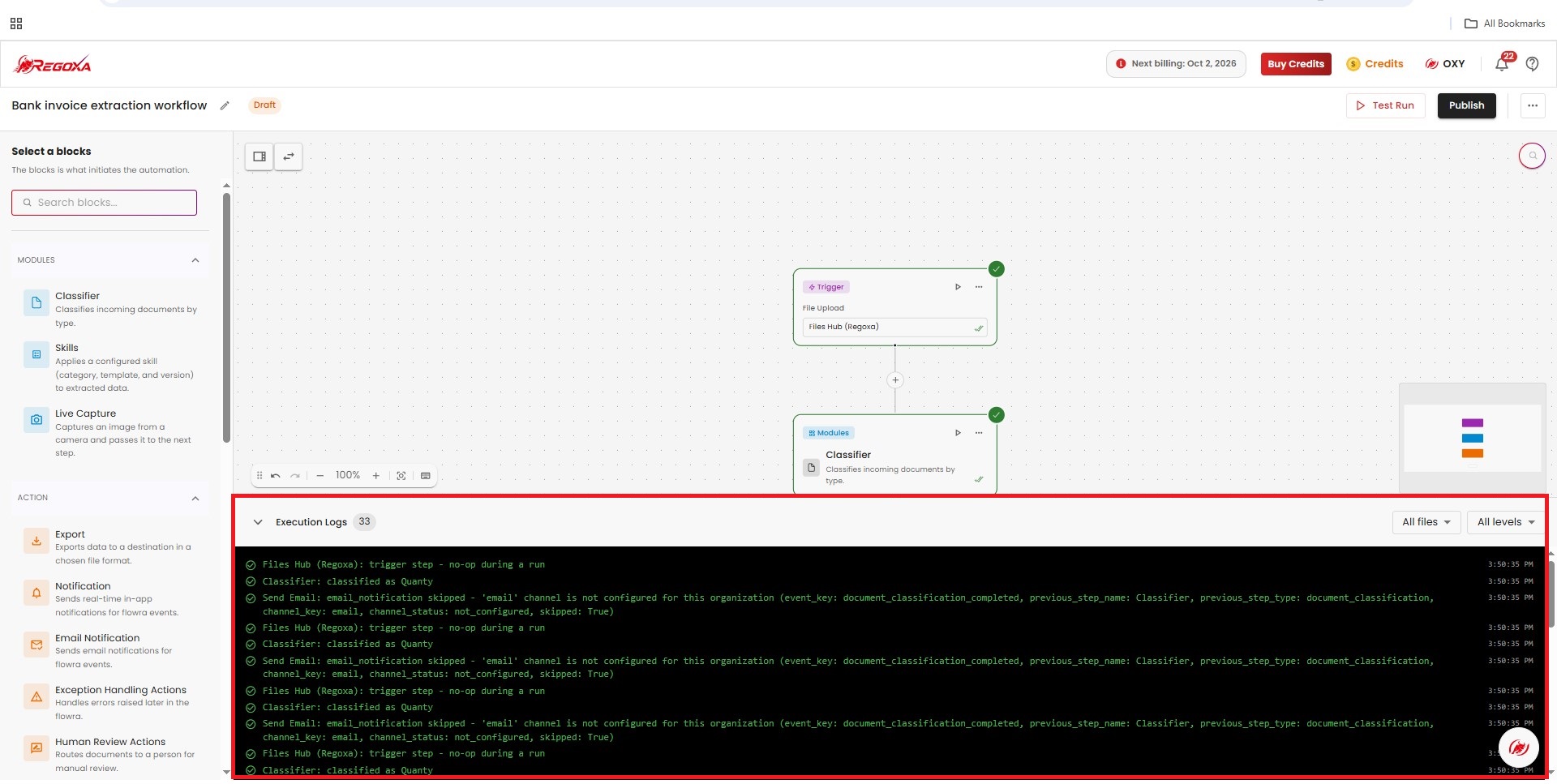
Expand Execution Logs at the bottom of the builder to see a step-by-step record of what happened on a run - which block ran, what it did, and when.
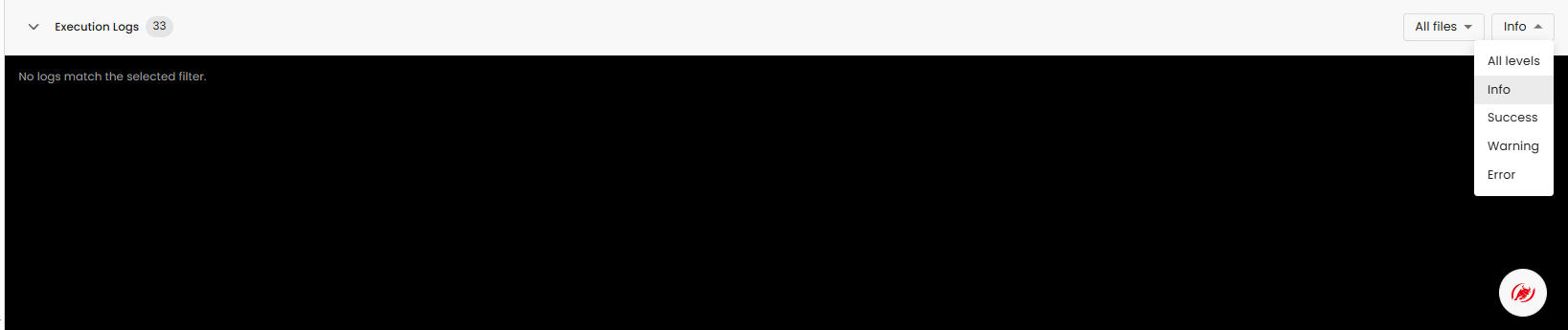
Use the filters in the top-right of the panel to narrow down what you see:
- All files - filter logs down to a specific file that was processed, or view all of them.
- Level - filter by log level: All levels, Info, Success, Warning, or Error.
More options
Click ... next to Publish for additional flowra actions:
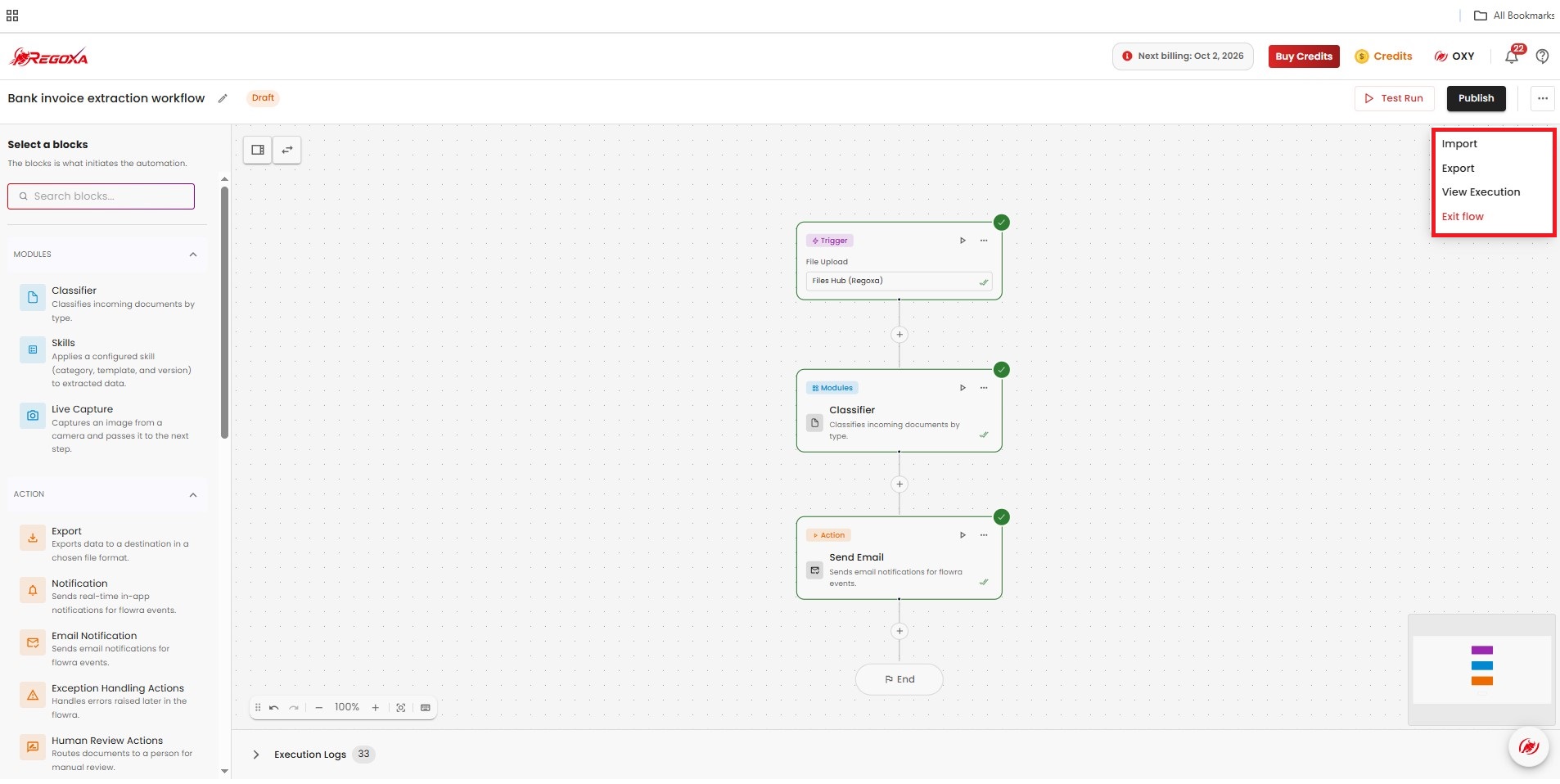
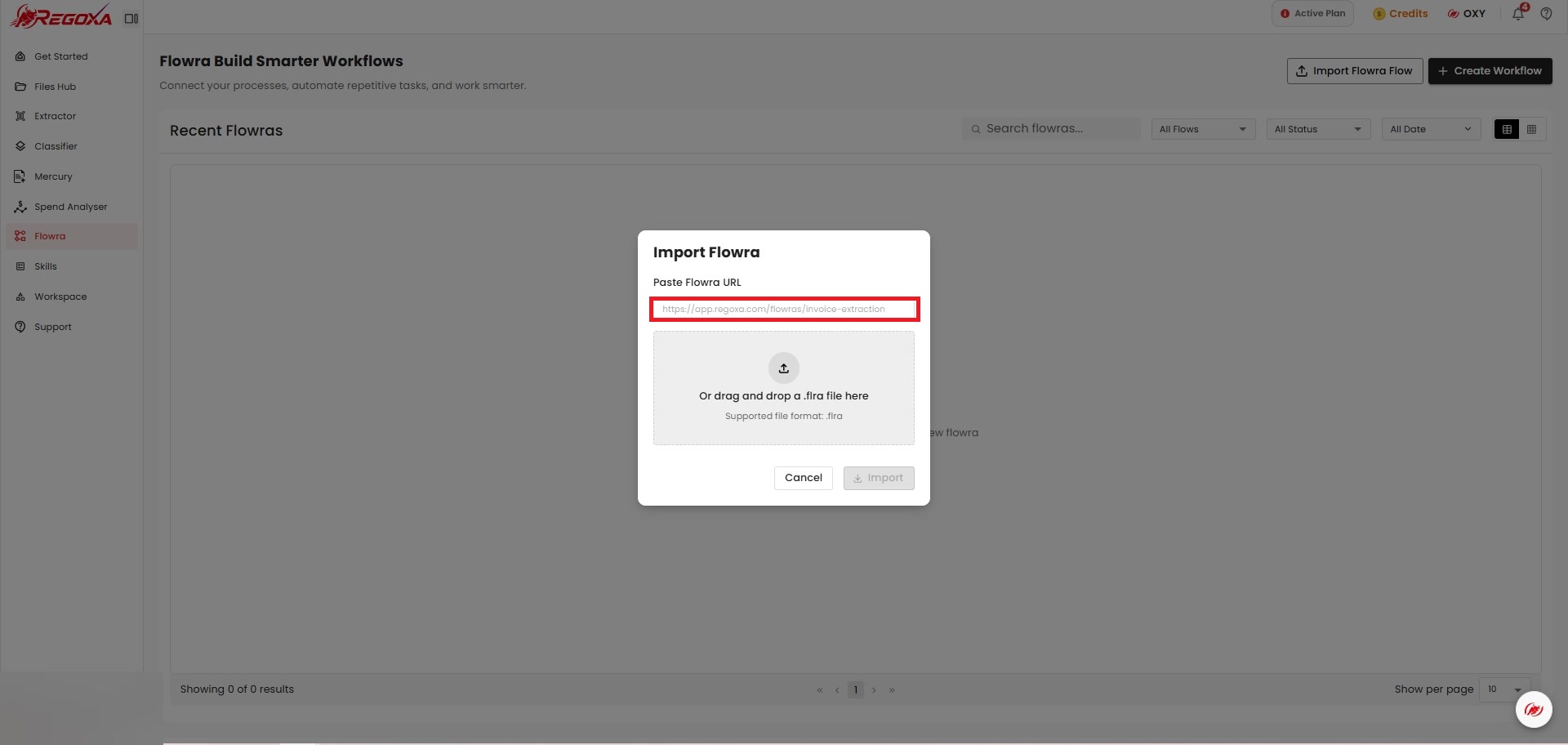
- Import - By using a Flowra URL or a .flra file.
- Export - download the current flowra as a .flra file.
- View Execution - jump to the Execution Logs panel.
- Exit flow - leave the builder and return to the Flowra list.
Choosing Import opens a dialog where you can import a flowra using a Flowra URL or a .flra file.