Appearance
OXY
Overview
OXY is Regoxa's built-in AI assistant. Ask it questions, have it analyze and summarize your documents, and pick up past conversations whenever you need them.
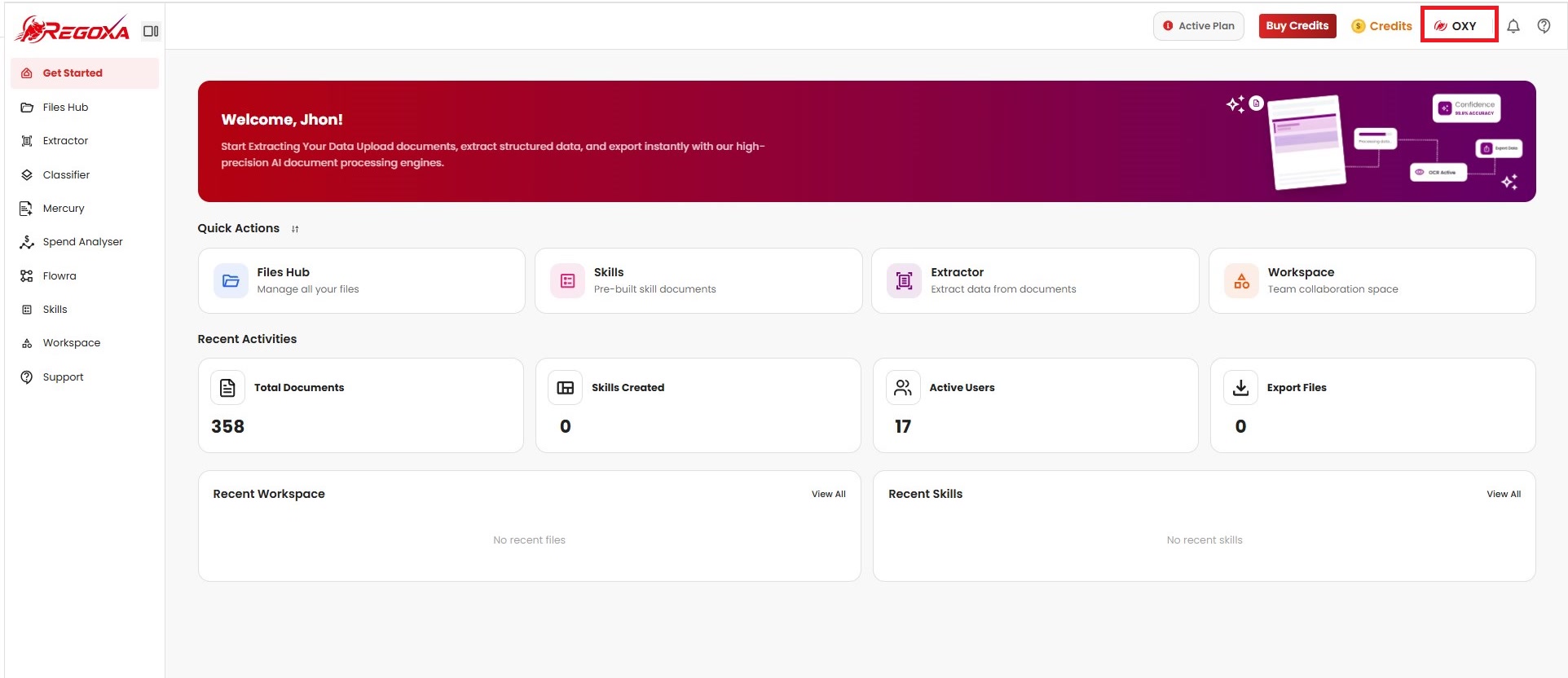
Open OXY
- Click OXY in the top navigation bar.
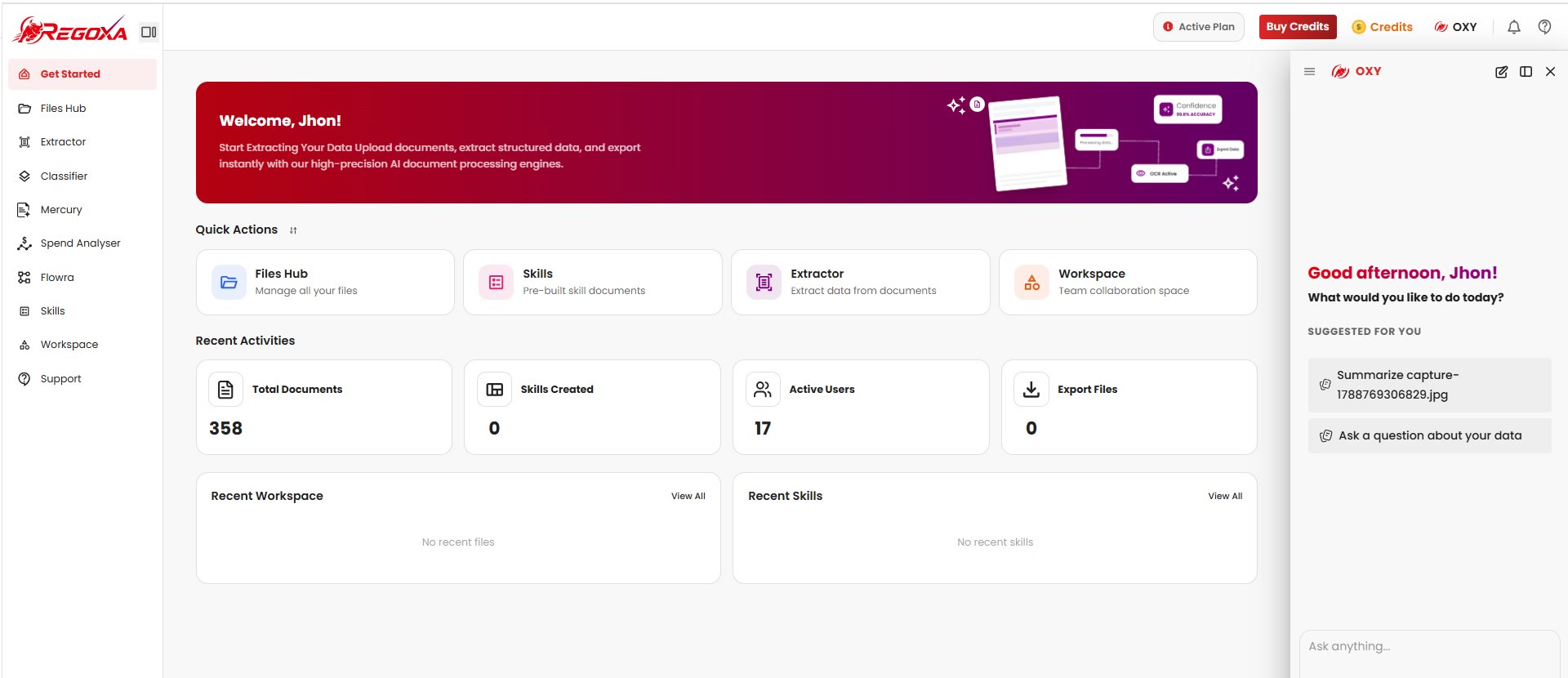
- A chat panel opens on the right with a greeting and a set of suggestions tailored to your recent activity.
Ask OXY anything
Type your own question into Ask anything… at the bottom of the panel and send it.
Analyze a document
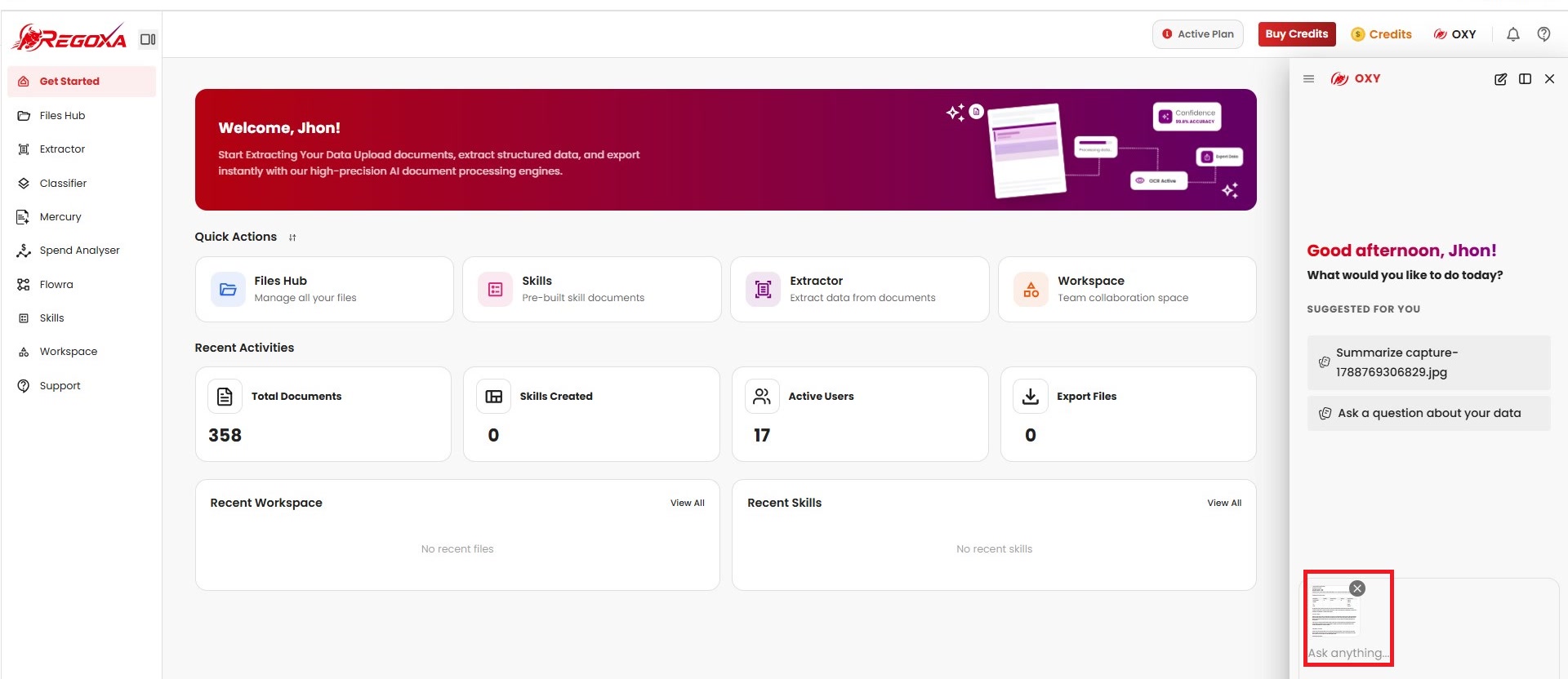
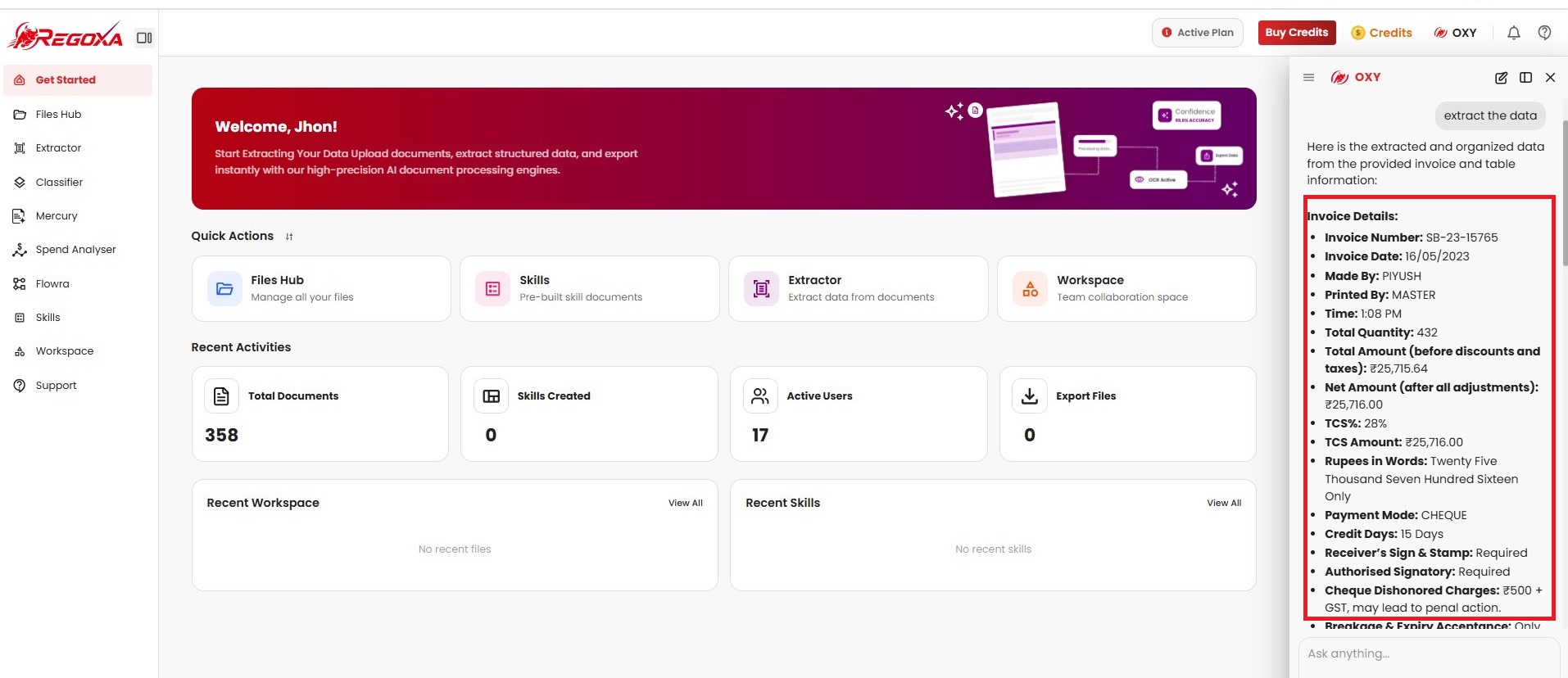
- Attach a document to the conversation using the camera or upload icon below the input box.
- OXY reads the document and responds with a structured summary, pulling out key fields.
Browse your chat history
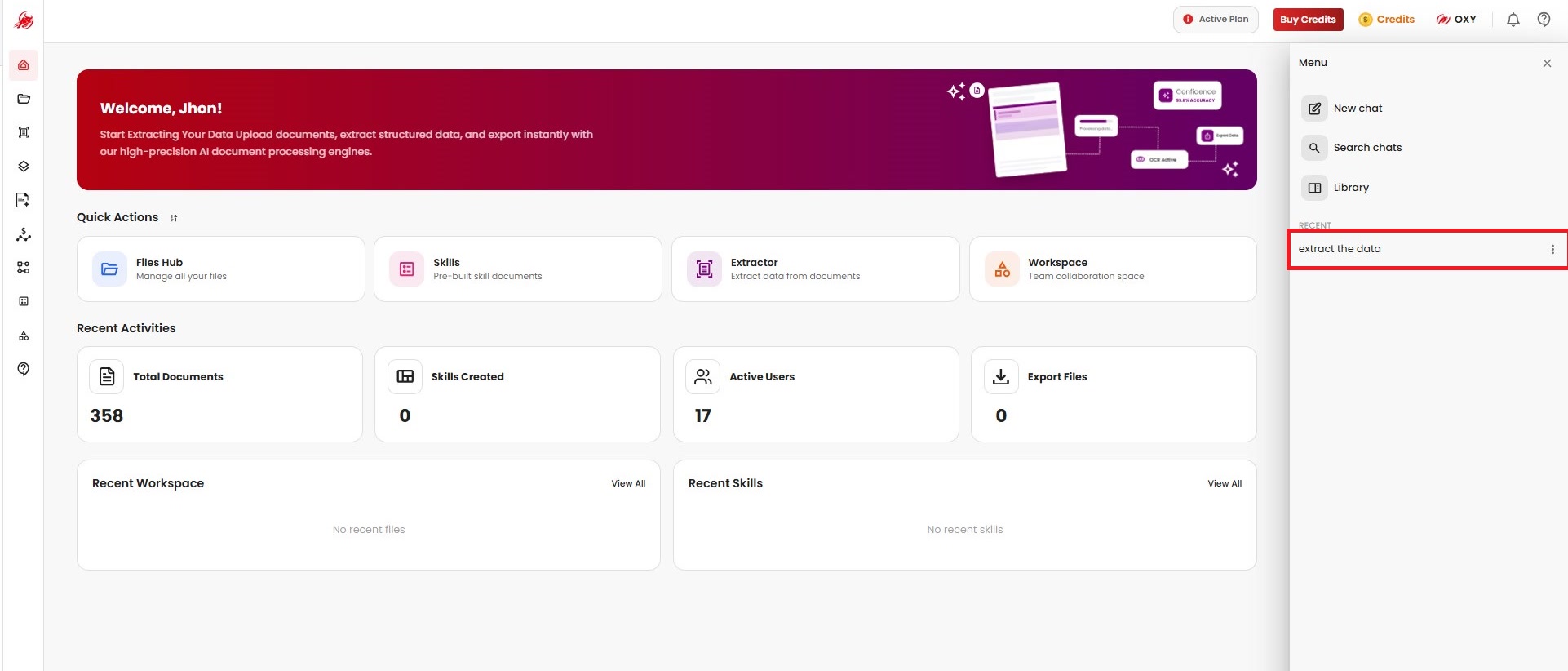
- Click the menu icon in the top left of the OXY panel.
- Start a New chat, or use Search chats to find a previous conversation.
- Library collects items you've saved from past chats.
- Recent lists your latest conversations with OXY so you can pick up where you left off.
Choose a display mode
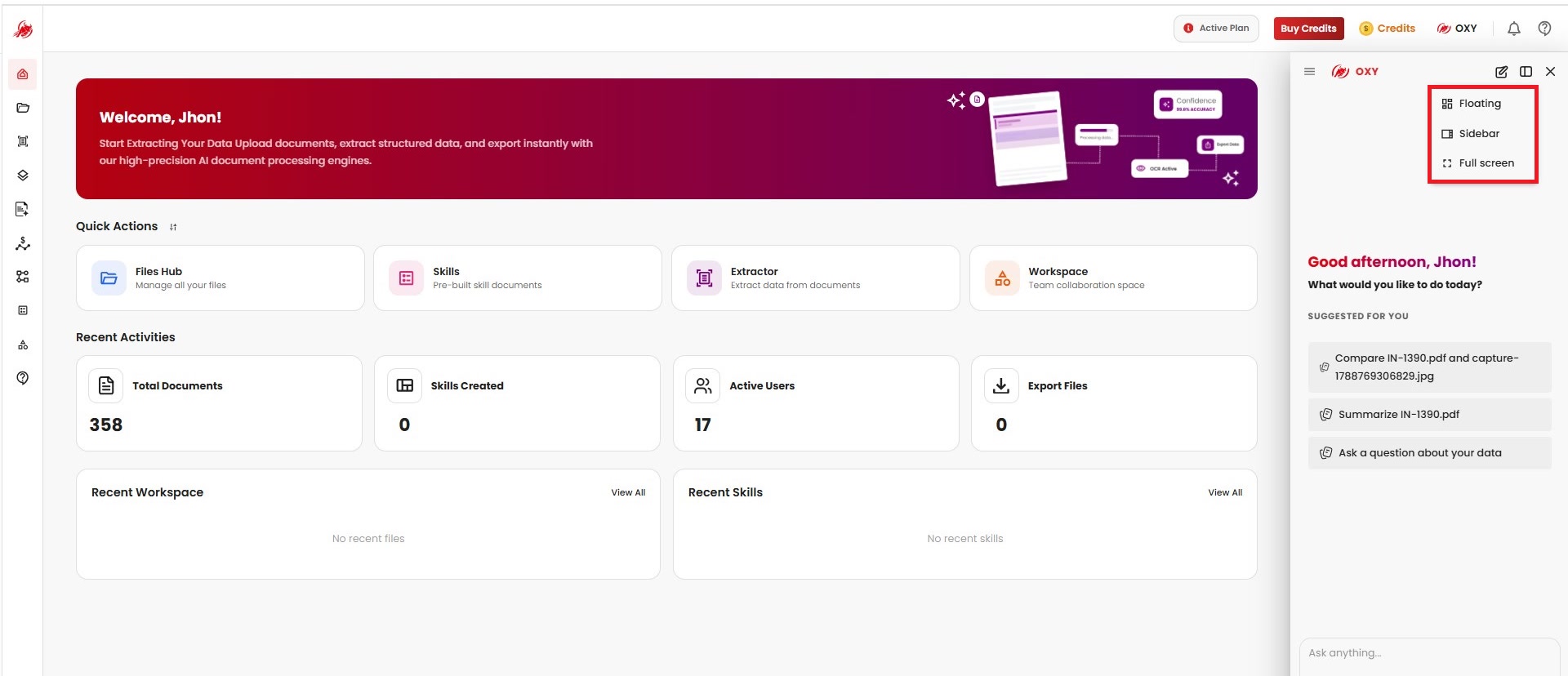
OXY can be displayed in whichever layout suits what you're working on. Click the layout icon next to the edit icon in the panel header and choose:
- Floating - a compact, movable window
- Sidebar - docked to the side of the screen, alongside your current page
- Full screen - OXY expands to take up the entire window
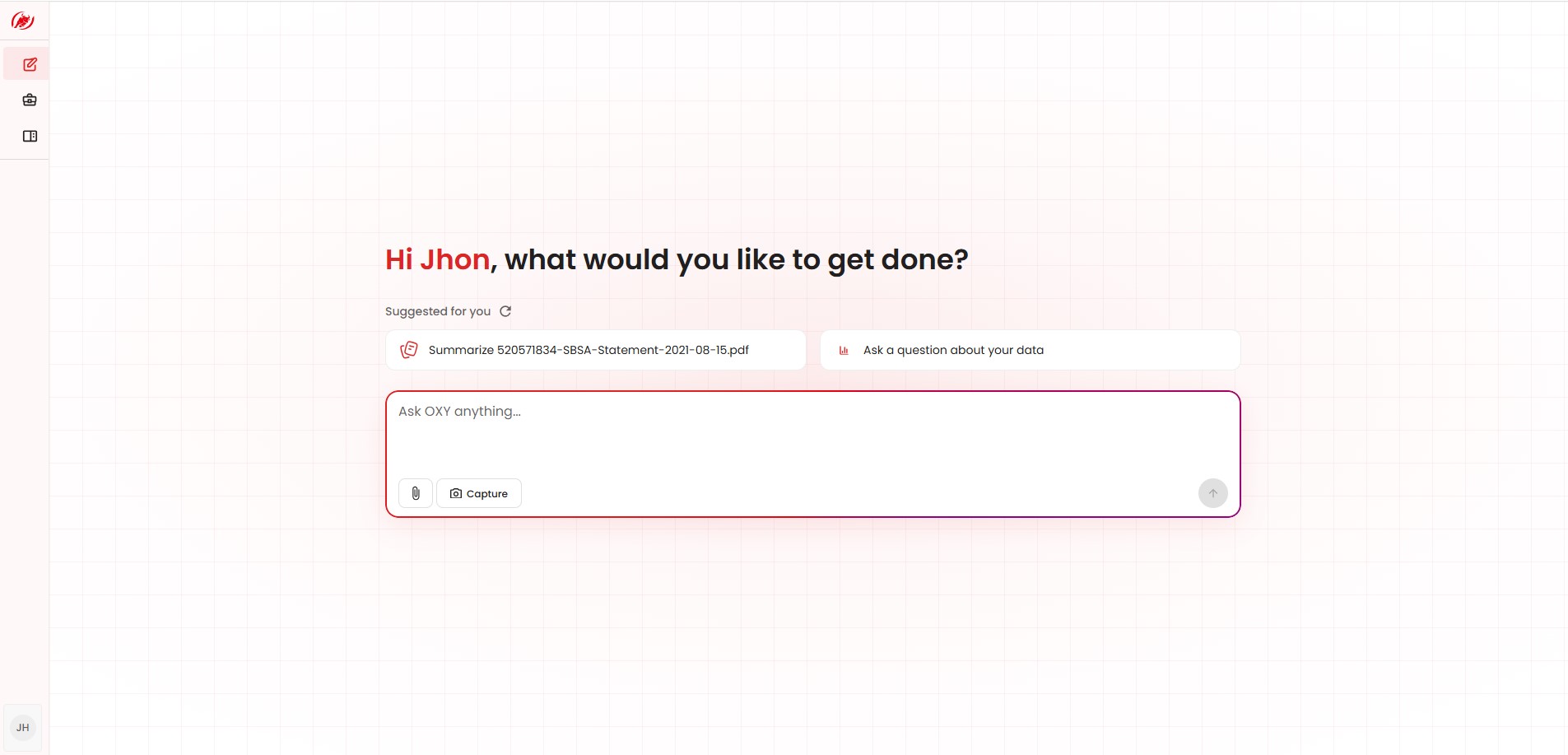
In Full screen, OXY takes over the whole page with a personalized greeting and a Suggested for you row of prompts based on your recent activity - such as summarizing a document you uploaded, or asking a question about your data. Type into Ask OXY anything… at the bottom, or attach a file using the paperclip icon or Capture to bring a document into the conversation.
Projects
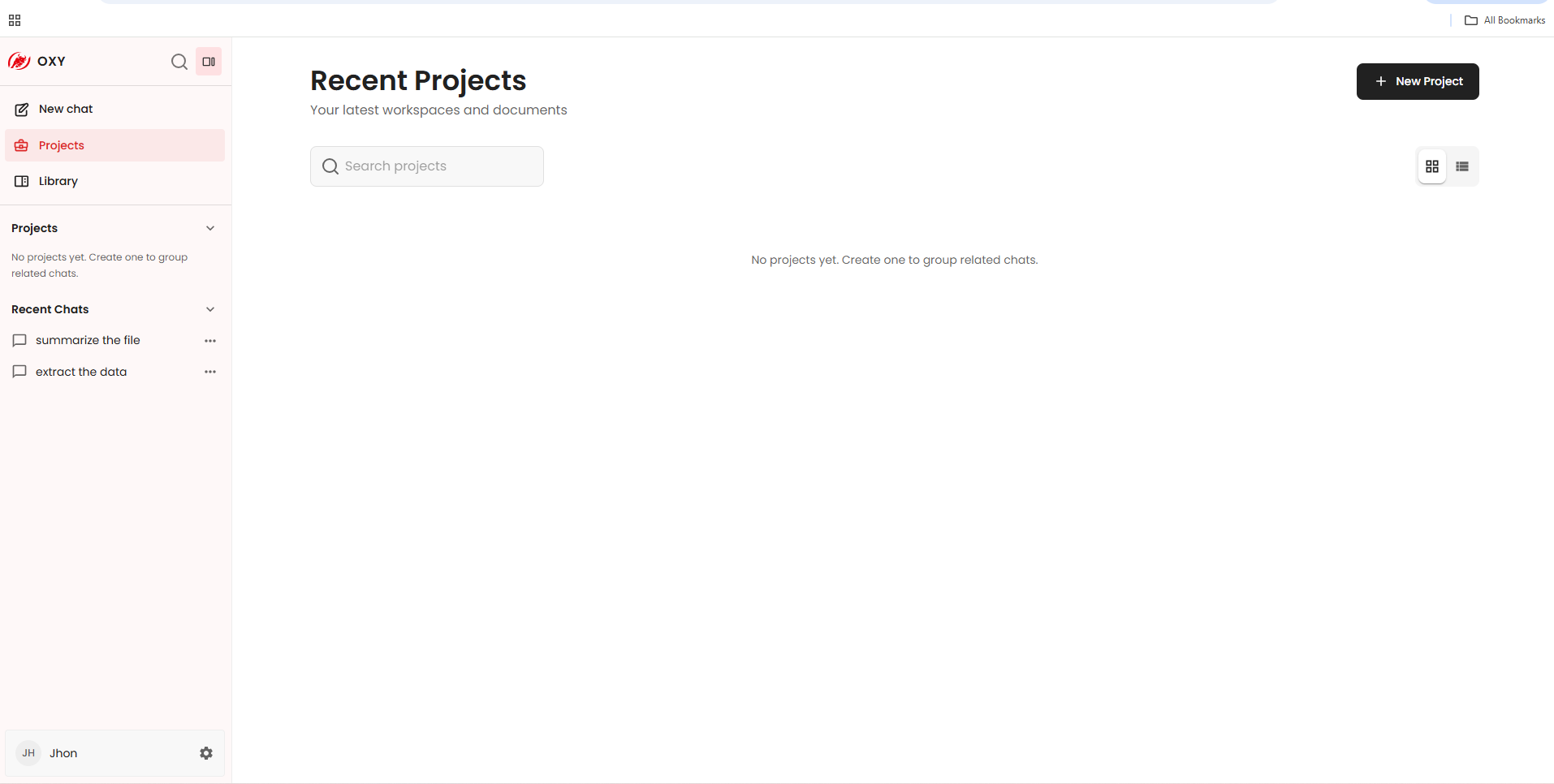
Group related chats together in a Project instead of letting them pile up in Recent Chats.
- In Full screen, click Projects in the left sidebar to open Recent Projects - your latest workspaces and documents.
- Use the search box to find a project, or switch between grid and list view.
- Click New Project to create one. Until you create your first project, this list shows "No projects yet."
Library
Library collects items you've saved from past conversations, so you can find them again without scrolling back through chat history. Open it from the left sidebar in Full screen, alongside New chat and Projects.
Settings
Click the gear icon next to your profile in the bottom left of the Full screen sidebar to open Settings.
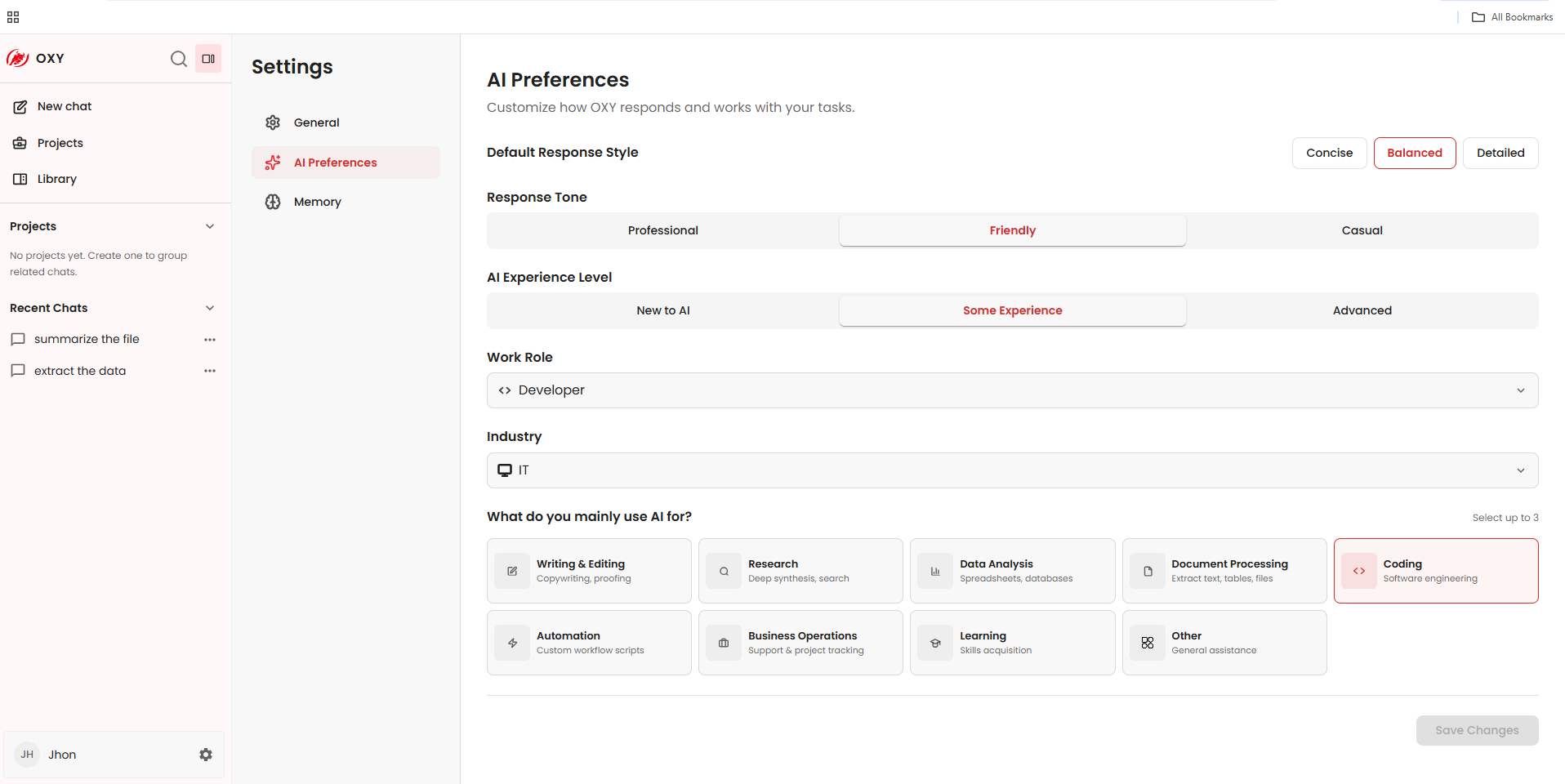
AI Preferences
Customize how OXY responds and works with your tasks:
- Default Response Style - Concise, Balanced, or Detailed.
- Response Tone - Professional, Friendly, or Casual.
- AI Experience Level - New to AI, Some Experience, or Advanced.
- Work Role and Industry - so OXY can tailor its answers to your context.
- What do you mainly use AI for? - select up to 3, such as Writing & Editing, Research, Data Analysis, Document Processing, Coding, Automation, Business Operations, or Learning.
Click Save Changes once you're done.
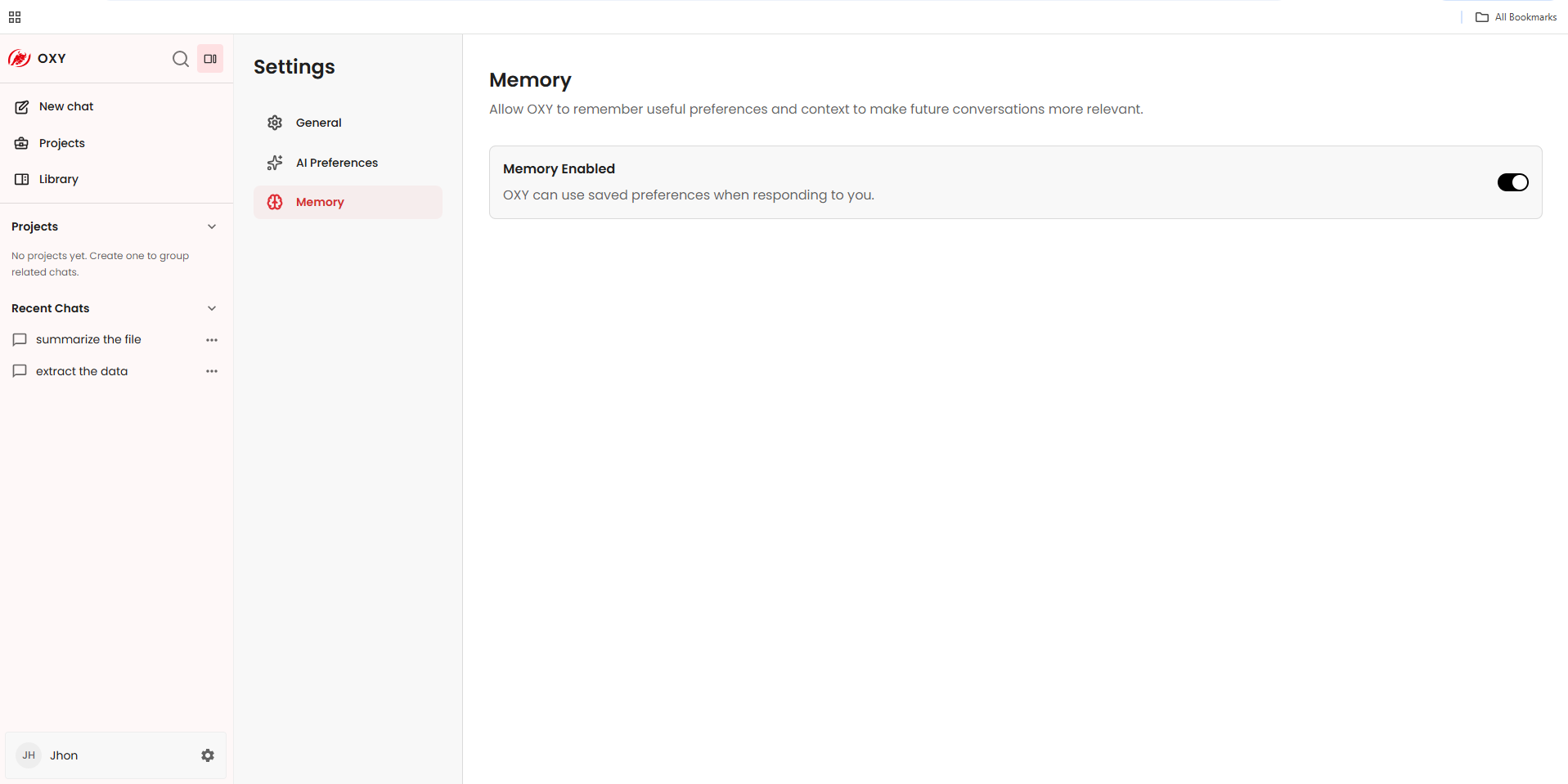
Memory
Turn on Memory Enabled so OXY can use your saved preferences and context to make future conversations more relevant.