Appearance
Support
Overview
The Support module lets you reach the Regoxa team directly from within the product. Raise a ticket for a technical issue, billing question, or configuration request, and track its status until it's resolved — no need to leave the platform or email support separately.
Open Support
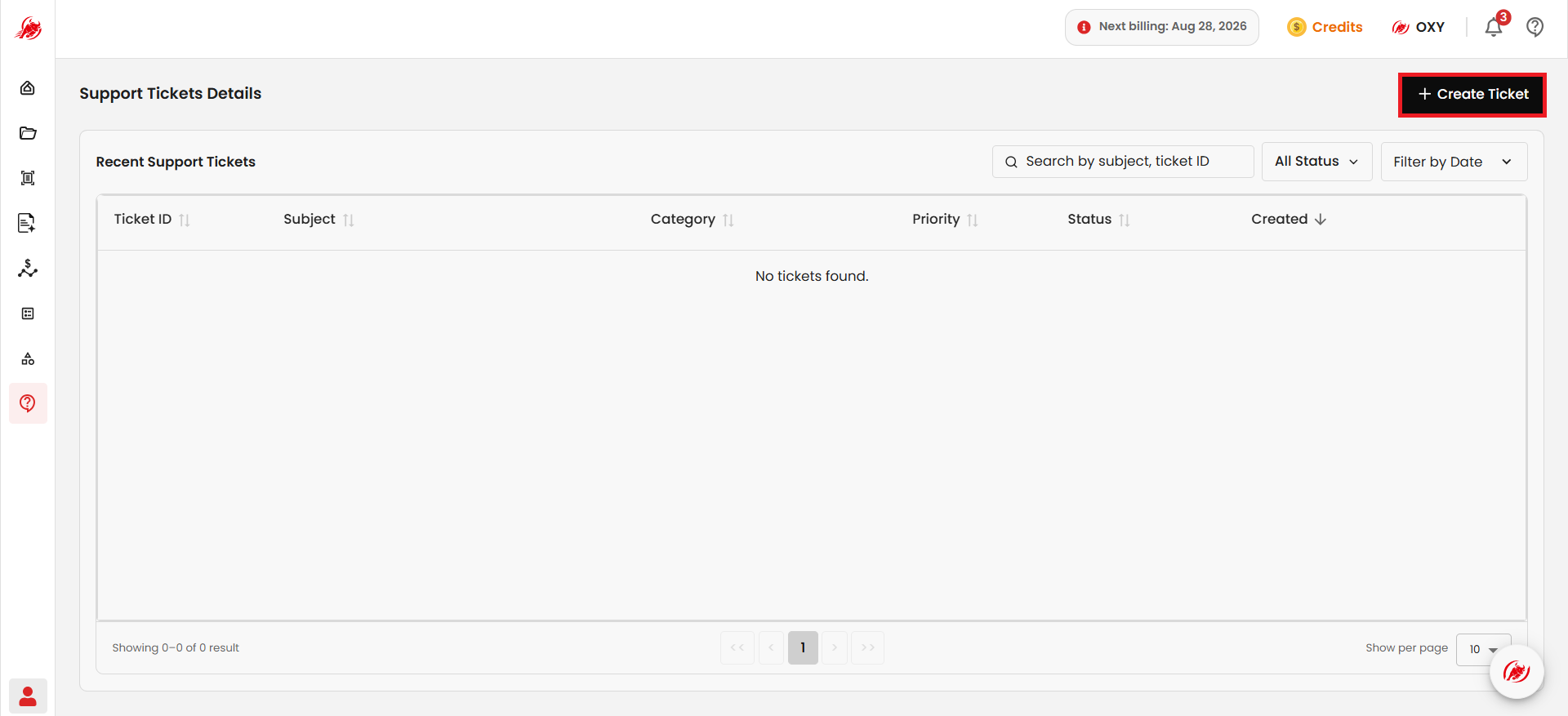
Click Support in the left navigation. Recent Support Tickets lists every ticket raised for your organisation, along with its Ticket ID, Subject, Category, Priority, Status, and when it was Created. Use the search bar to find a ticket by subject or ticket ID, sort any column, filter by Status, or Filter by Date.
Create a support ticket
- Click + Create Ticket in the top right.
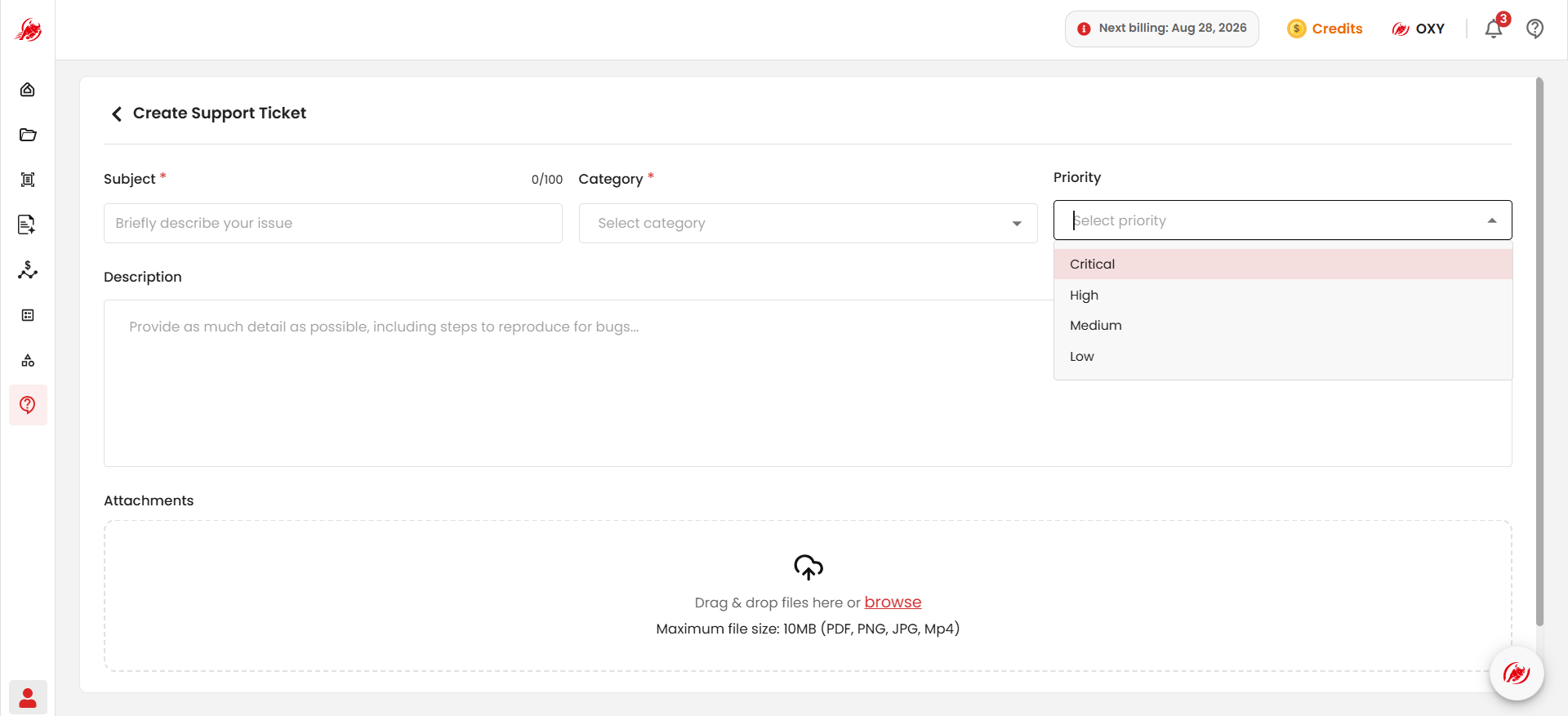
- Fill in the ticket details:
- Subject — a short summary of the issue
- Category — e.g. Technical Issue, Billing, or Configuration Assistance
- Priority — Critical, High, Medium, or Low
- Description — as much detail as possible, including steps to reproduce for bugs
- Optionally attach supporting files by dragging them in or using browse. Maximum file size is 10MB, in PDF, PNG, JPG, or MP4 format.
- Click Submit Ticket.
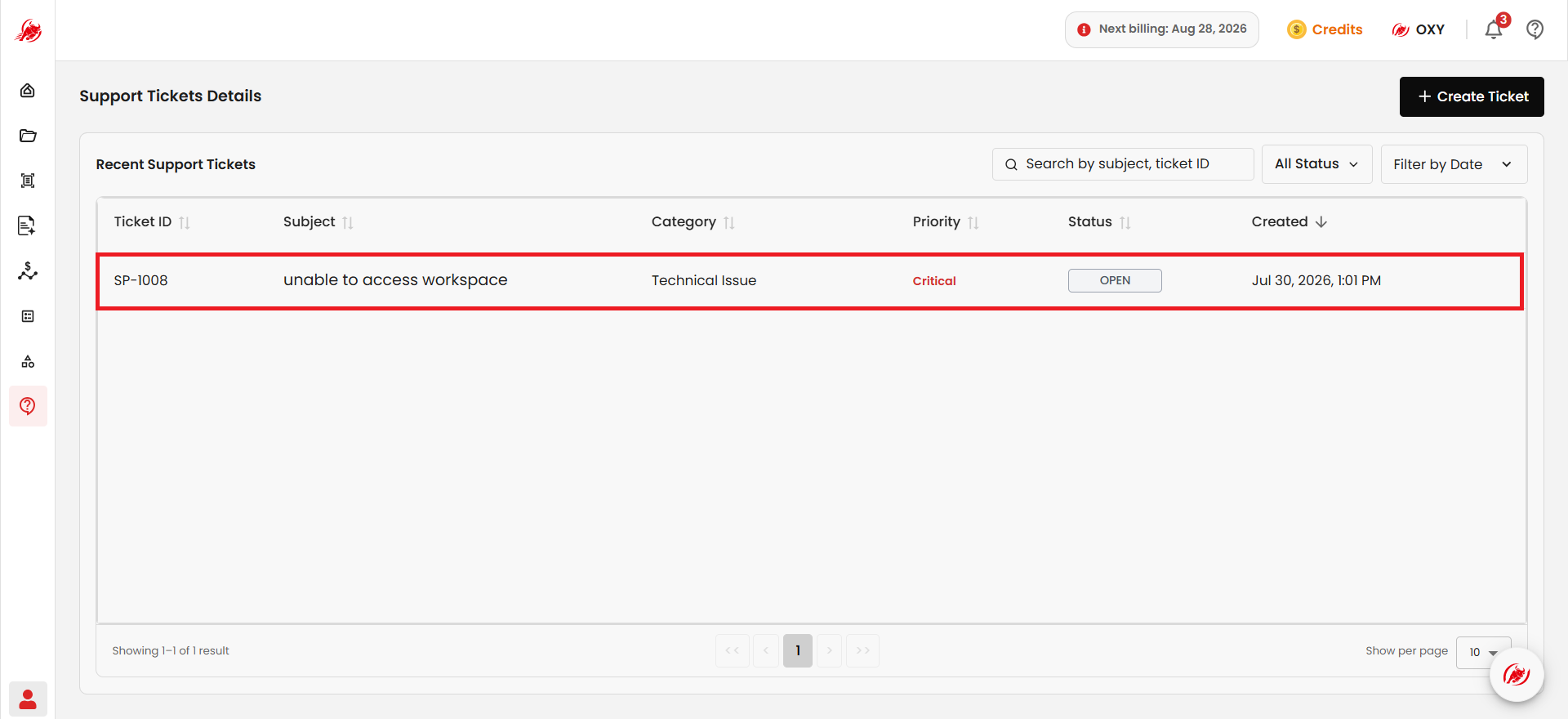
Once submitted, your ticket appears at the top of Recent Support Tickets with a unique Ticket ID, a status of OPEN, and the date and time it was created.
Reply on a ticket
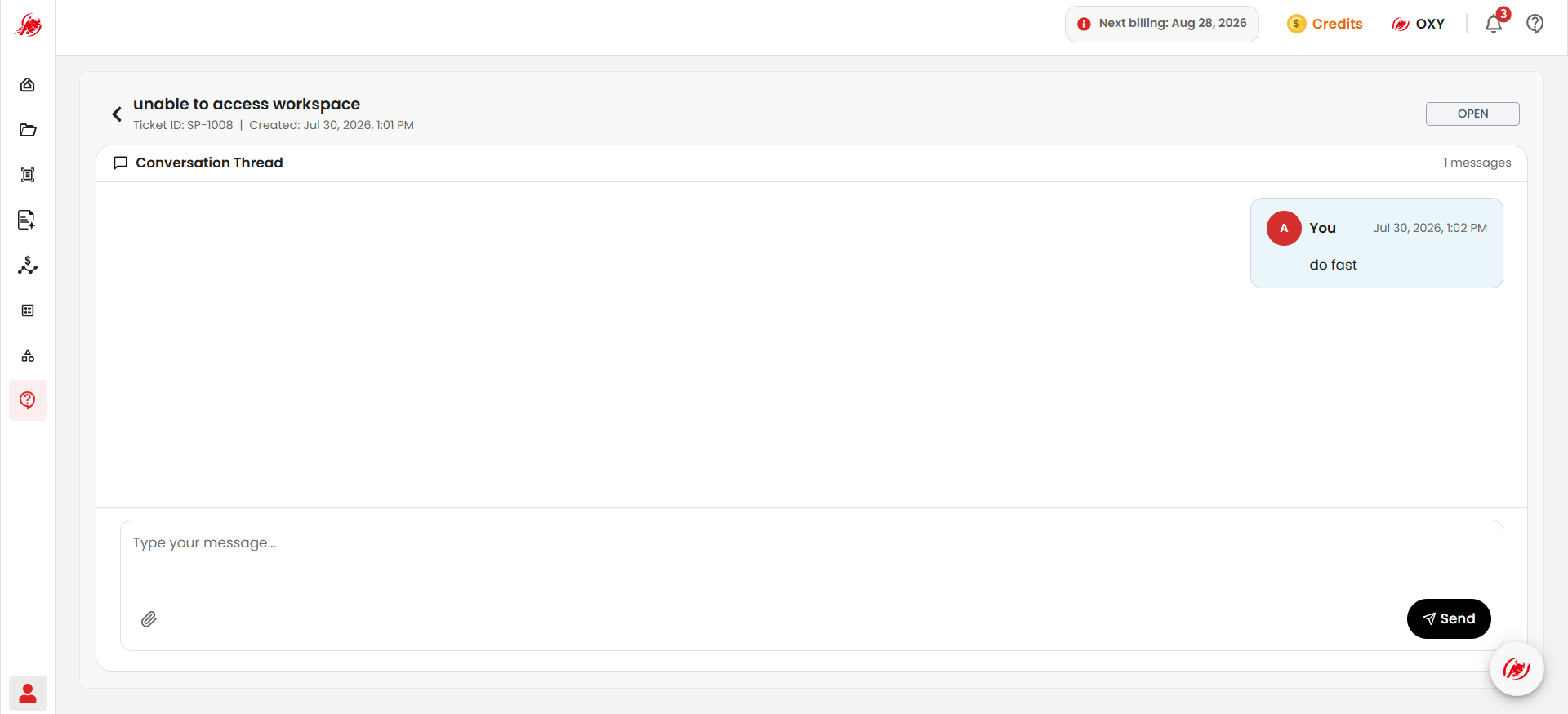
- Click a ticket in Recent Support Tickets to open its Conversation Thread.
- Type your message and send it to add to the thread, or attach a file using the paperclip icon.
- The ticket's status updates as the support team responds, through to RESOLVED once your issue is fixed.