
Appearance
Skill Catalog
View, manage, and organize your Regoxa skills from a single location.
The Skill Catalog is where you view and manage all your Regoxa skills. Skills are displayed as a list sorted by last modified date, showing skill name, version, category, field count, creator, and status.
A skill is a reusable pattern that tells Regoxa exactly which fields to pull from a document, and where to find them. Set one up once for a document layout - such as your standard invoice or bank statement - and reuse it every time you extract data from that layout, instead of mapping fields by hand.
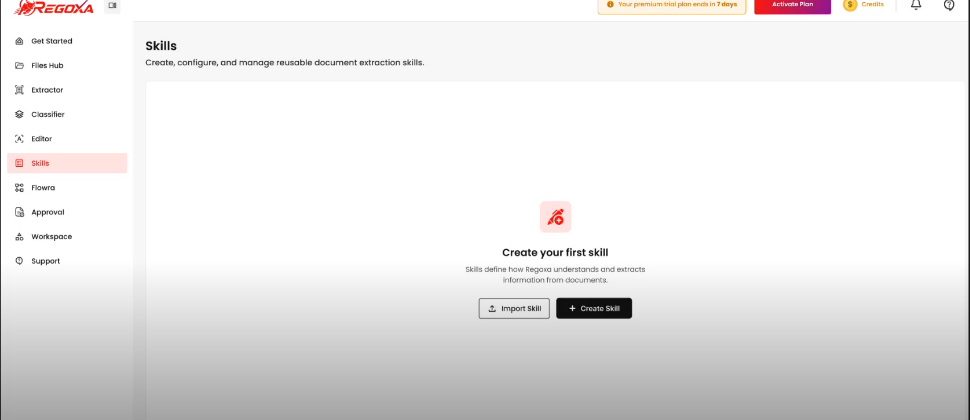
Filter the list
Use the search bar at the top of the Skill Catalog to find a skill by name. You can also sort by Last modified or filter by Status (e.g., Draft, Published). See Find a skill for details.
What you can do
Find a skill
Search and filter skills before opening them.
Try a skill
Test a skill against sample documents before publishing.
Create a skill
Build a new skill and define the fields it extracts.
Edit a skill
Modify a skill's fields, mappings, or settings.
Publish a skill
Lock in a version and make a skill available for extraction.
Share a skill
Invite others to a skill or share it via link.
Export a skill
Save a skill as a portable file to back up or move.
Import a skill
Add a skill from a URL, code, or .rgxl file.
Delete a skill
Permanently remove a skill from your catalog.
Next steps
- Create a skill - full, step-by-step instructions for building your first skill
- Skill versions - view and manage published versions of a skill