
Appearance
Manage Documents
Workspace shows every processed document in a table, with details like file name, source module, file type, upload date, and processing status.
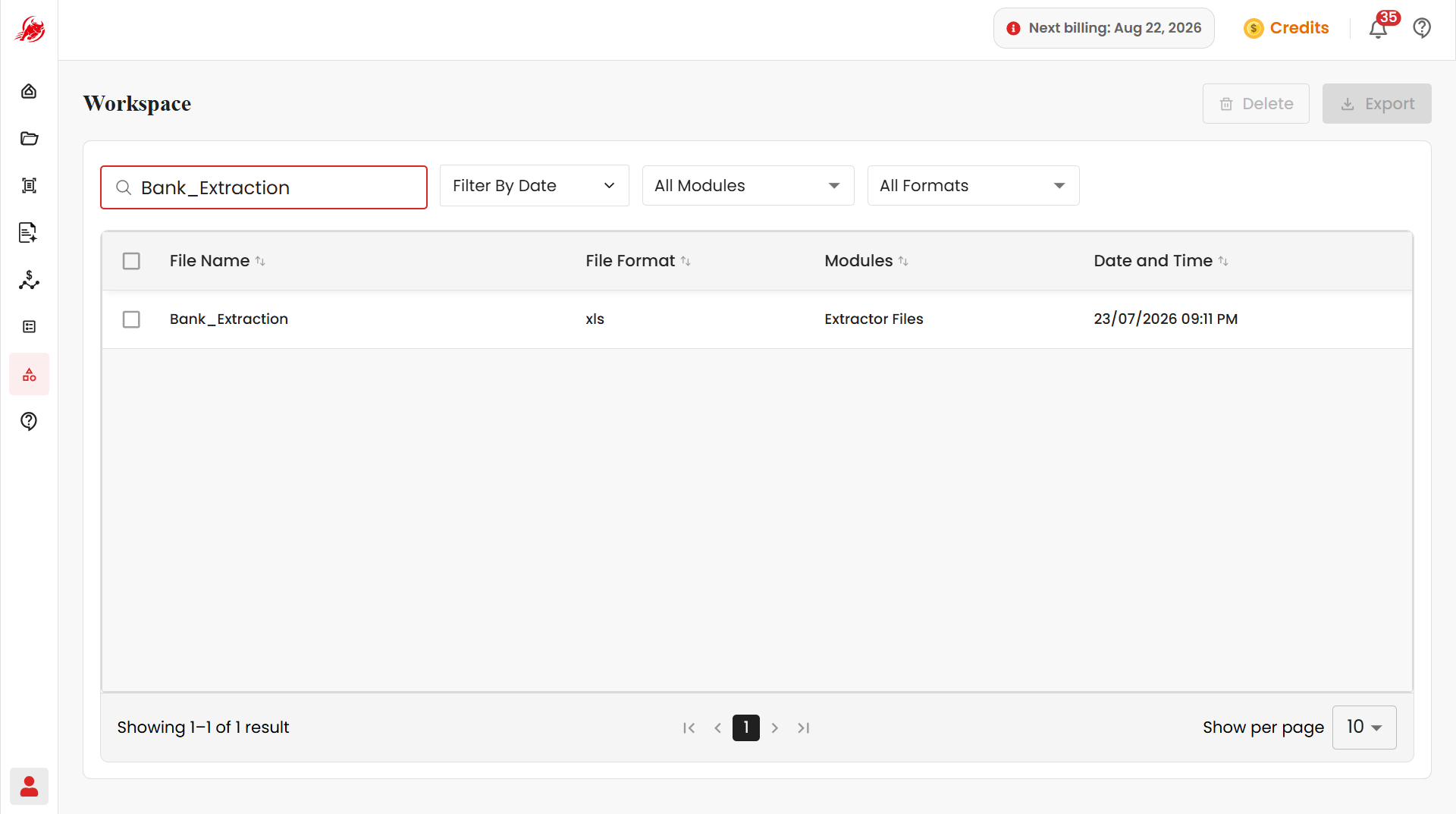
Search for a document
Type a file name or file format into the search box. The list filters instantly to matching documents.
TIP
Use clear, descriptive file names when you save documents — it makes them much faster to find later.
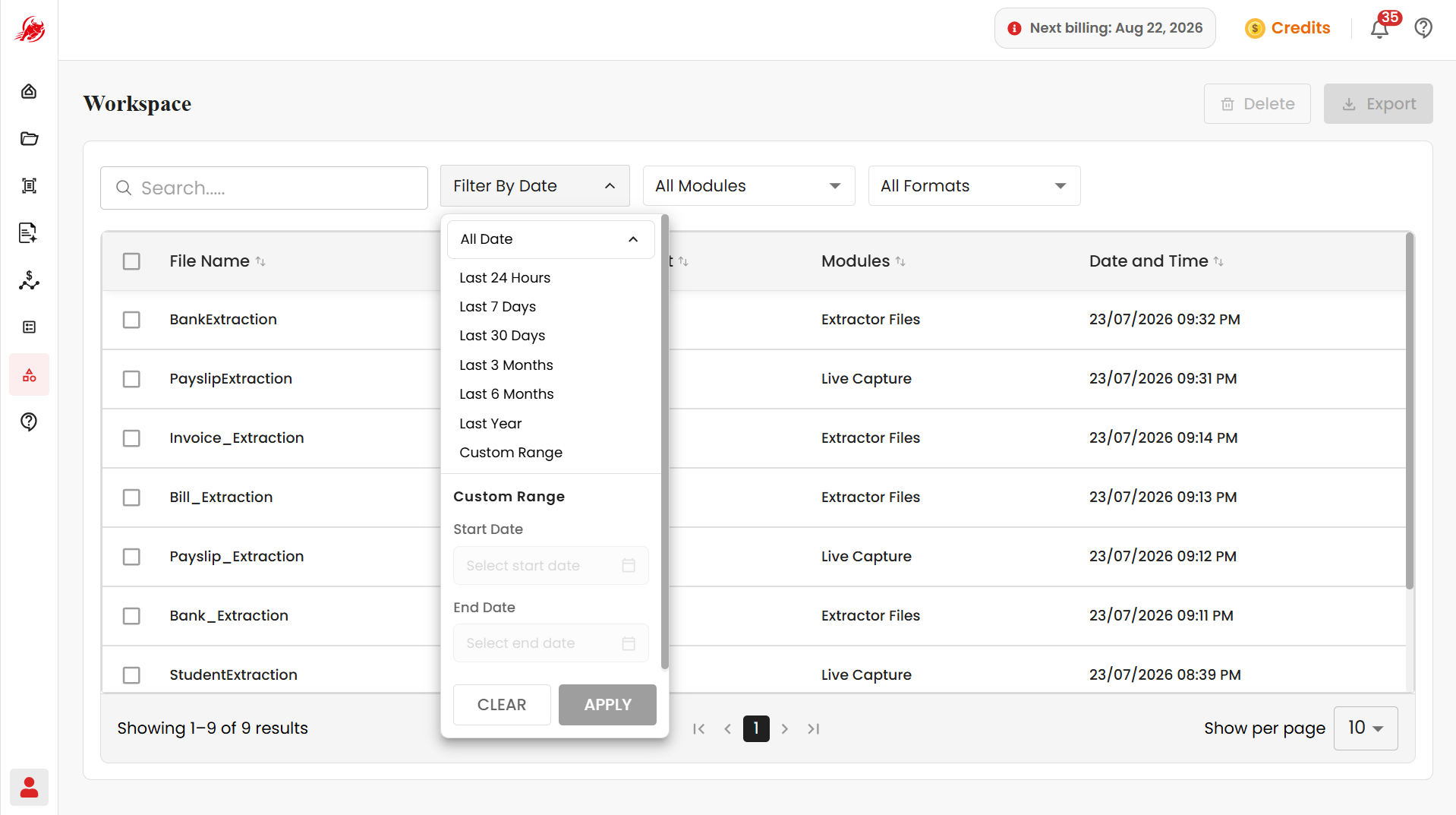
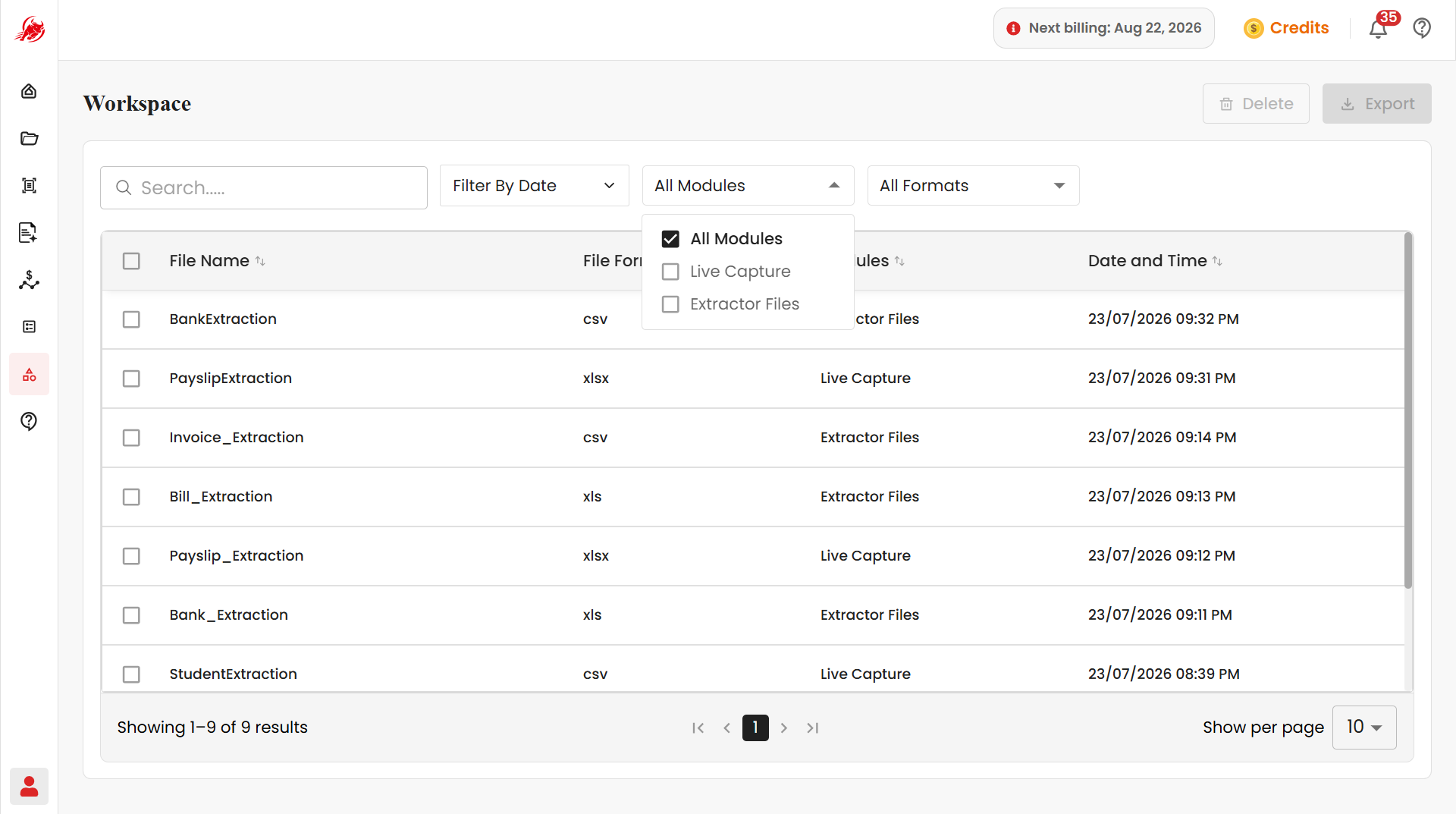
Filter the document list
Narrow down the list using any of these filters — combine them for a more precise result:
| Filter | What it does |
|---|---|
| Date | Show documents processed within a start and end date, then click Apply (or Clear to remove the filter) |
| Module | Show documents from one or more modules, such as Extractor or Mercury |
| File format | Show documents in one or more output formats, such as XLS, CSV, JSON, XML, or TXT |
Select documents
Click a document to select it. To work with several documents at once, select multiple — useful when you want to export or delete a batch together.
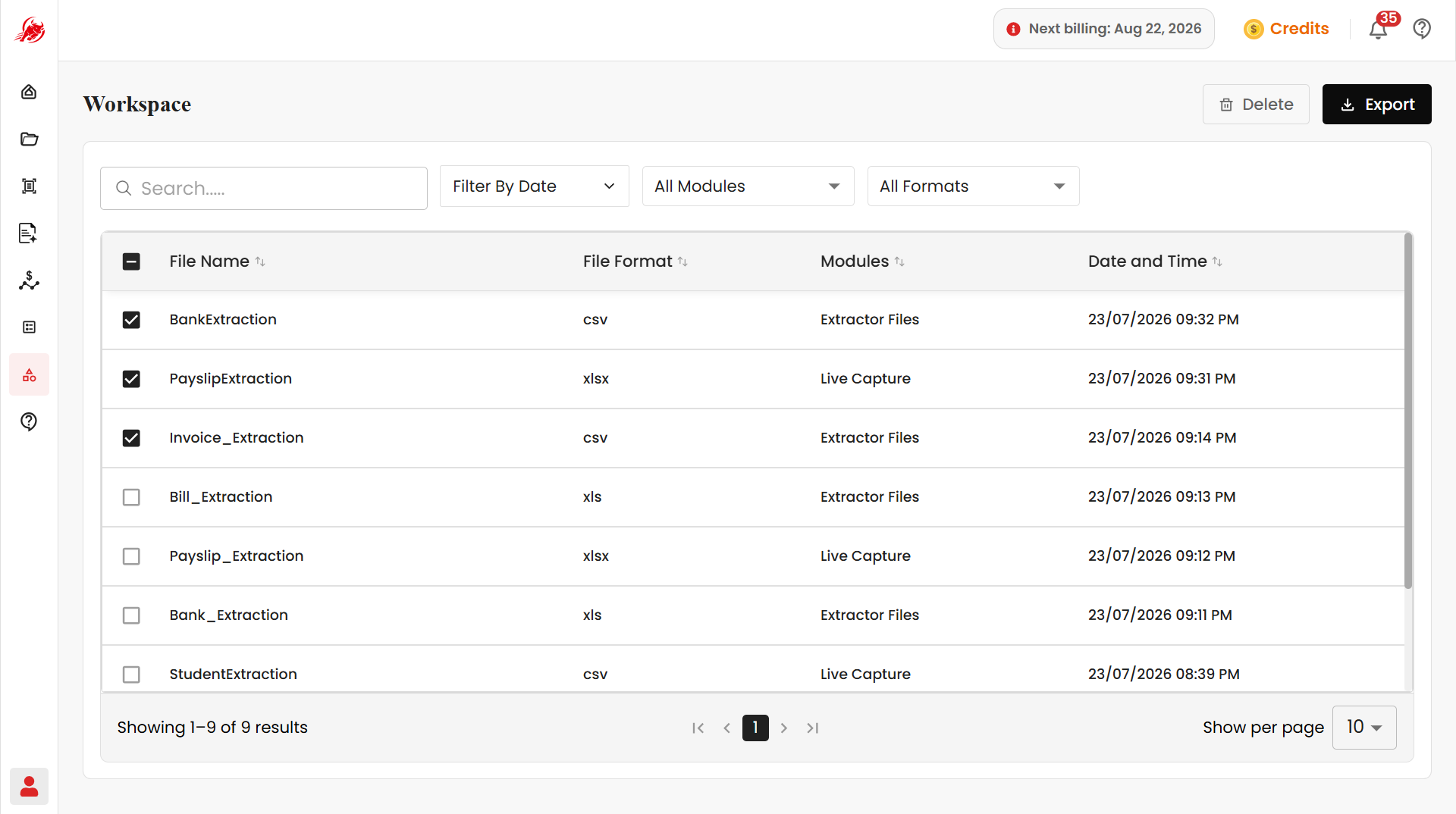
Export documents
- Select the documents you want to export.
- Click Export.
Regoxa packages the selected documents into a single downloadable ZIP file — a compressed file that bundles multiple files together for easier downloading and sharing.
Delete documents
- Select the documents you want to remove.
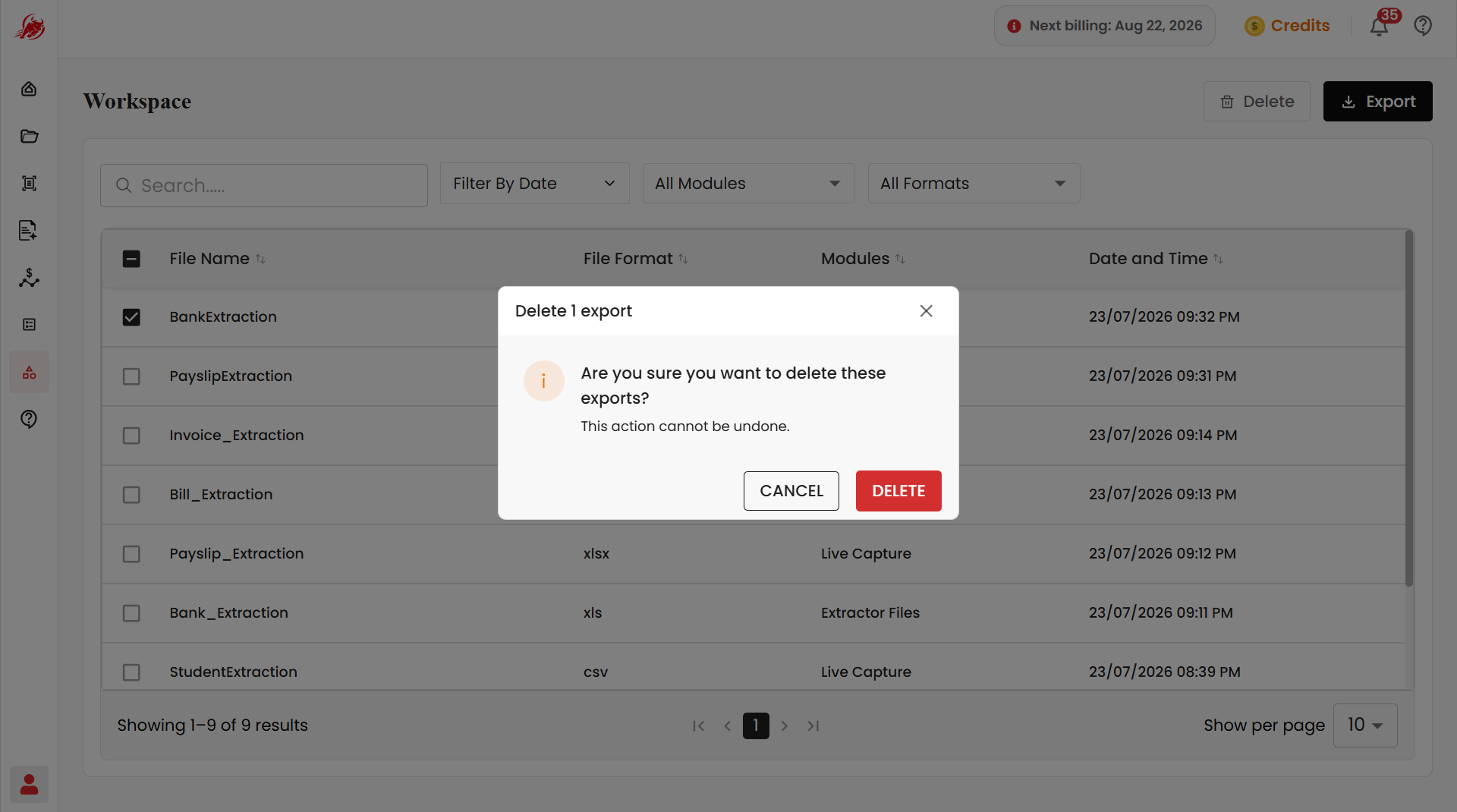
- Click Delete and confirm.
WARNING
Deleted documents cannot be recovered. Double-check your selection before confirming.