
Appearance
Shared with me
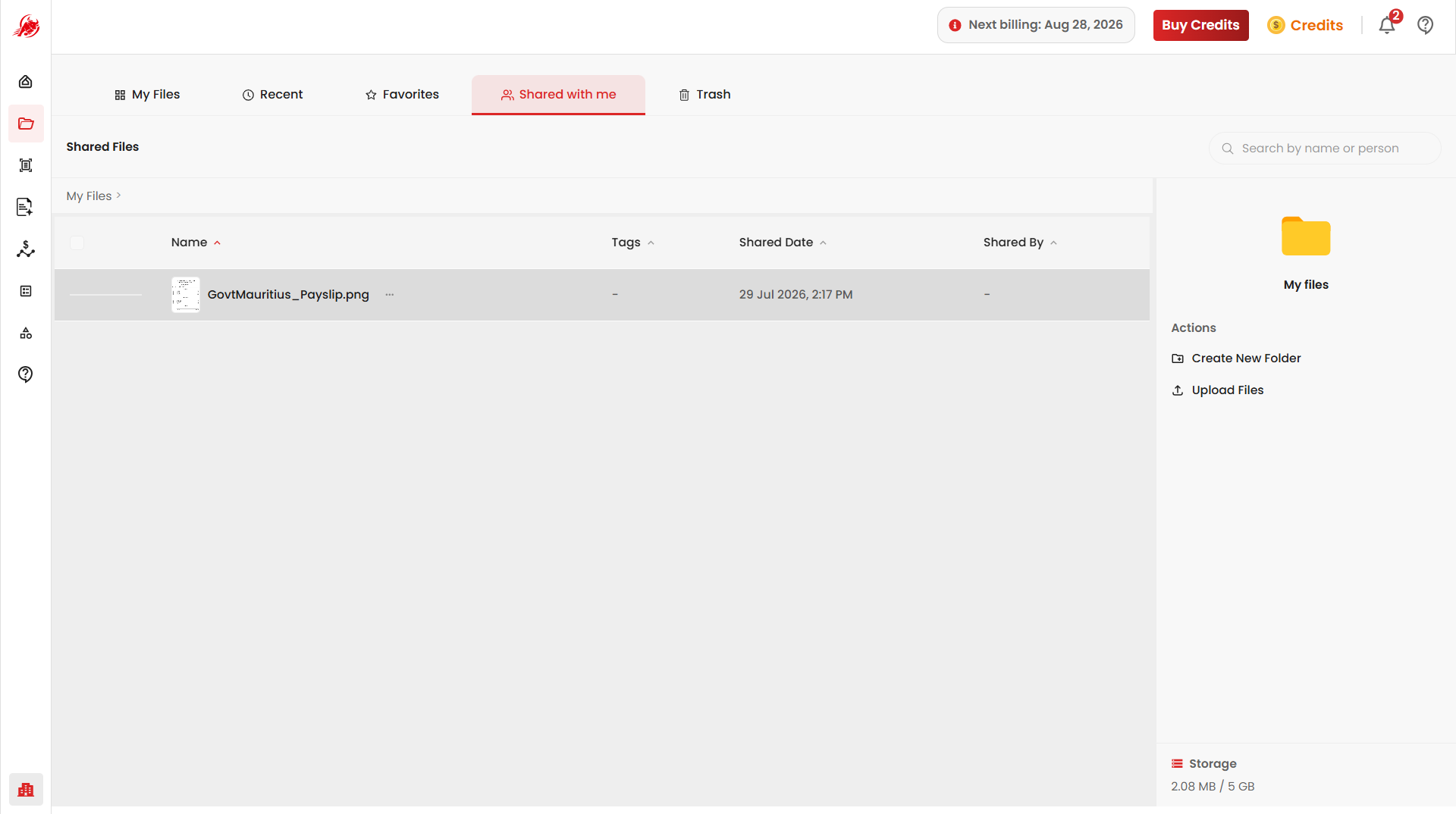
Shared with me collects the files that other people in your organization have shared with you. It works just like My Files, except it only shows documents someone else owns.
TIP
This tab only appears if your account has Team plan (belongs to an organization). If you're on an individual account, you won't see it.
Until someone shares a file with you, the tab shows "Nothing shared yet."
What you can do with a shared file
Once a file appears here, you can:
- Open it to view its contents
- Download a copy to your computer
- Use it in other Regoxa tools, such as Extractor or Template — the same way you would with your own files
Share a file with someone else
Sharing is done from My Files, not from Shared With Me tab.
- Go to My Files.
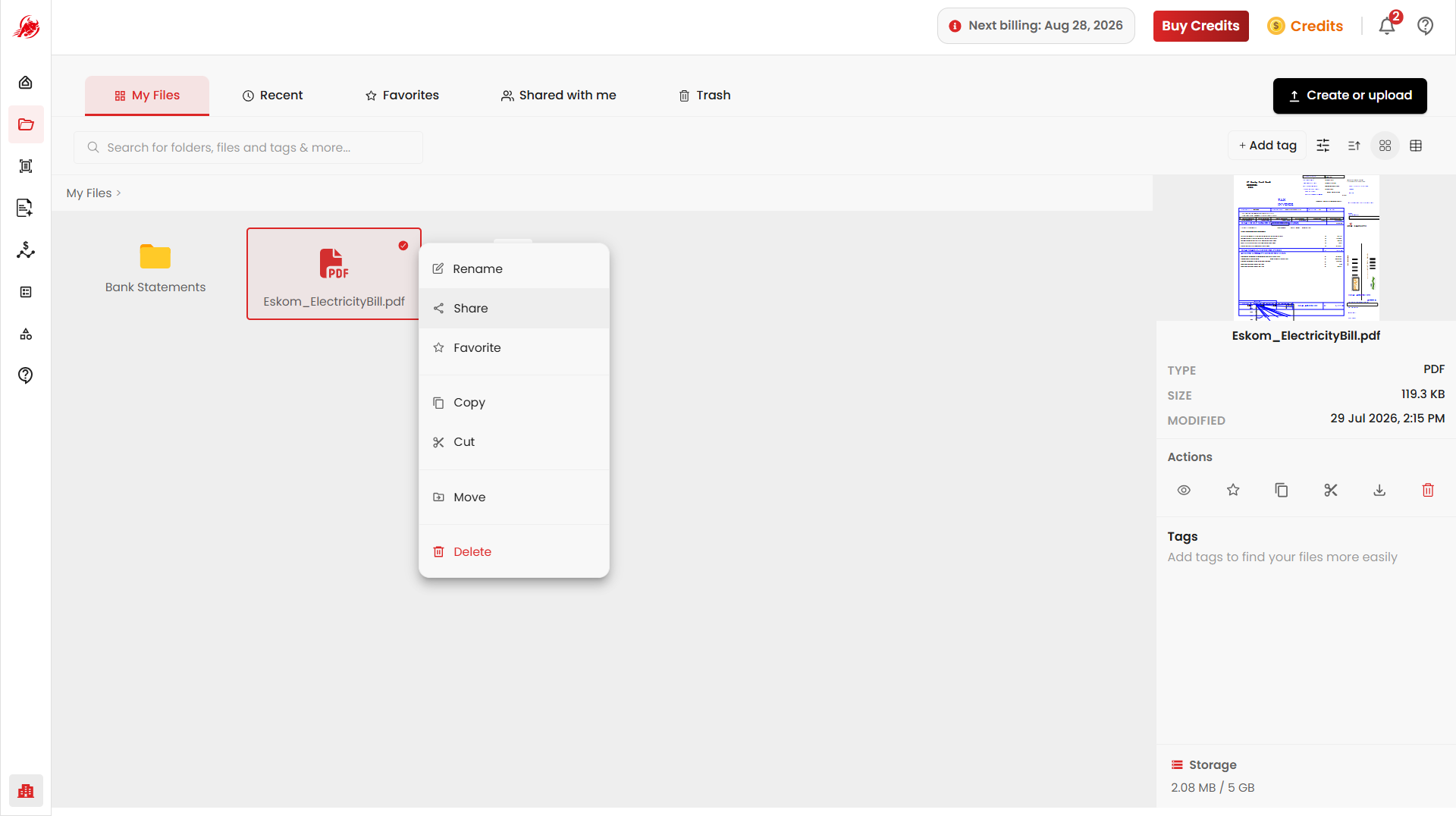
- Right-click the file you want to share (or check its action menu).
- Select Share, then choose who to share it with.
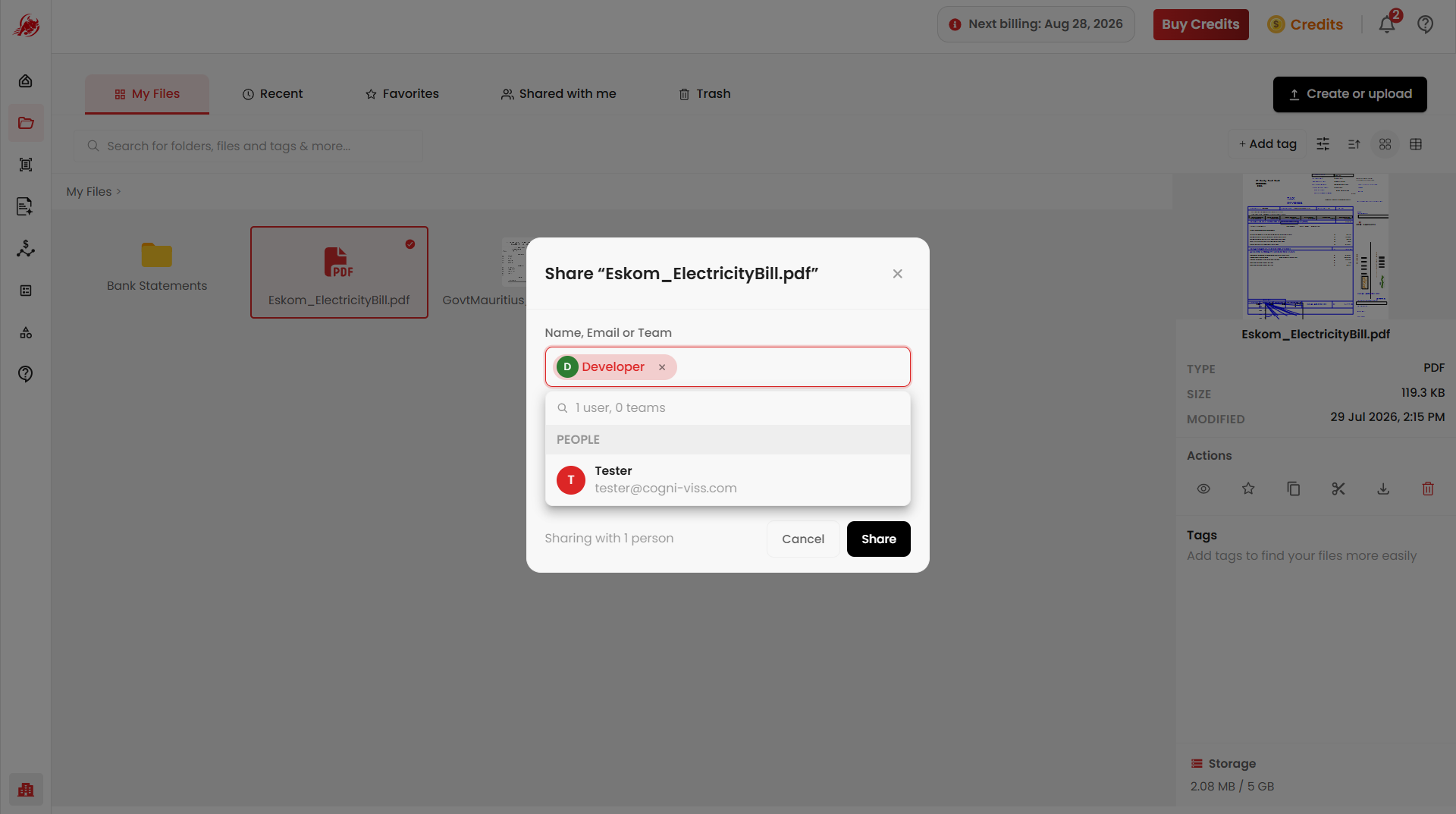
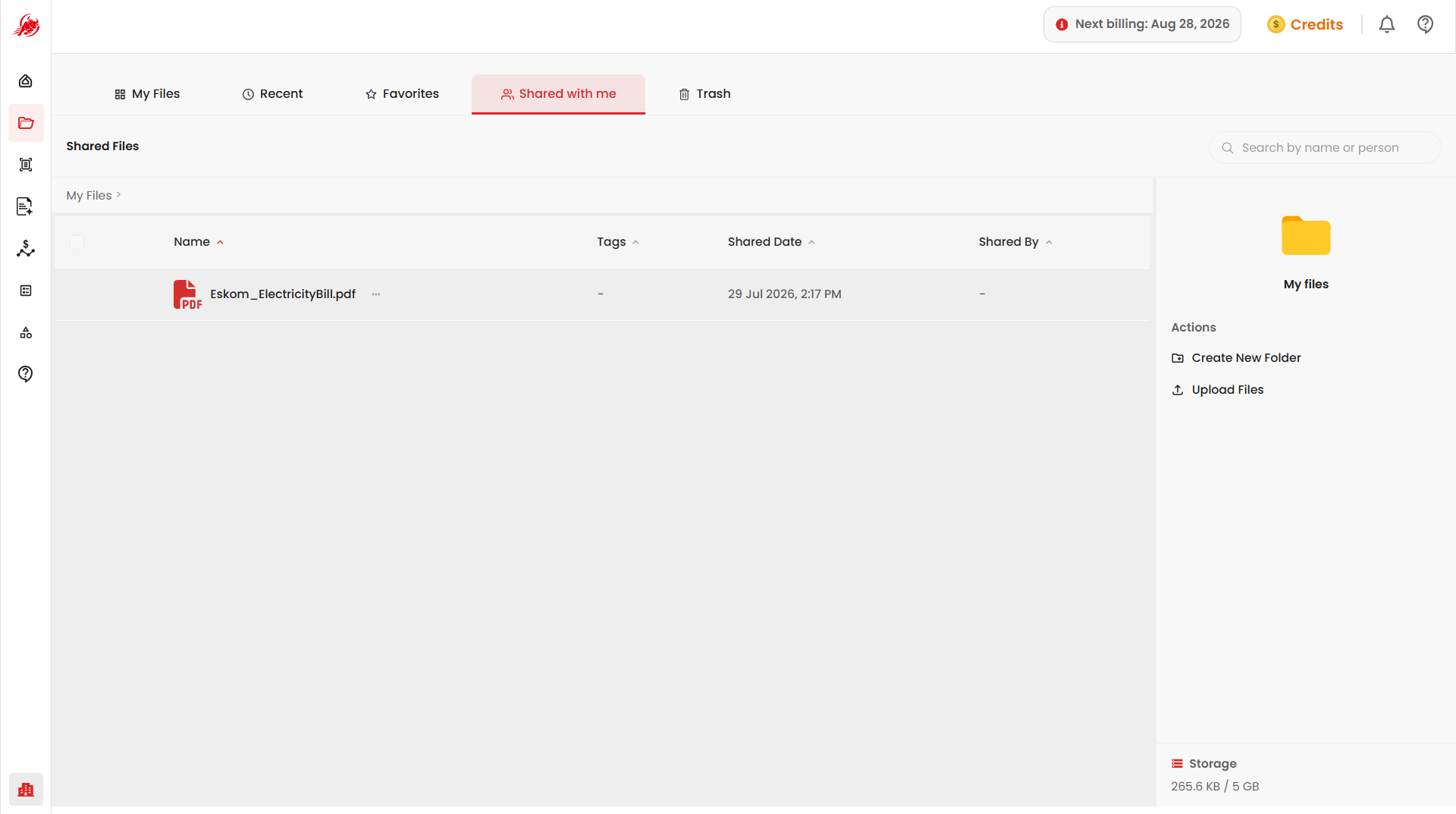
The file then appears in that person's Shared with me tab.
Related
- My Files — manage and organize your own documents