
Appearance
Multi-Factor Authentication (MFA)
Multi-Factor Authentication (MFA) adds an extra layer of security to your personal account by requiring additional verification — beyond your password or email login — during sign-in, helping protect against unauthorized access.
Authenticator App
Enable MFA using time-based verification codes generated by a supported authenticator app, such as Google Authenticator, Microsoft Authenticator, Authy, or 1Password.
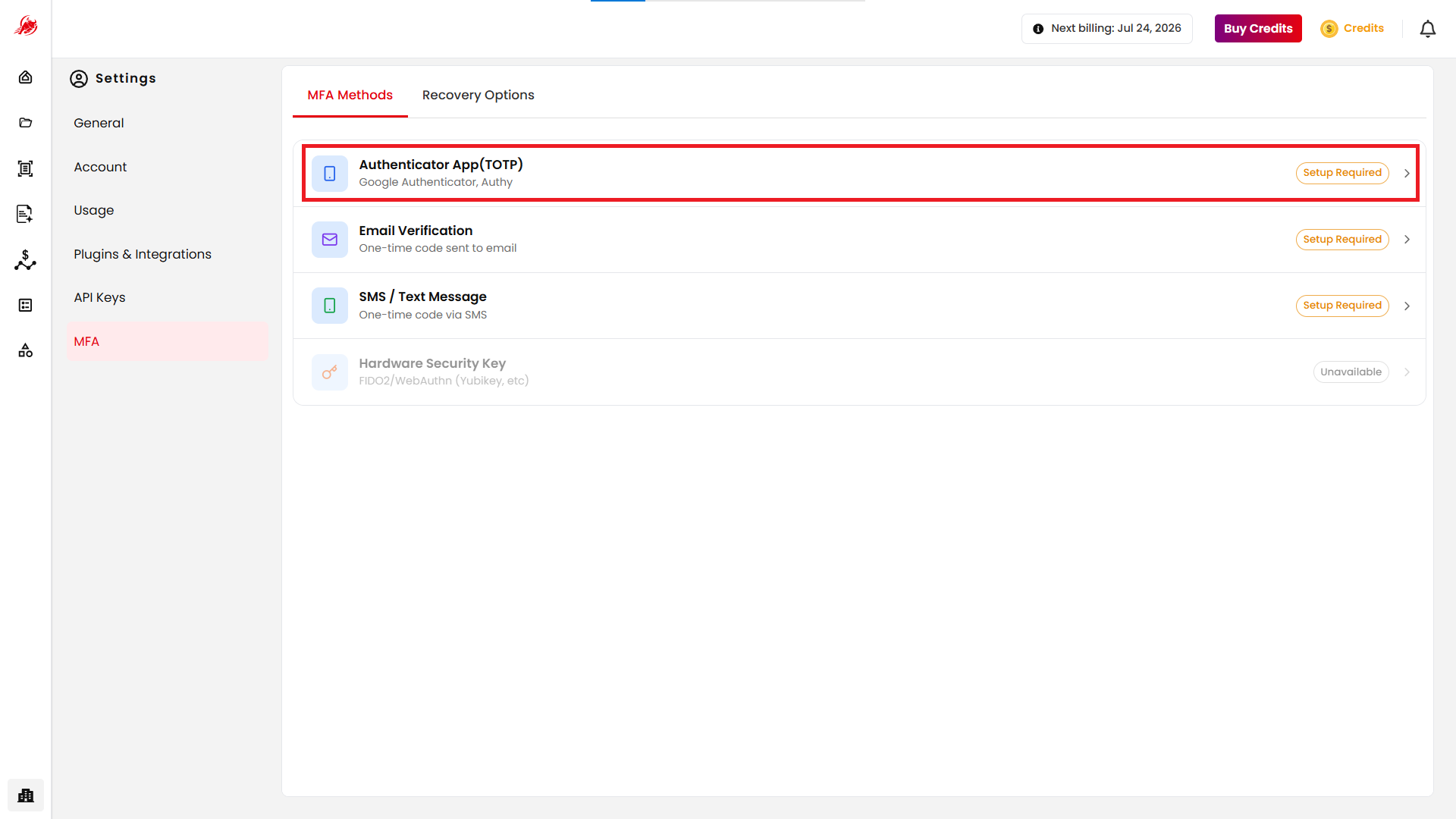
Open the authenticator app and select Add Account.
Scan the QR code shown on screen to link your account.
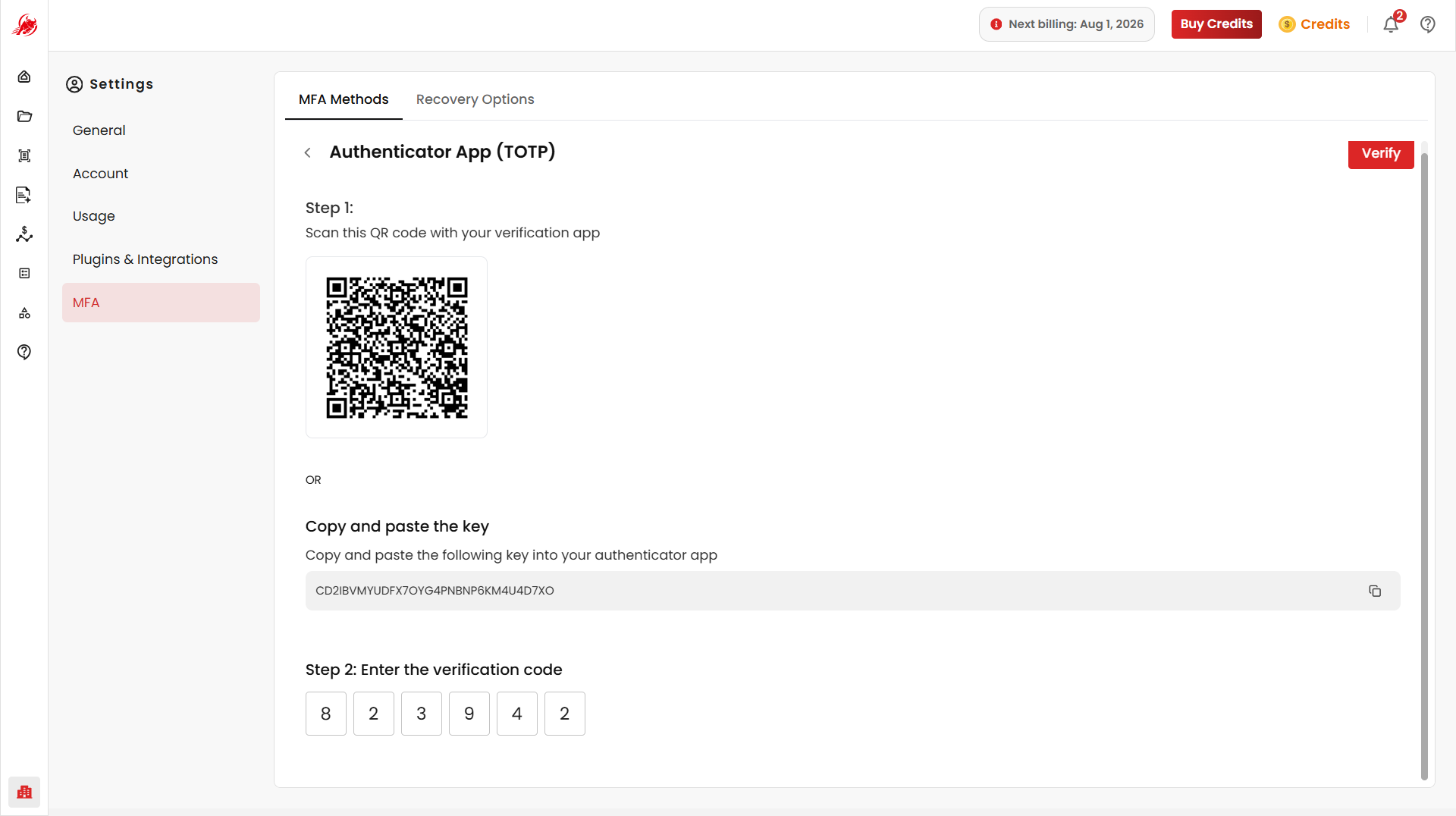
Enter the verification code generated by the app to complete setup.
Email OTP
Enable MFA by receiving a one-time verification code on your registered email address.
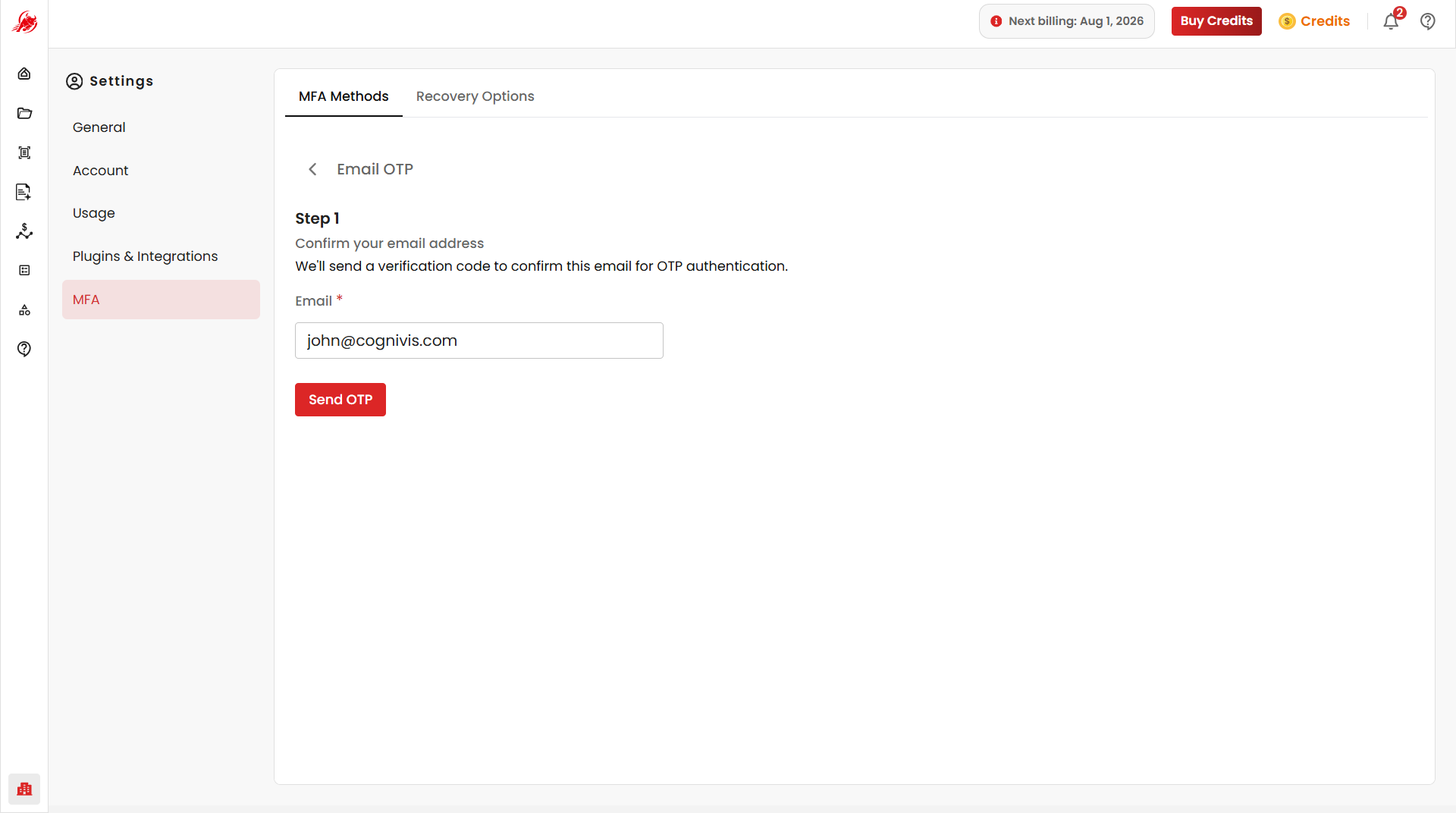
Enter and verify your registered email address.
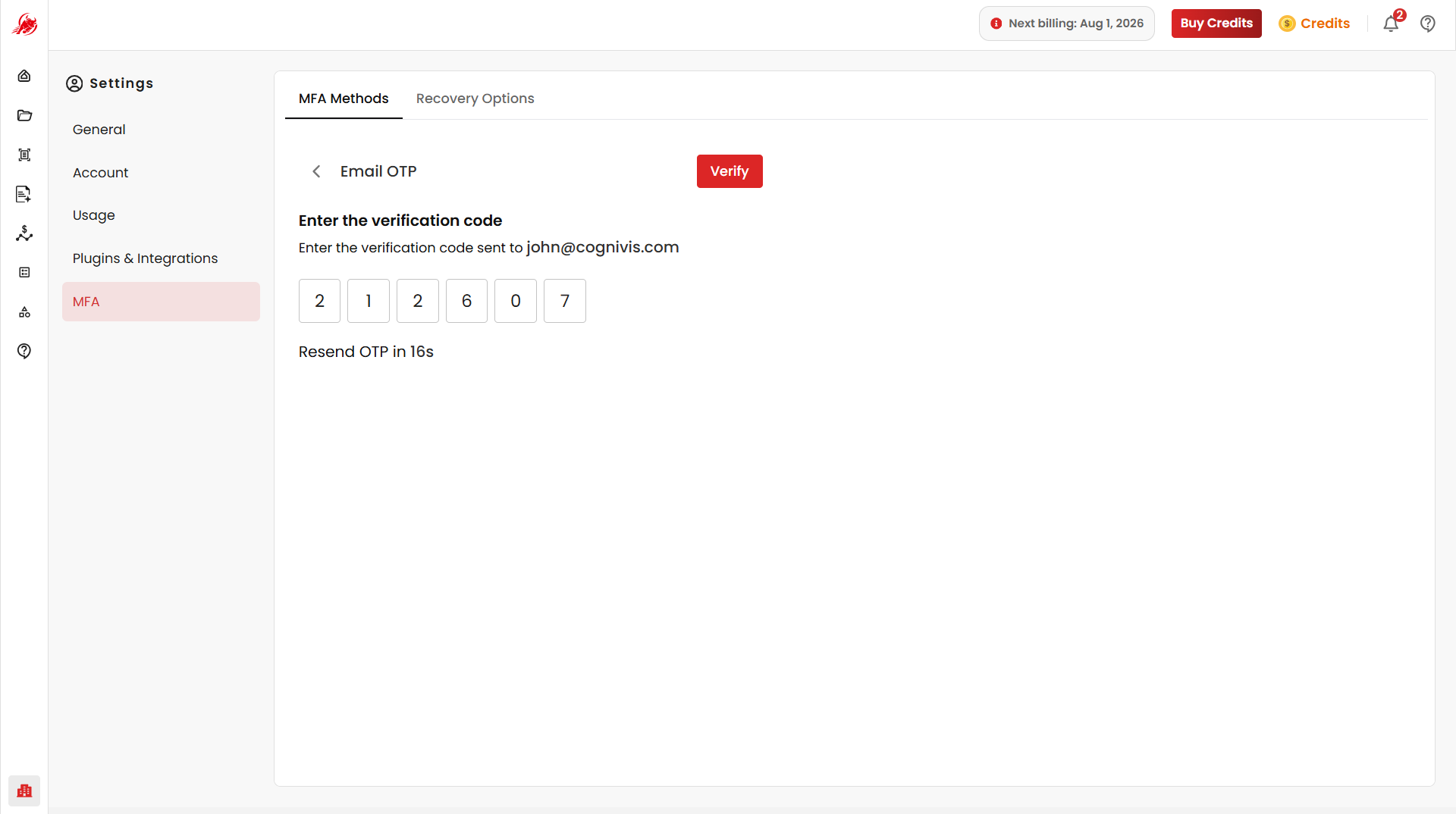
Receive a one-time verification code by email.
Enter the OTP to complete setup.
SMS Authentication
Enable MFA by receiving a one-time verification code on your registered mobile number.
TIP
A 6-digit code is sent to this number each time you sign in.
- Enter and verify your mobile number.
- Receive a 6-digit verification code by SMS.
- Enter the code to complete setup.
Recovery Options
Recovery Options let you regain access to your account if you can't complete the normal MFA sign-in — for example, if your authenticator app, email, or phone is unavailable.
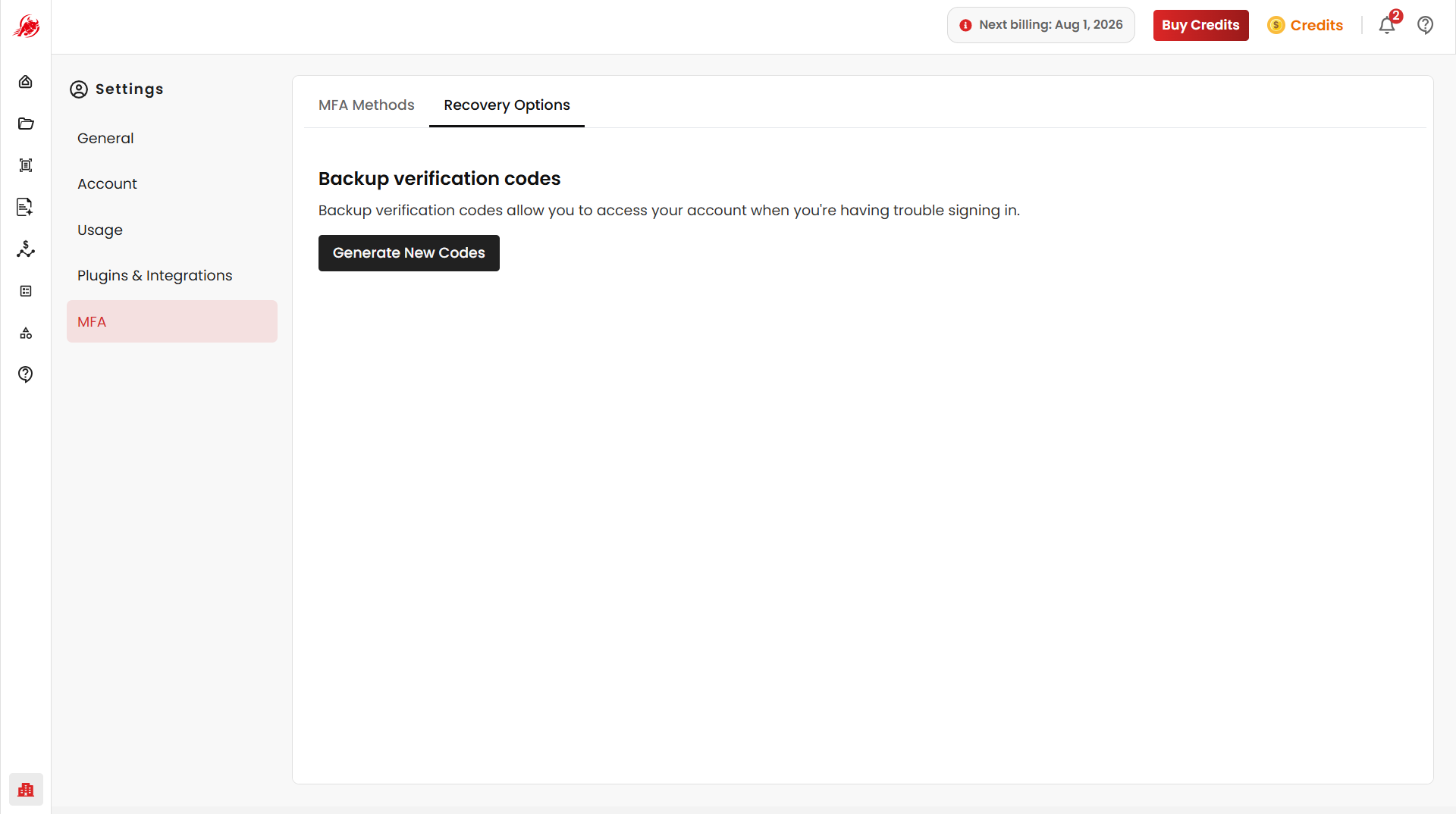
Select Generate New Codes to create a new set of backup verification codes for emergency access. These codes can be used when Authenticator App, Email OTP, or SMS Authentication is unavailable, or normal MFA verification fails.
TIP
Together, these methods improve account security, prevent unauthorized access, and reduce dependency on any single sign-in channel — keeping you from being permanently locked out.
Related
- General Settings — update profile information and preferences
- Account — manage your account and active sessions