
Appearance
API Keys
Generate and manage API keys to connect external applications to Regoxa. API key usage draws from your monthly subscription credits.
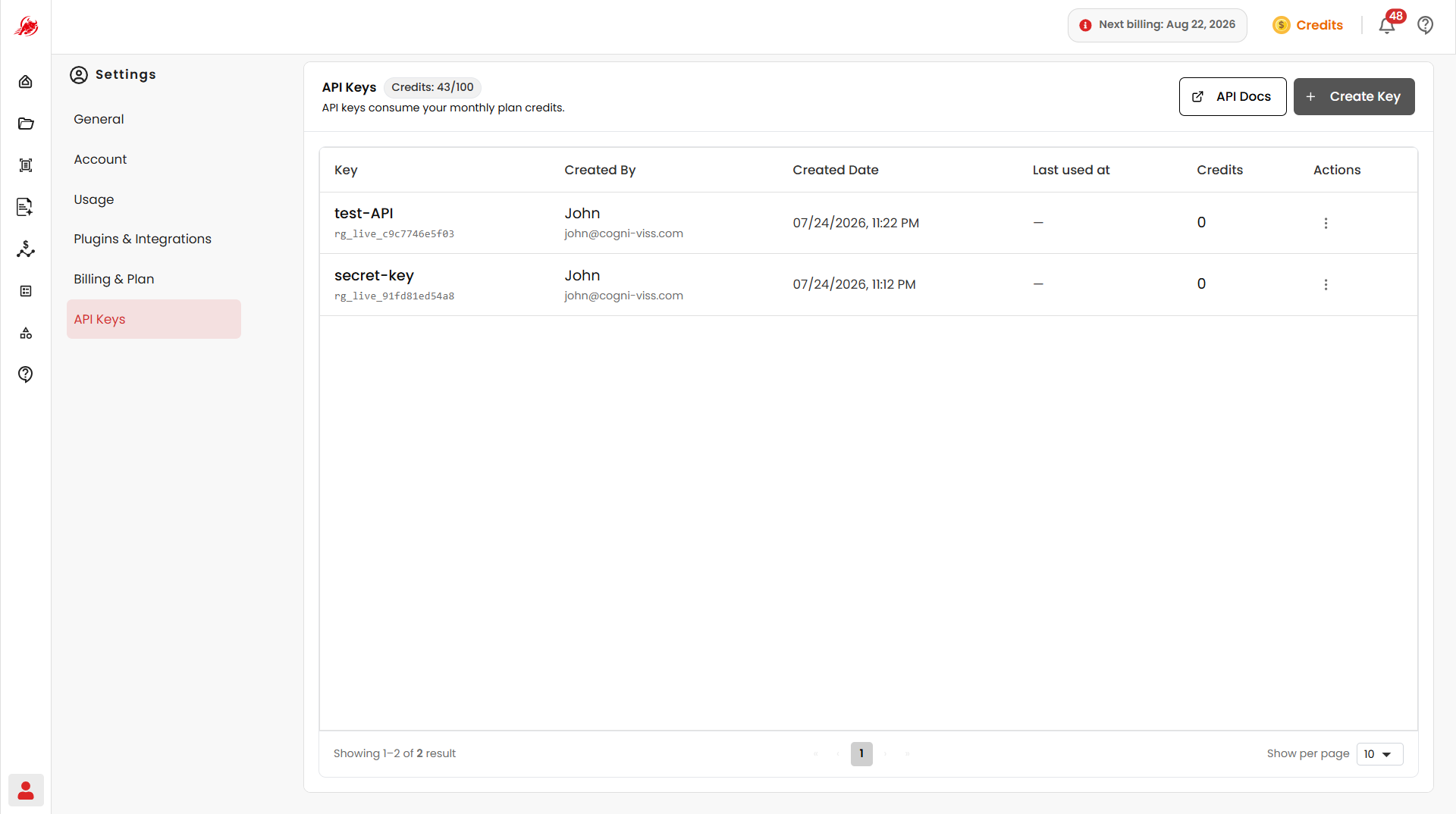
Seat usage
At the top of the page, you can see your available monthly API credits, how many you've used, and how many remain.
TIP
You need an active subscription plan to create API keys. Without one, key creation stays disabled and API access isn't available.
Each API key uses one seat and consumes credits based on how much it's used.
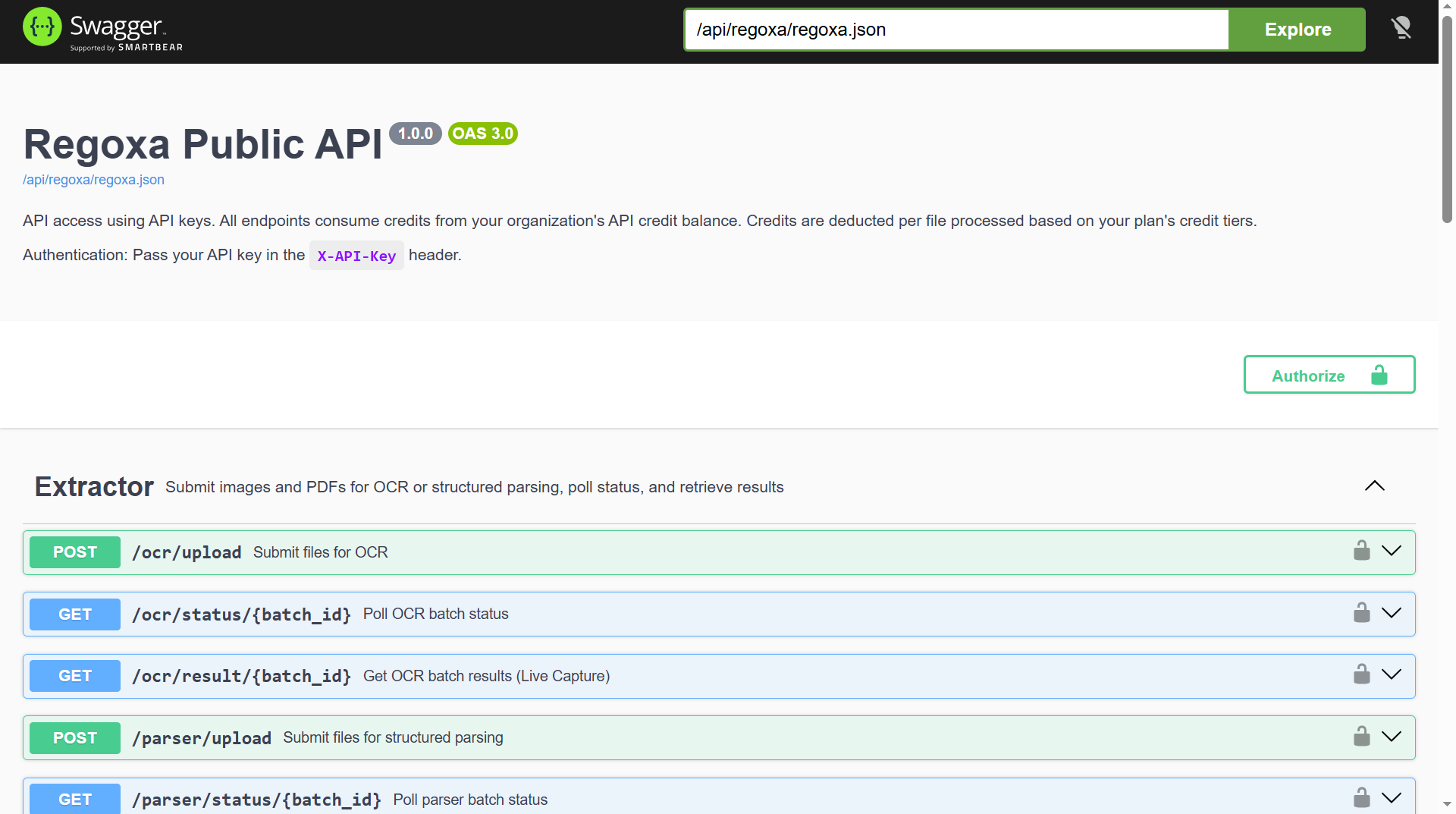
API Docs
Click API Docs in the top-right corner to open the Swagger page, where you can explore available endpoints, view request/response formats, and test API calls directly.
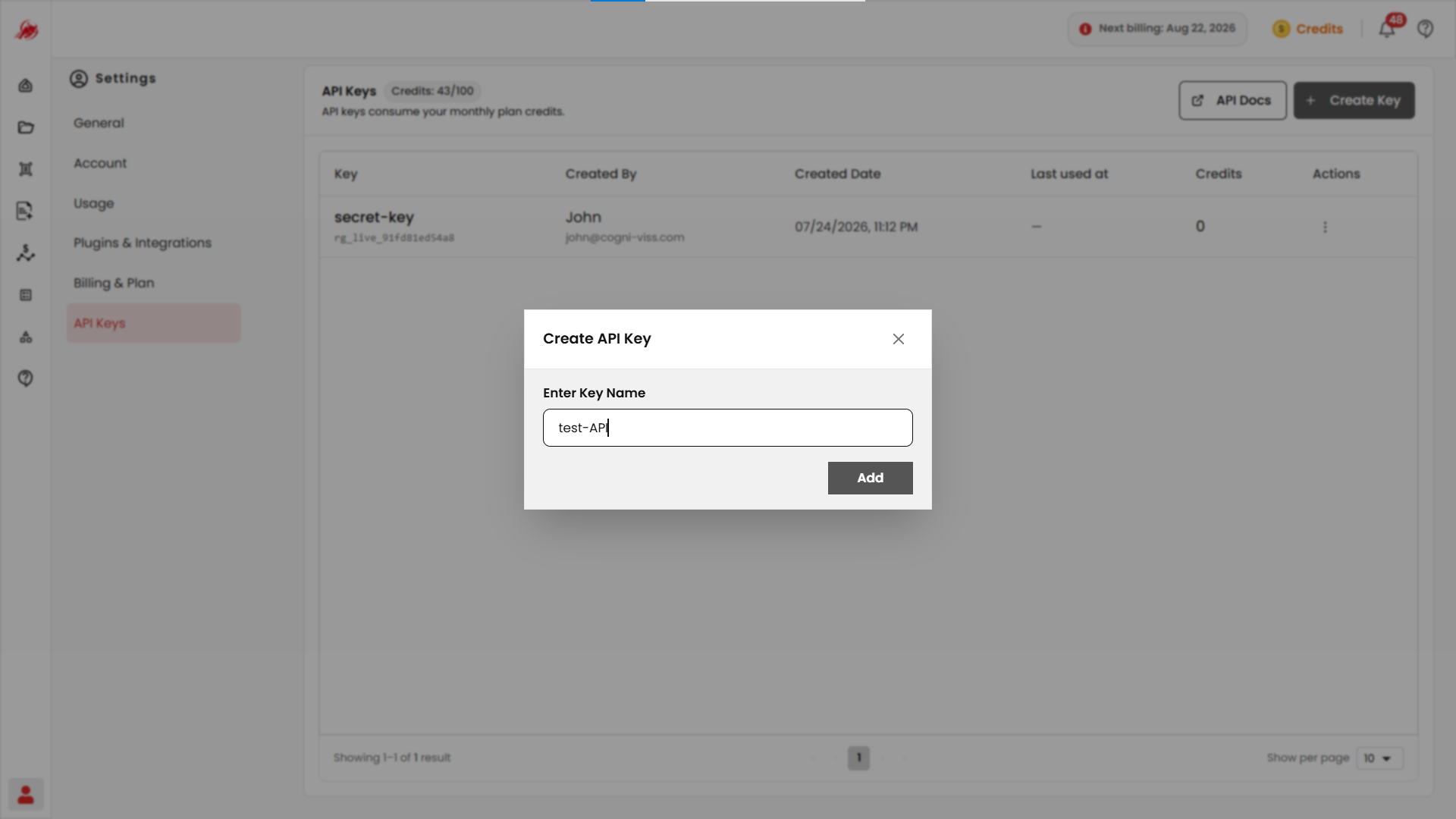
Create an API key
Click Create Key in the top-right corner. Regoxa generates a new key you can use to authenticate requests from external applications.
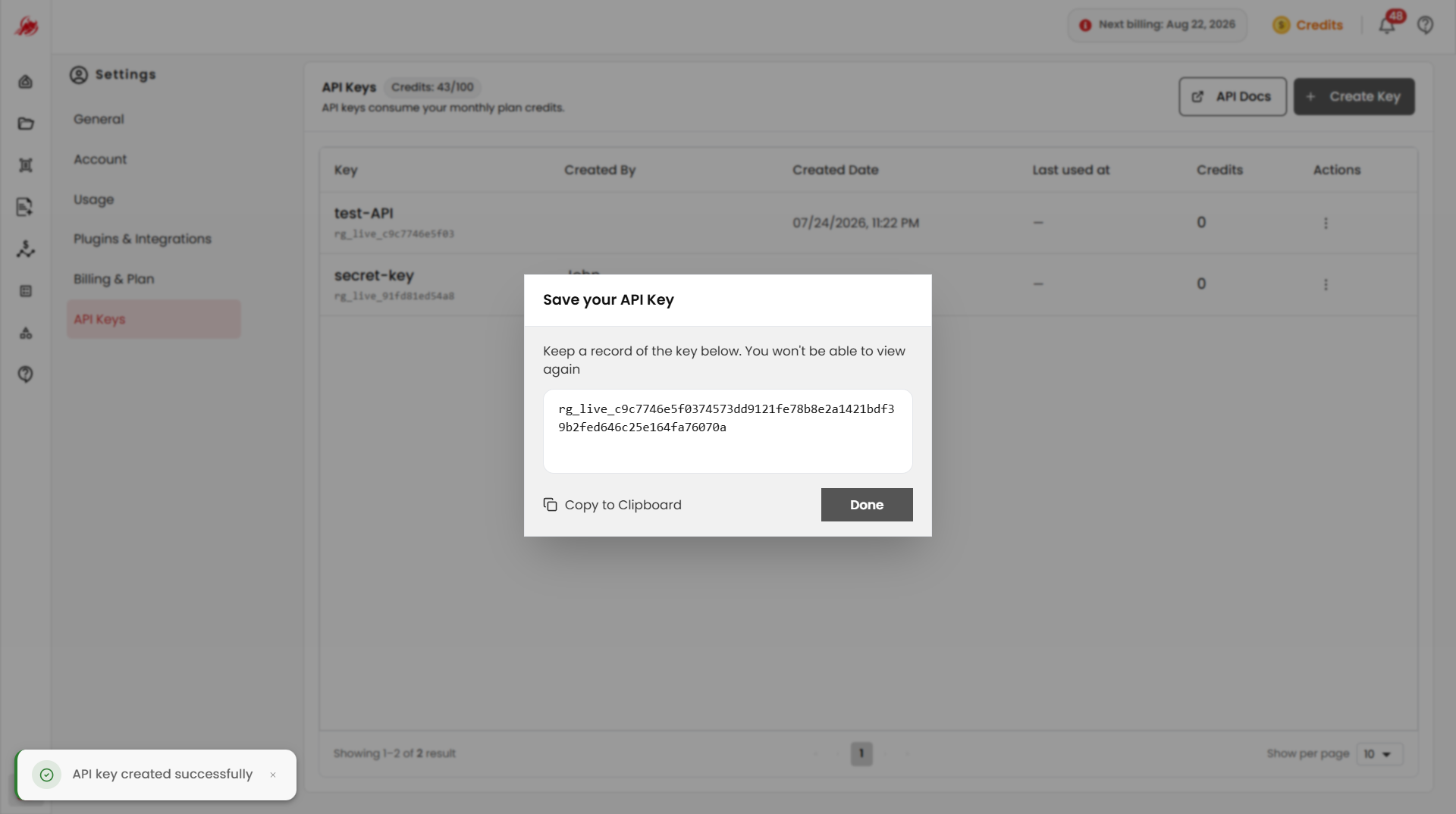
TIP
Copy your key somewhere safe right after creating it.
Manage your keys
All your keys are listed in a table, showing the key name, who created it, when, when it was last used, and how many credits it's consumed.
Use the Actions menu on any key to:
Disable — temporarily block the key from being used, without deleting it
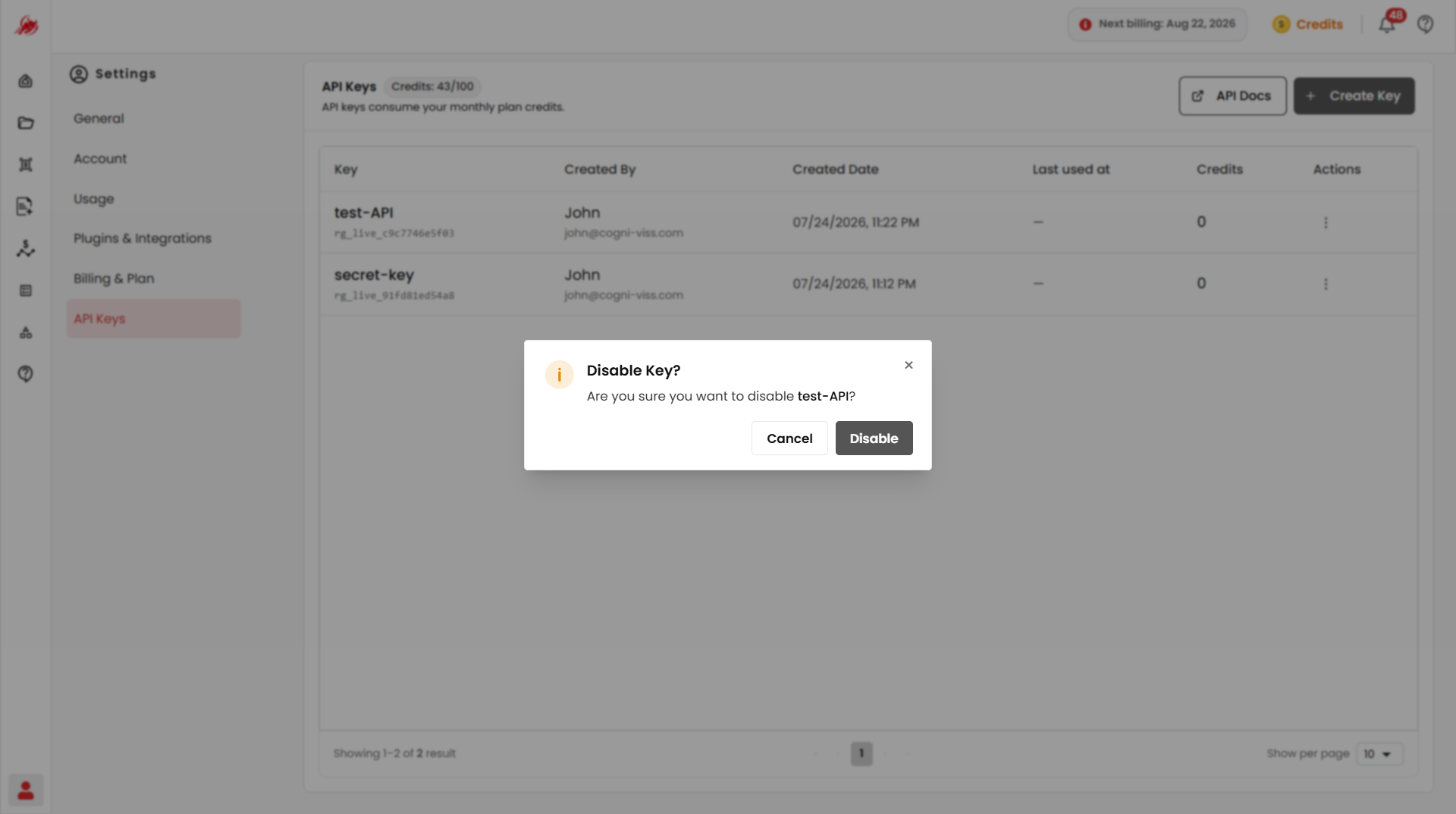
Enable — turn a disabled key back on
Delete — permanently remove the key
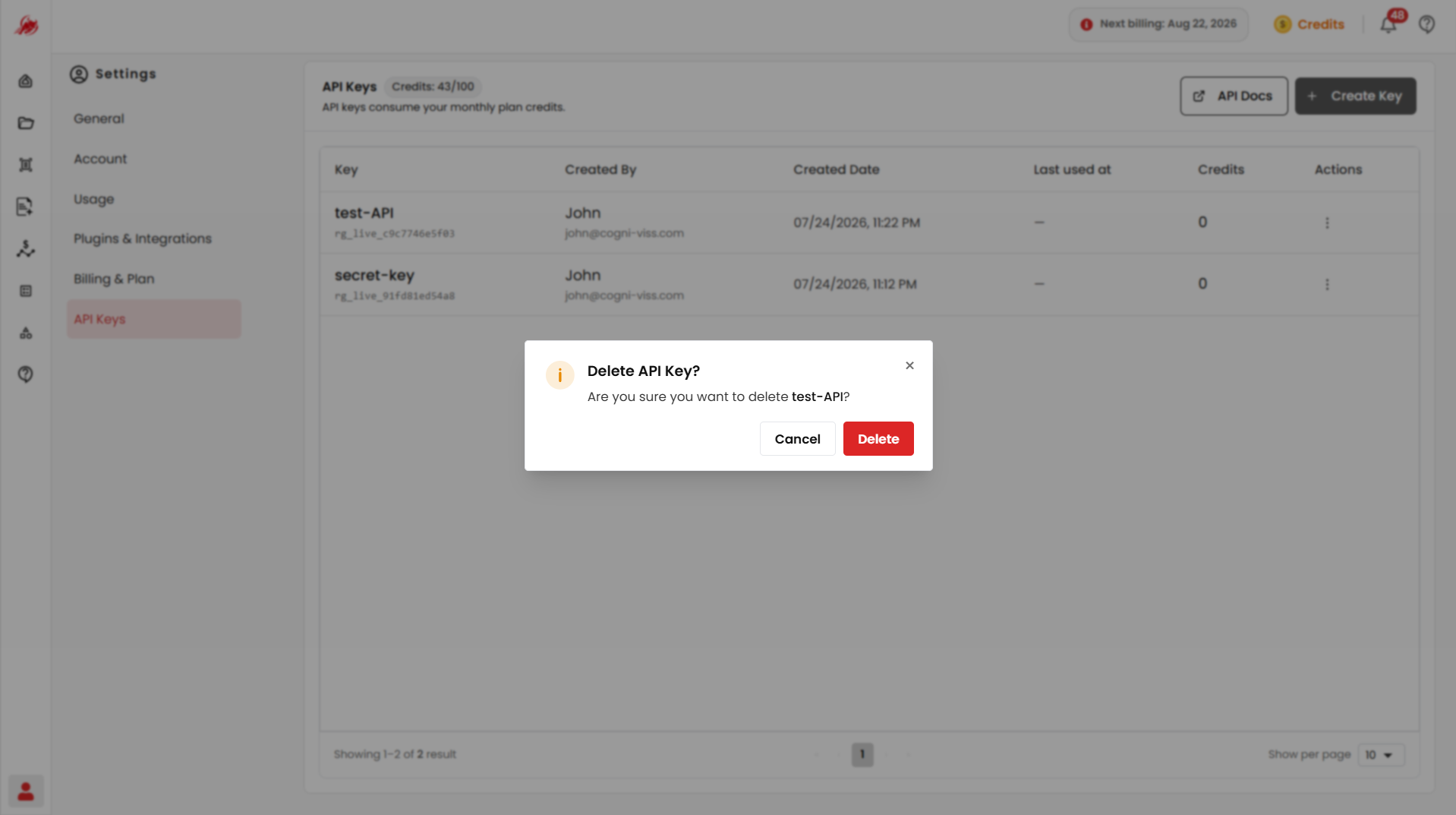
Use Show per page to control how many keys are listed at once.
Related
- Billing & Plan — manage the subscription that enables API key creation
- Usage — track the credits your API keys consume