
Appearance
Billing & Plans
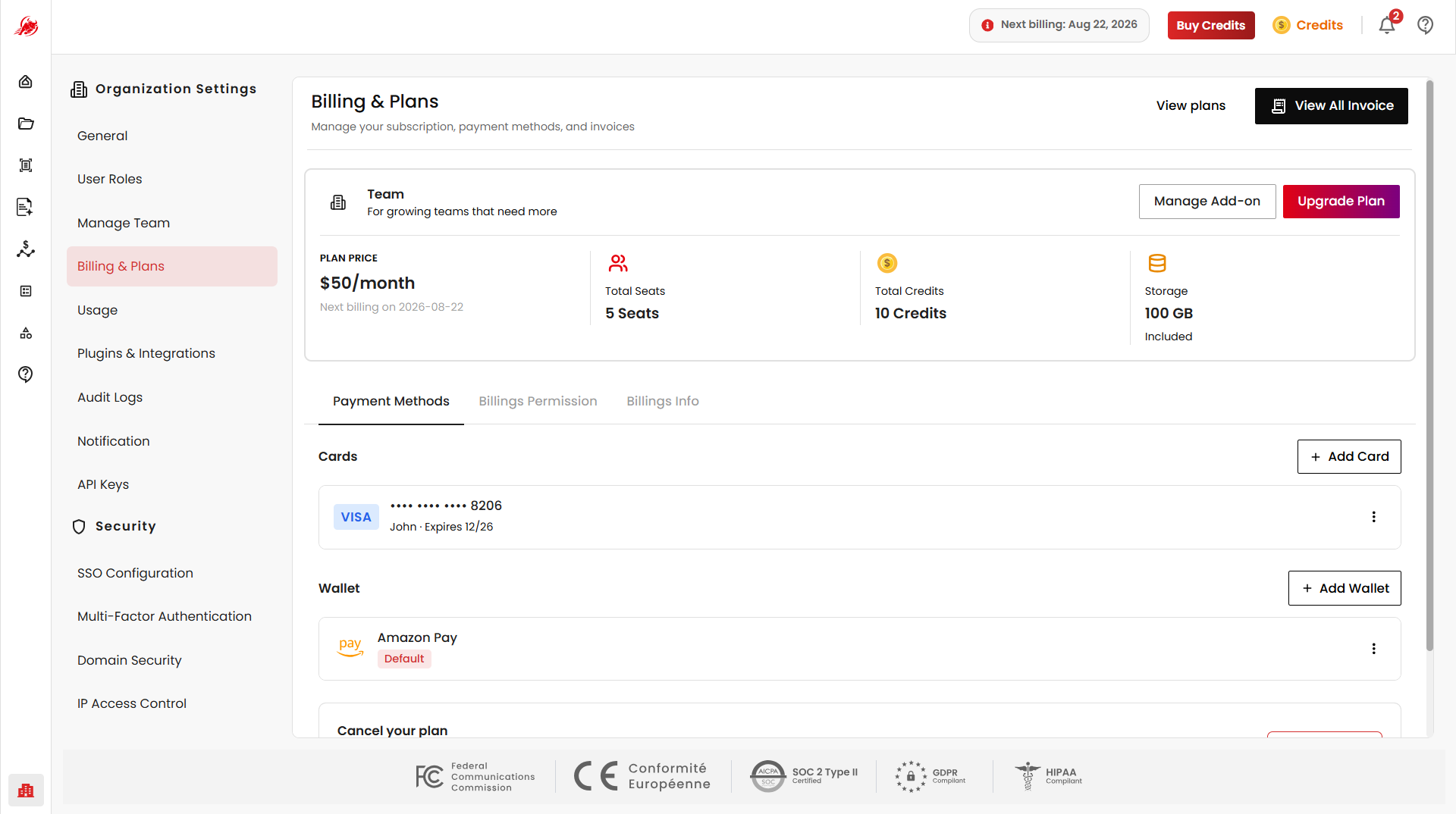
The Billing & Plans section in organization Settings allows administrators and team owners to manage organization-level subscriptions, payment methods, billing permissions, invoices, and subscription upgrades.
This page provides centralized billing management for teams using the REGOXA platform.
Upgrade Plan
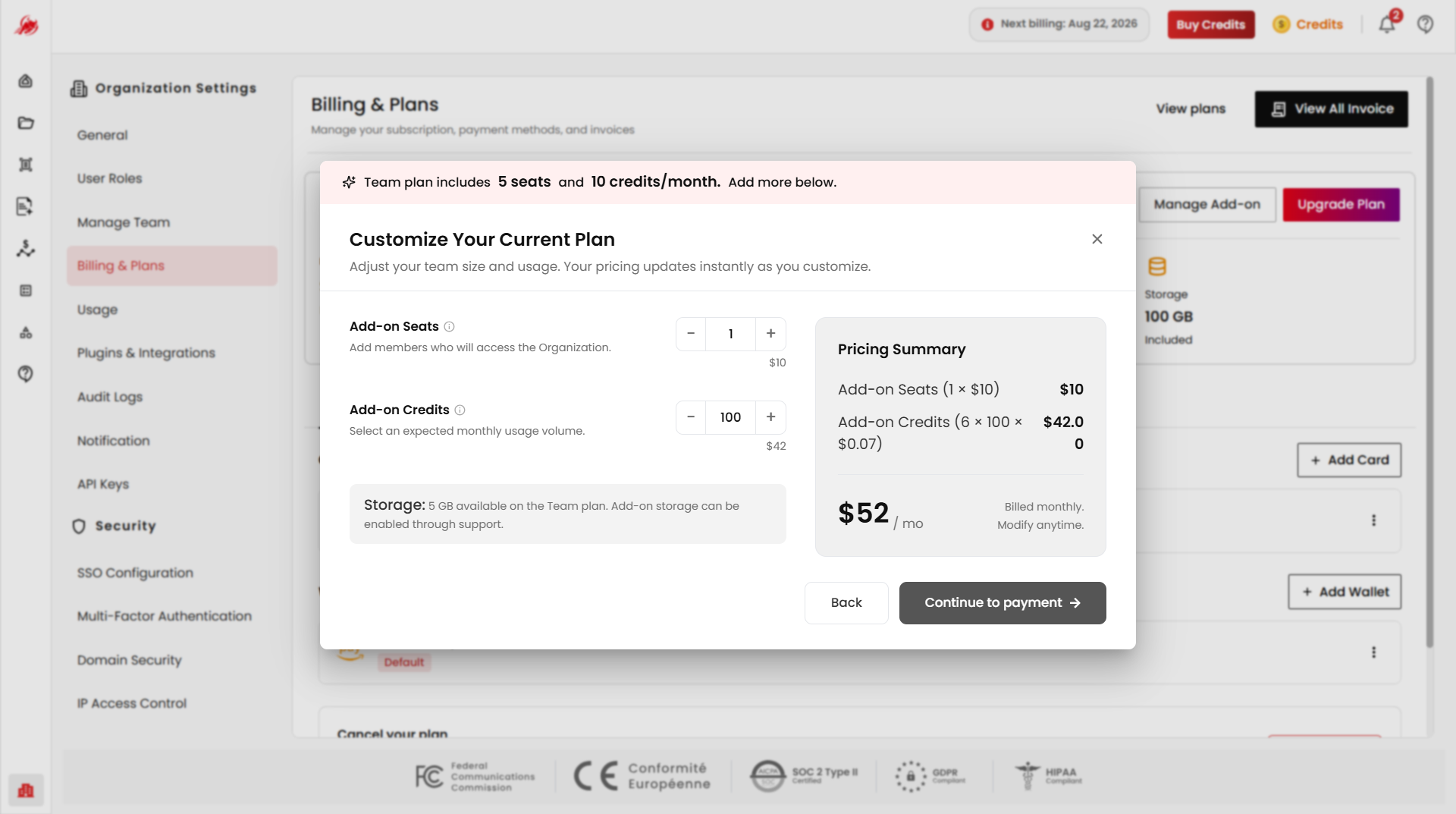
Use the Upgrade Plan option and View Plans option to open the REGOXA Plans page, where you can compare available subscription plans and switch between Monthly and Yearly billing based on your organization's requirements.
View Plans
After selecting a plan, click Upgrade, Downgrade, or Contact Sales as applicable.
Invoice Management
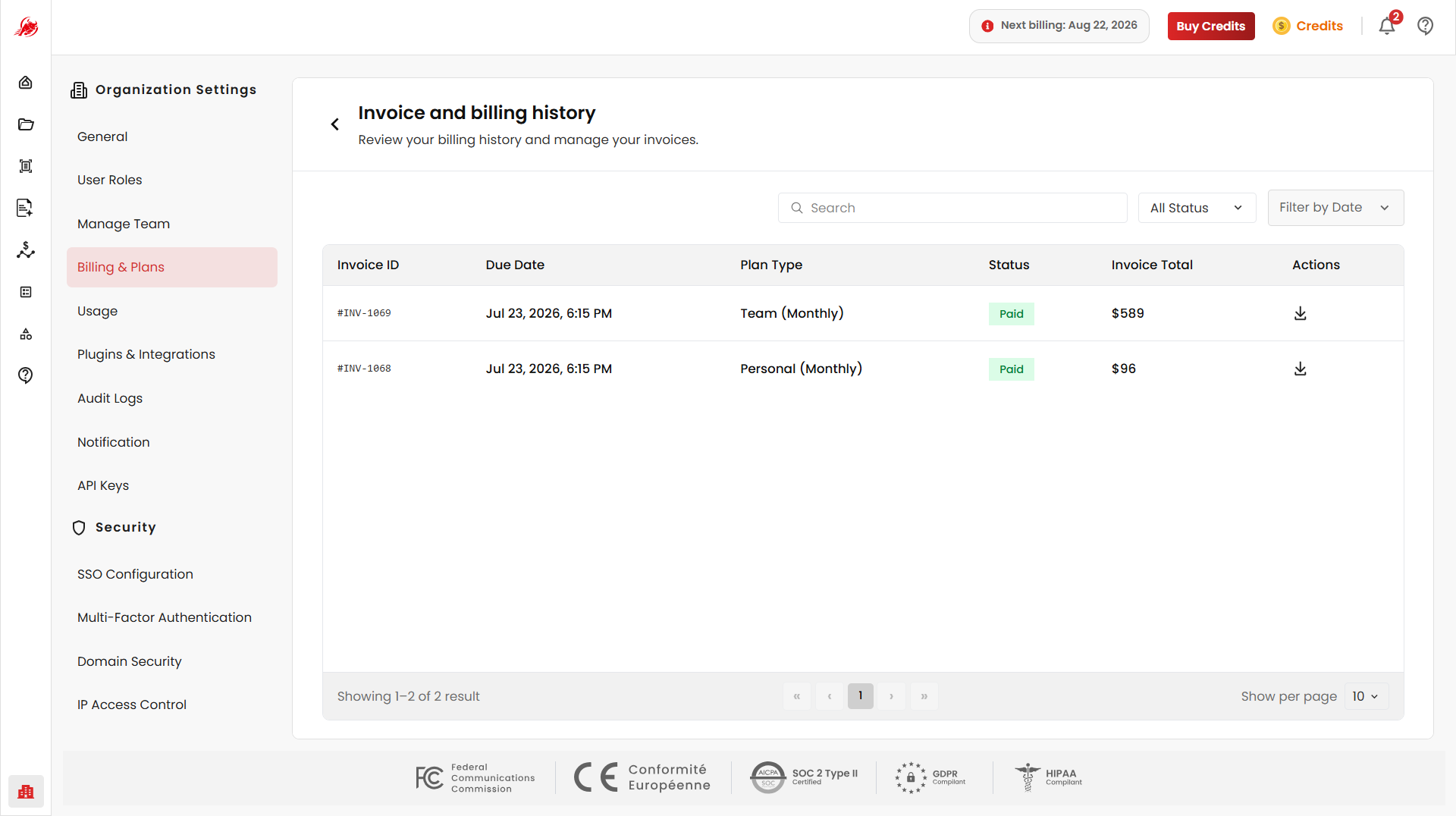
The View All Invoice option allows administrators to view and manage the organization's invoice and billing history.
Selecting this option opens the Invoice and Billing History page.
Search Invoices
Use the Search box to quickly find invoices by entering relevant keywords.
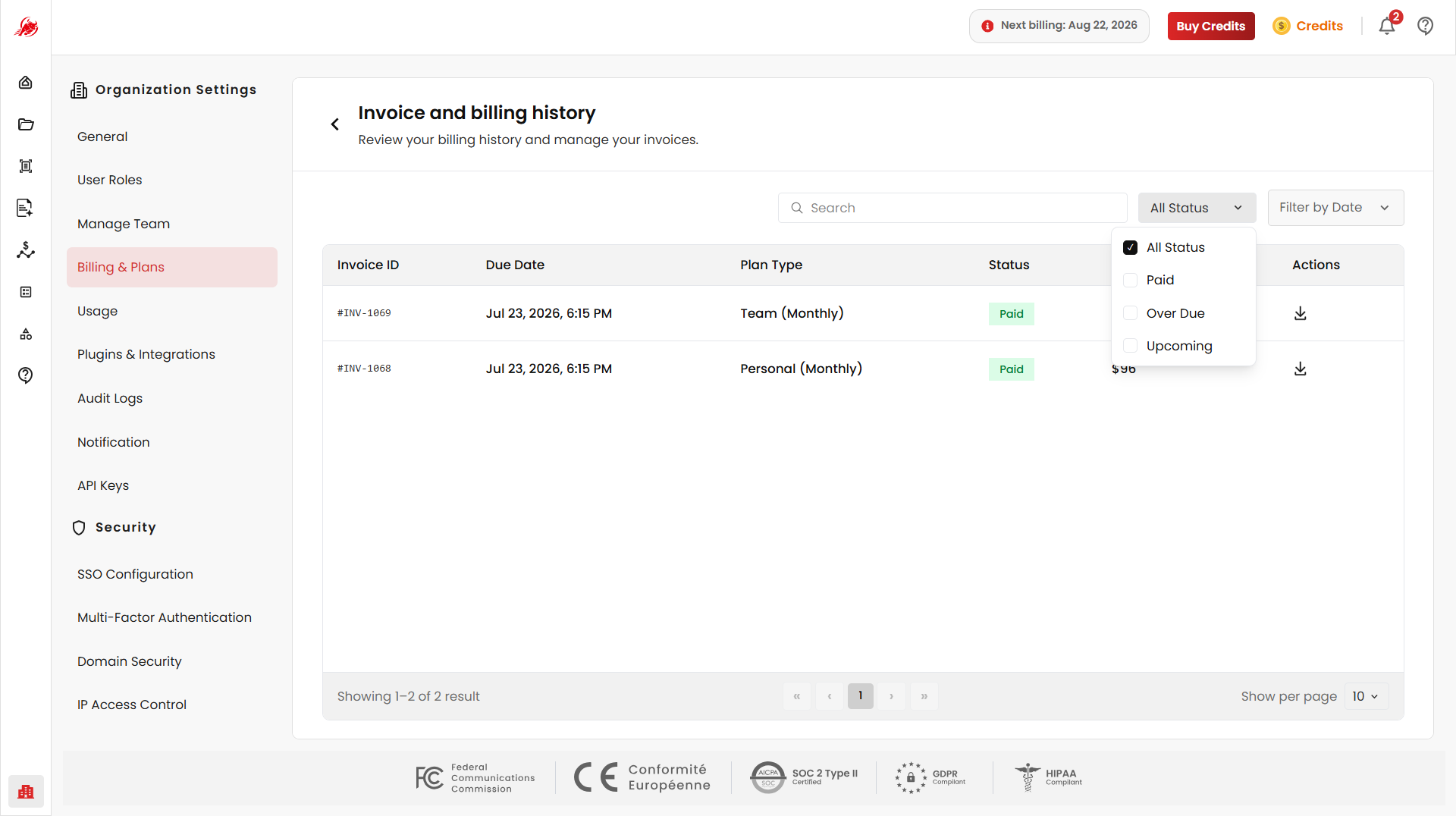
Filter by Status
Invoices can be filtered by payment status — Paid, Over Due, or Upcoming — to quickly locate relevant records.
Filter by Date
Use the Filter by Date option to view invoices within a specific time period, including a custom date range.
Download PDF
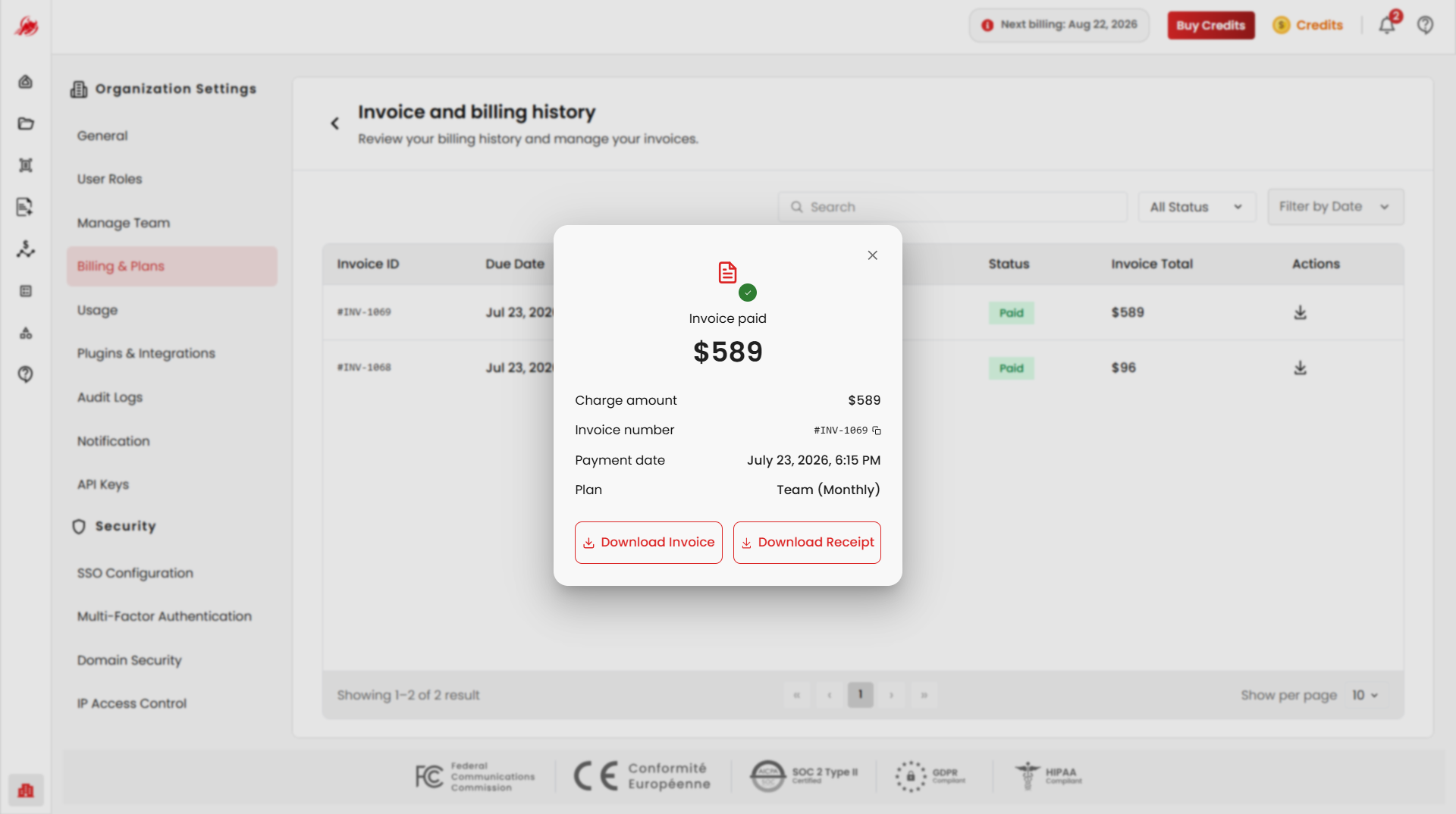
Click the Download icon in the Actions column to open the invoice details dialog, which displays the invoice amount, invoice number, payment date, and subscription plan. From this dialog, the invoice number can be copied, and the invoice PDF or payment receipt can be downloaded.
Payment Methods
The Payment Methods section allows administrators to manage payment sources used for organization subscriptions, credit purchases, and recurring billing.
View Card Details
To view card information, click the More Options (⋮) menu on a saved card and select View Details. The card details display the masked card number, cardholder name, expiry date, and billing address.
INFO
For security purposes, full card numbers are never displayed.
Edit Card Details
To edit a card, open the More Options (⋮) menu and select Edit Details. Update the required fields and click Save Changes. Card number and expiry date cannot be modified.
Add Card
Click Add Card to add a new payment card.
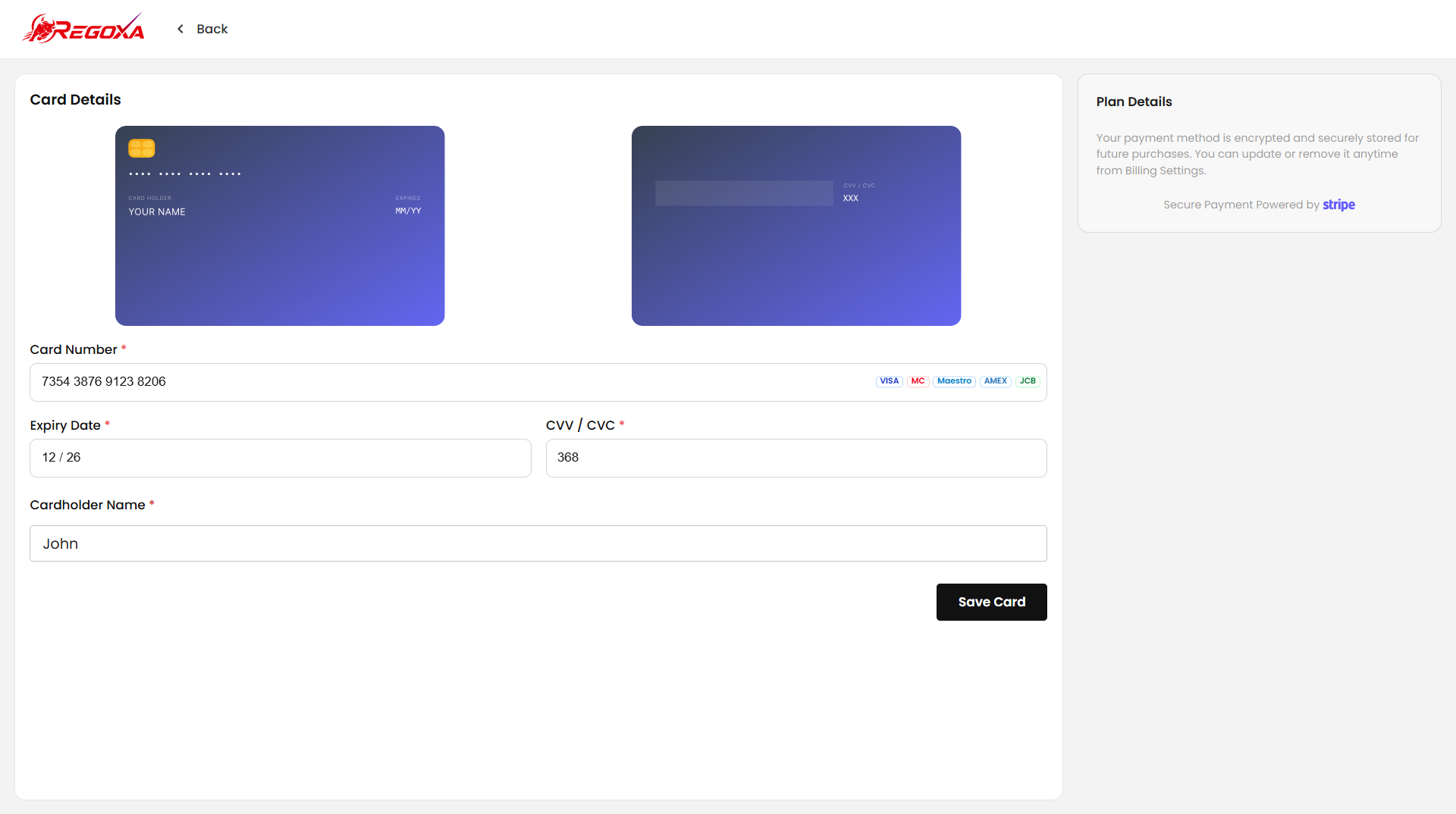
Provide the card number, cardholder name, expiry date, CVV, and billing address. After successful validation, the card becomes available for billing and subscription payments.
Set Default Card
To set a card as the default payment method, open the More Options (⋮) menu and select Set as Default. The selected card displays the Default badge and is used as the primary payment source for future billing transactions.
INFO
Only one card can be designated as the default payment method at a time.
Delete Card
To remove a saved card, open the More Options (⋮) menu and select Delete. After deletion, the card is removed from the organization's available payment methods.
WARNING
A card set as the default payment method may need to be replaced before it can be removed. Removing a payment method does not affect previously generated invoices or completed transactions.
Wallet Management
The Wallet section allows organizations to manage supported digital wallet payment methods for subscription payments, credit purchases, and recurring billing.
Add Wallet
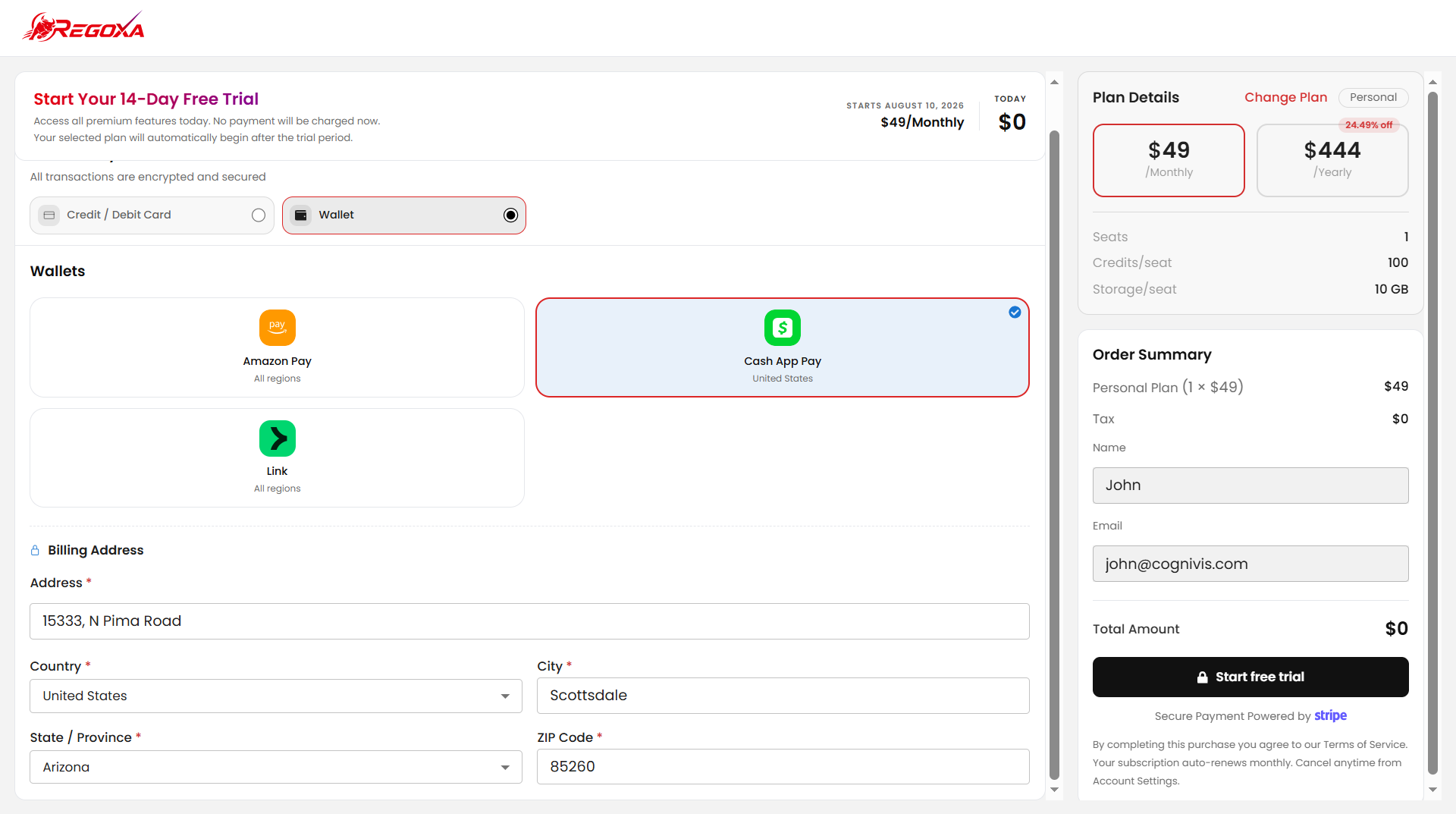
Click Add Wallet, select a supported wallet provider, and complete the authorization process. Once configured, the wallet becomes available as a payment method for organization billing.
Set Default Wallet
To set a wallet as the default payment method, open the More Options (⋮) menu and select Set as Default.
Delete Wallet
To remove a wallet, open the More Options (⋮) menu and select Delete.
WARNING
A default payment method must always remain available for active subscriptions.
GST Details
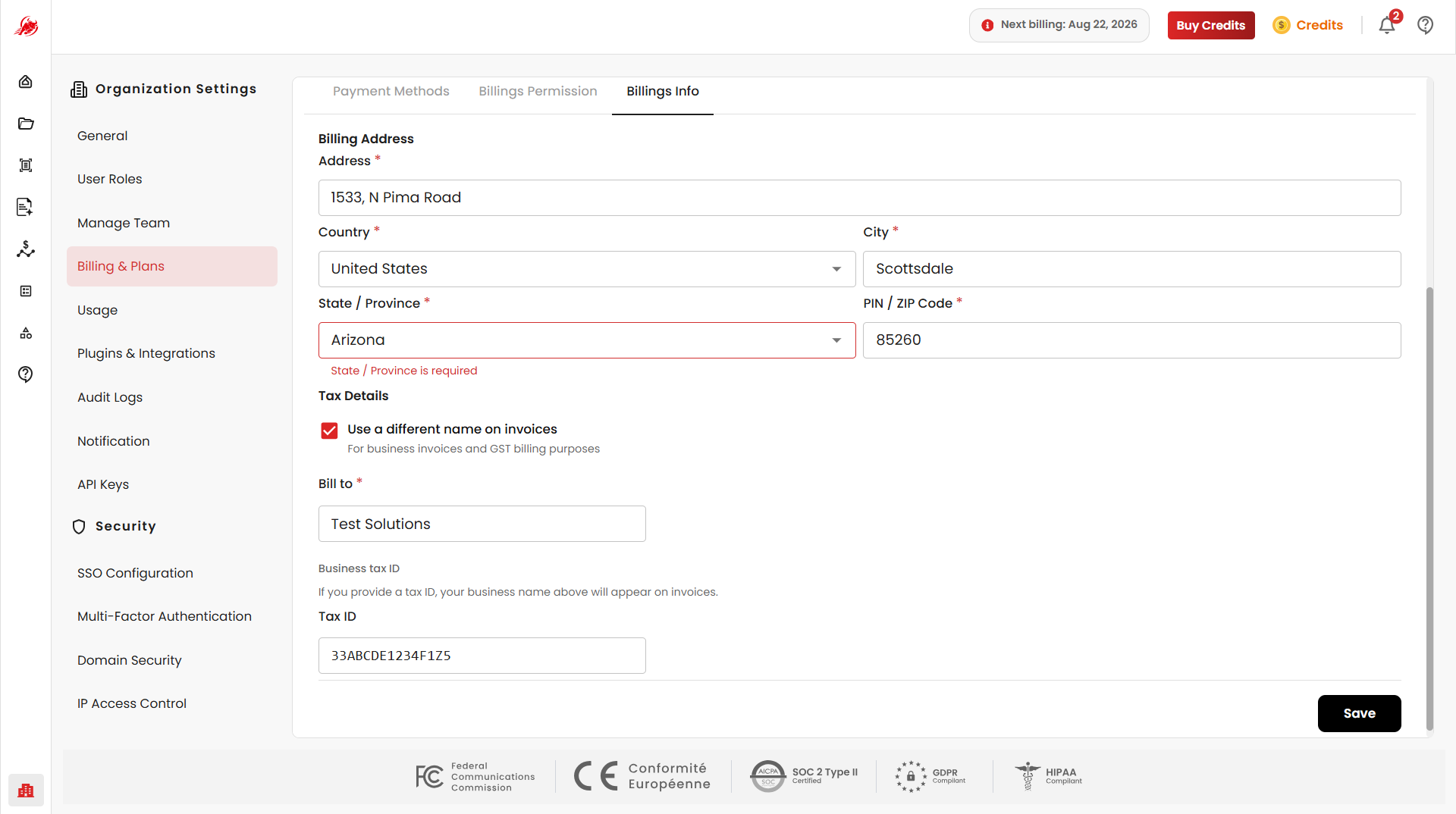
Organizations operating under GST regulations can configure tax information for invoice generation. Enable Use a different name on invoices to specify a custom billing name, and provide a Bill To name and GST Number for tax invoices. Click Save GST Details to apply.
WARNING
Only users with appropriate billing permissions can manage payment methods and GST information.
Billing Permissions
The Billing Permissions tab allows organization owners and administrators to control which members can access and manage billing-related information.
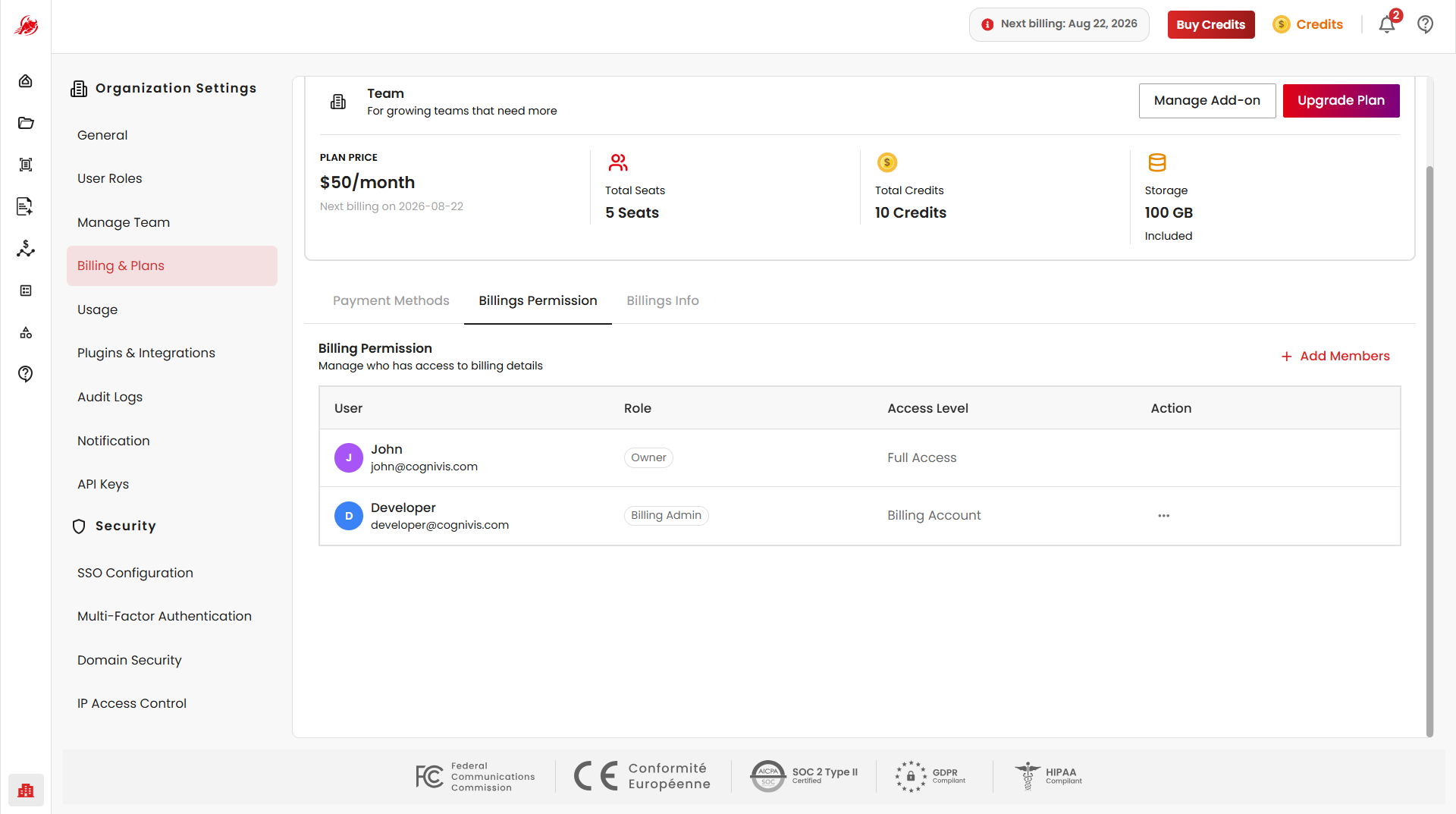
Add Billing Members
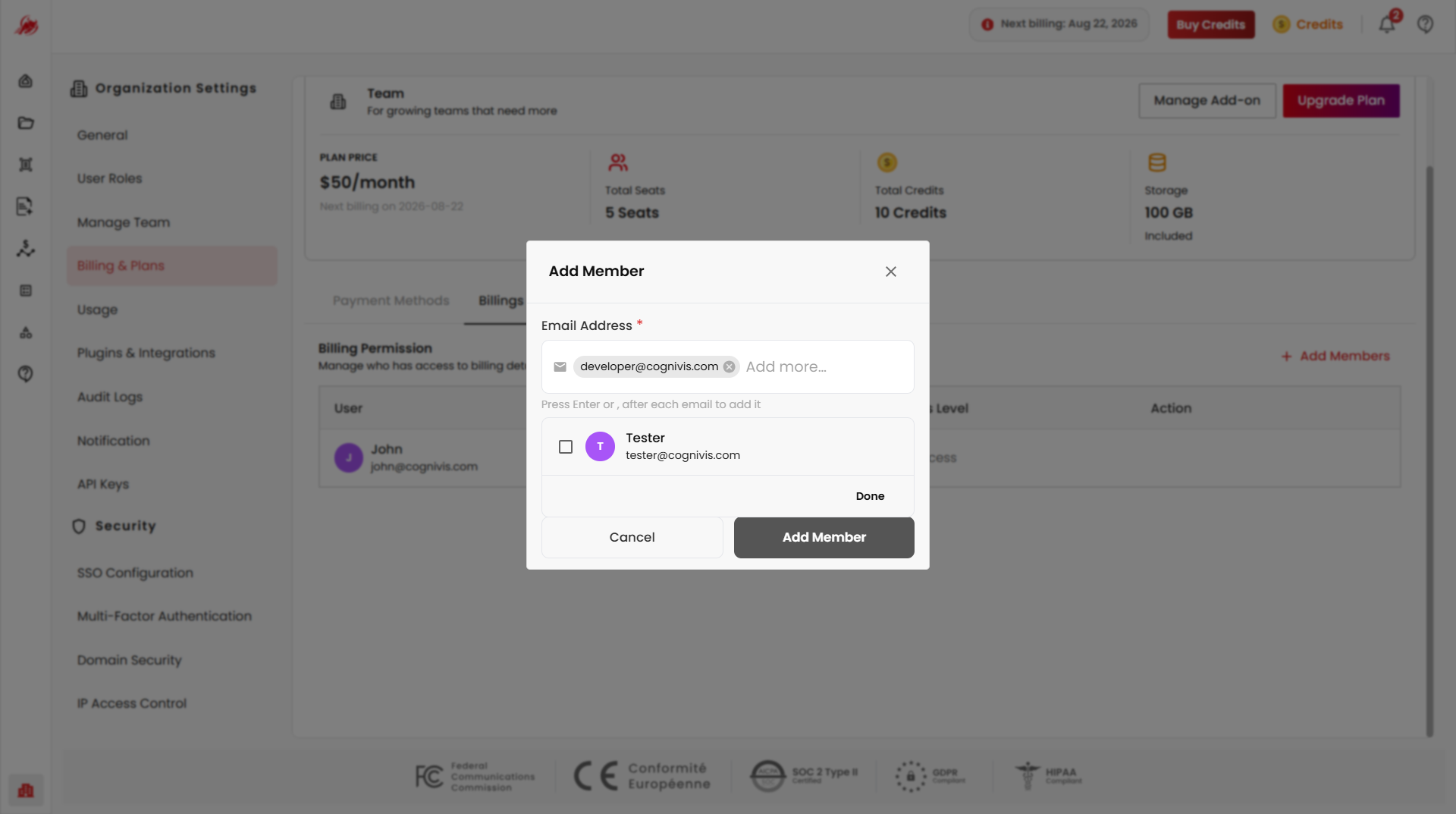
Click Add Members to grant billing access to additional organization members. Select one or more existing organization members, choose the appropriate access level, and click Add Member to confirm.
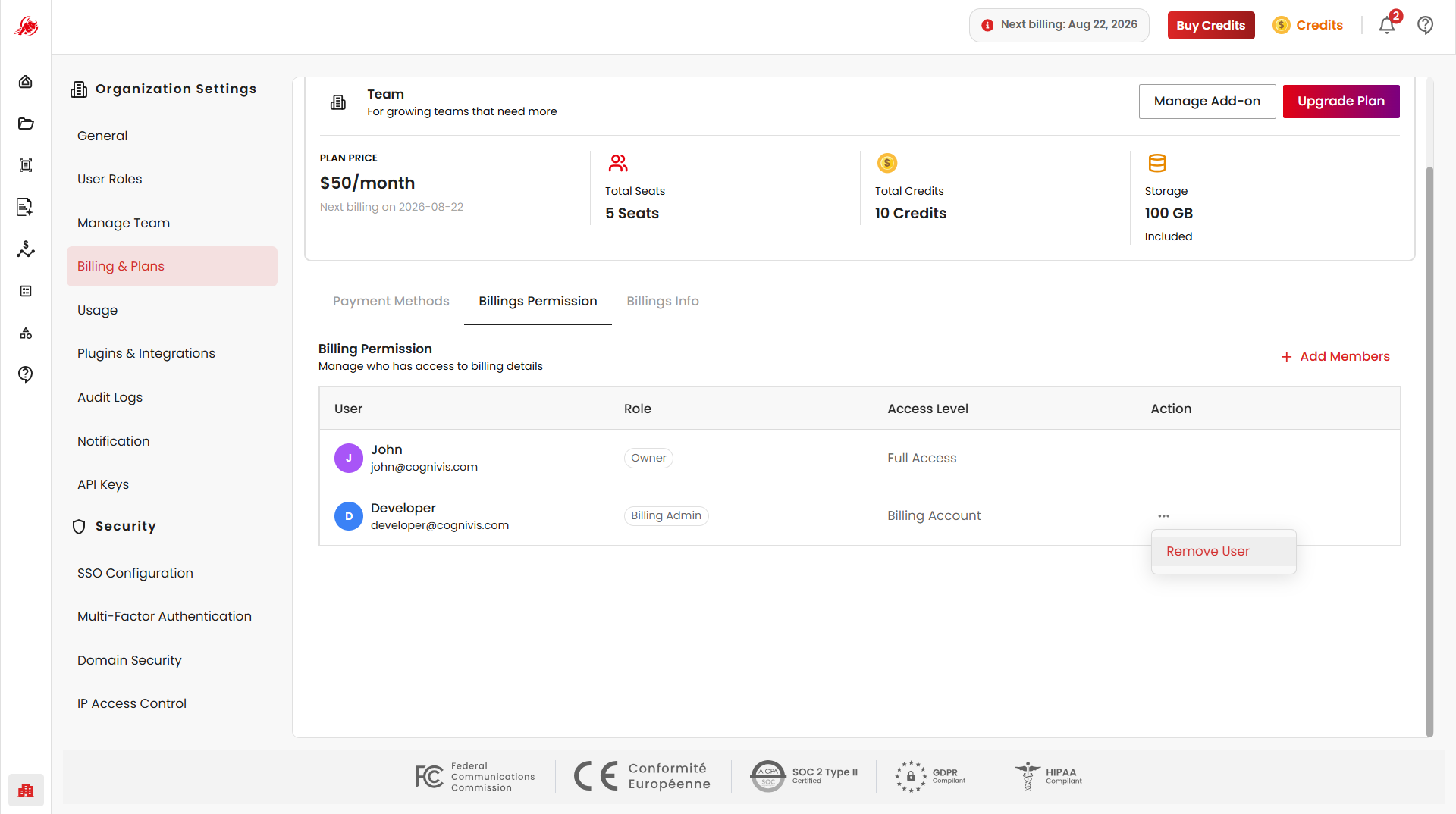
Remove User
Click Remove User to remove user permanently.
Billing Permission Table
The Billing Permission table displays all members with access to billing-related settings, showing each member's role and assigned access level.
Access Levels
| Access Level | Description |
|---|---|
| Full Access | Grants complete access to all billing settings and management features, including payment methods, invoices, subscriptions, and billing administrators. |
| Billing Admin | Allows members to manage billing tasks such as payment methods, invoices, and subscription details, without full organizational control. |
Permission Management
Billing permissions help ensure that billing operations are handled only by authorized members, allowing organizations to delegate billing responsibilities and control access to financial information.
Security & Access Control
- Grant billing access only to trusted members.
- Review billing permissions regularly.
- Remove access when responsibilities change.
- Limit billing administration to members who require it for their role.
WARNING
Members with billing permissions may be able to view and manage sensitive billing information, including payment methods, invoices, and subscription details.
Benefits
The Billing & Plans section helps organizations:
- Manage subscriptions centrally
- Control organization billing
- Track invoices and payments
- Maintain payment methods
- Upgrade plans when needed
- Manage billing access permissions
- Support team-based subscription management
Related
- General — manage seats, storage, and credits
- Usage — monitor credit consumption and request additional credits