
Appearance
User Roles
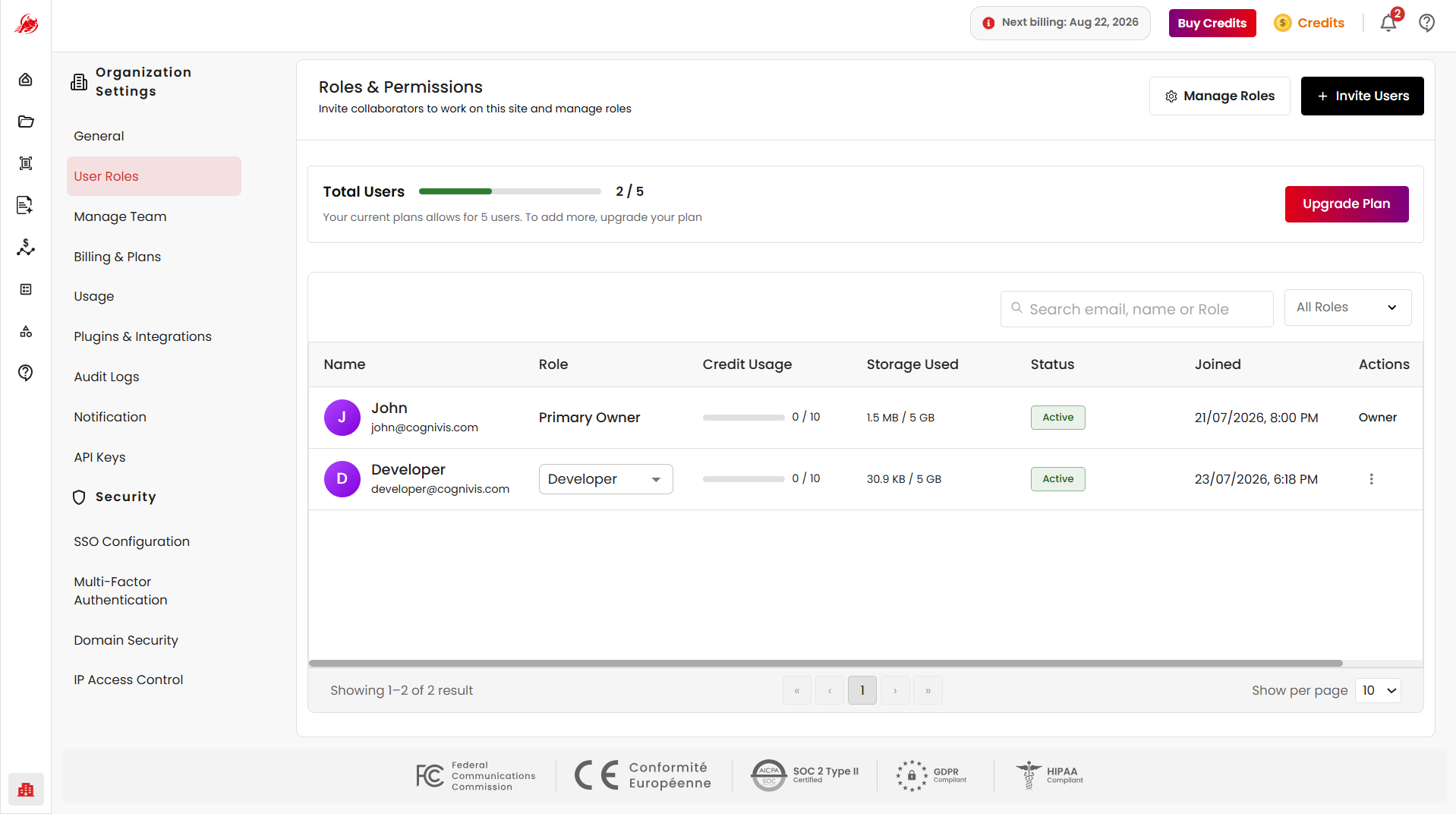
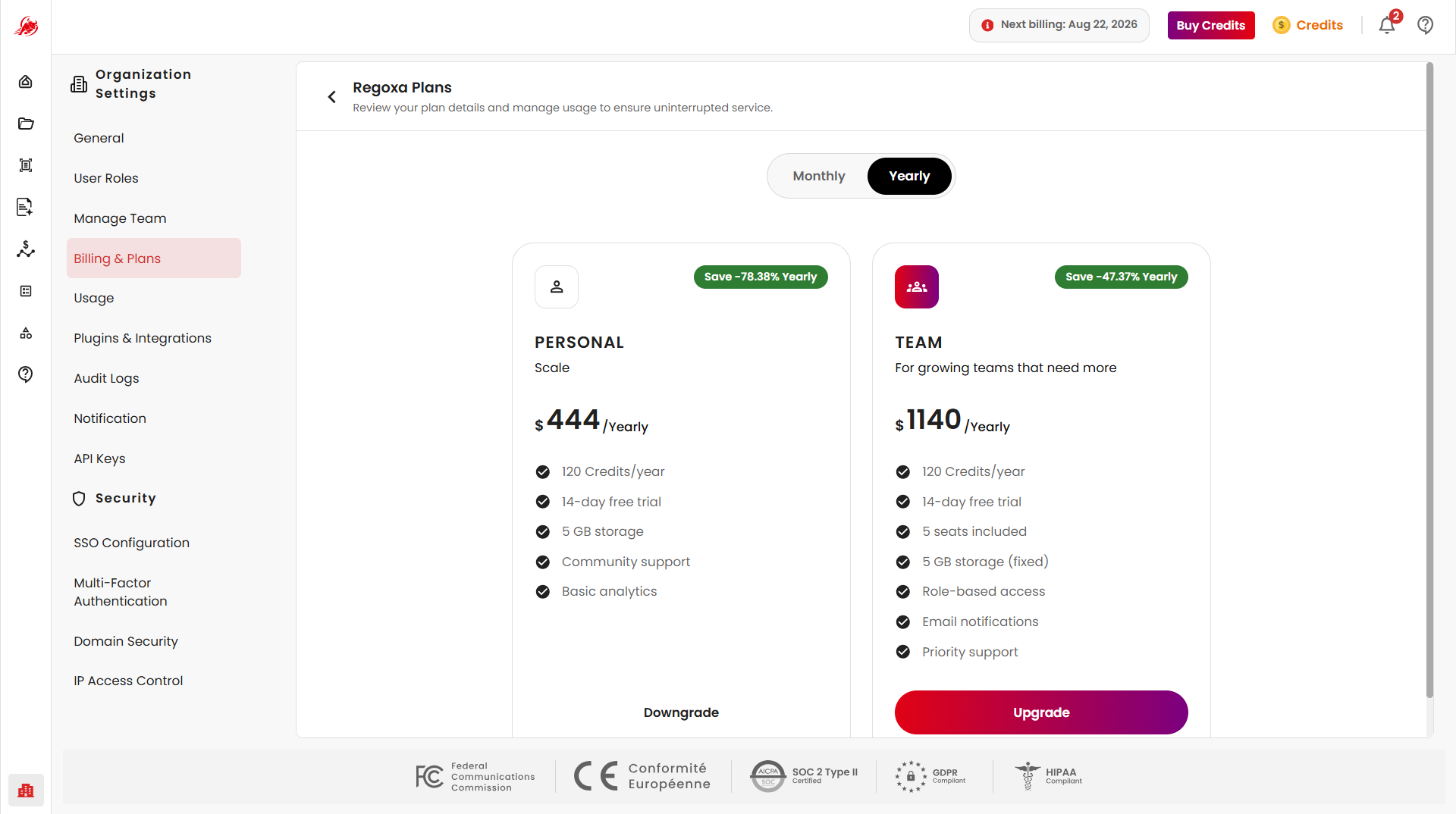
User Roles and Permissions allow organization administrators to invite collaborators, assign roles, control access levels, and manage permissions across REGOXA modules.
Manage Roles
Opens the Manage Roles page where administrators can view existing roles, create new roles, update permissions, and configure access levels for modules.
Invite Users
The Invite Users allows administrators to invite new users to the organization by entering their email address, assigning a role, and sending the invitation.
Total Users
Displays the current organization seat usage, showing the number of active users against the total available seats in the current plan.
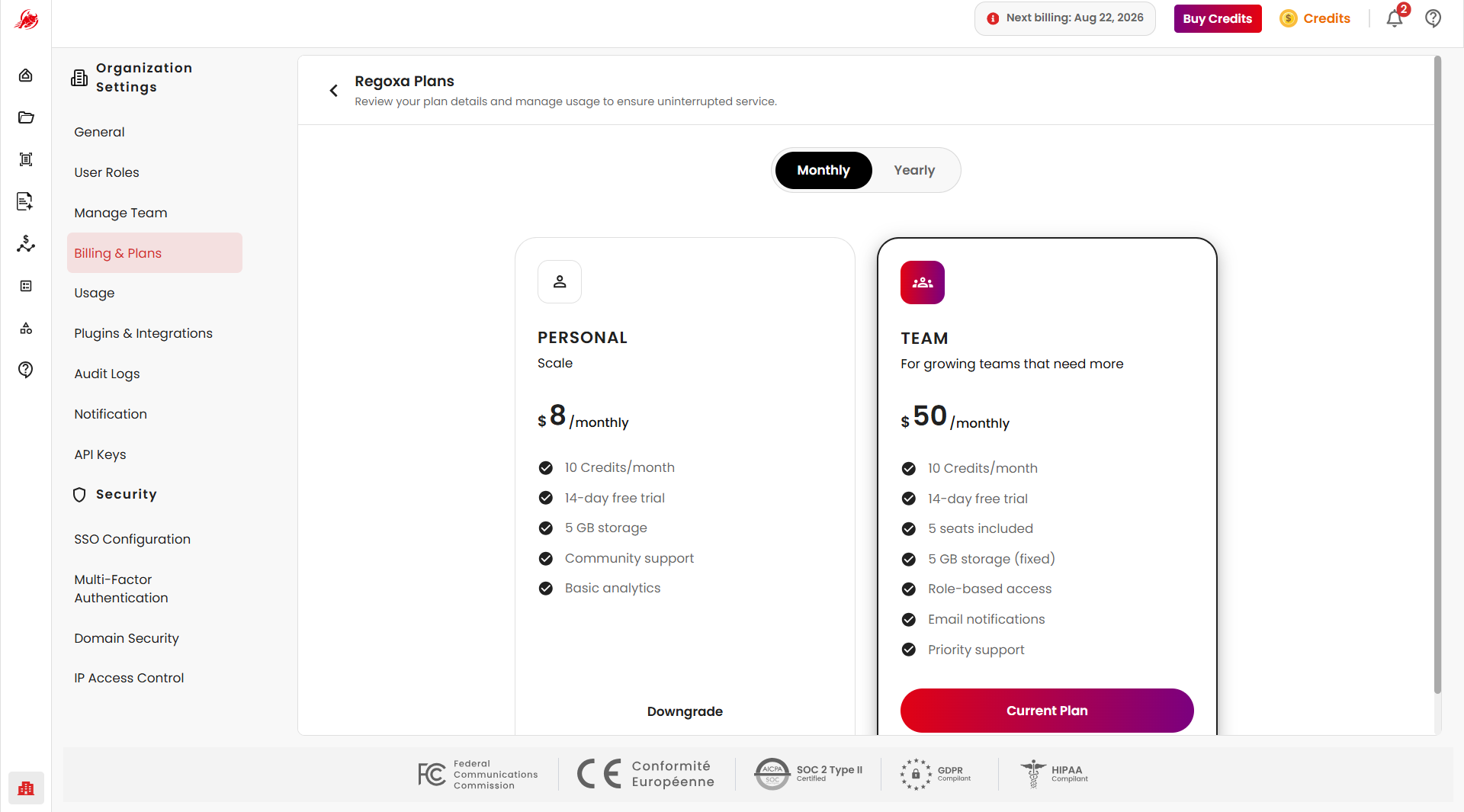
Upgrade Plan
Redirects to the Billing & Plans section for increasing seats, upgrading the subscription, or expanding organization capacity.
Search & Filters
Users can be searched by name, email address, or assigned role. The user list is automatically filtered based on the entered search term.
The Role filter allows administrators to display users based on their assigned roles, such as All Roles, Owner, or any custom roles configured for the organization.
User Table
The users table displays all invited and active users in the organization along with their assigned roles, credit usage, account status, joined date, and available actions.
| Field | Description |
|---|---|
| Name | Displays the user's name and email address. |
| Role | Shows the user's assigned organization role. |
| Credit Usage | Displays the number of credits consumed by the user. |
| Status | Indicates the current account status — Active, Pending, or Inactive. |
| Joined | Shows the date and time the user joined the organization. |
| Actions | Displays available user management actions based on permissions. |
Administrators can update a user's assigned role directly from the Role column. Changes take effect based on the permissions configured for the selected role.
User Actions
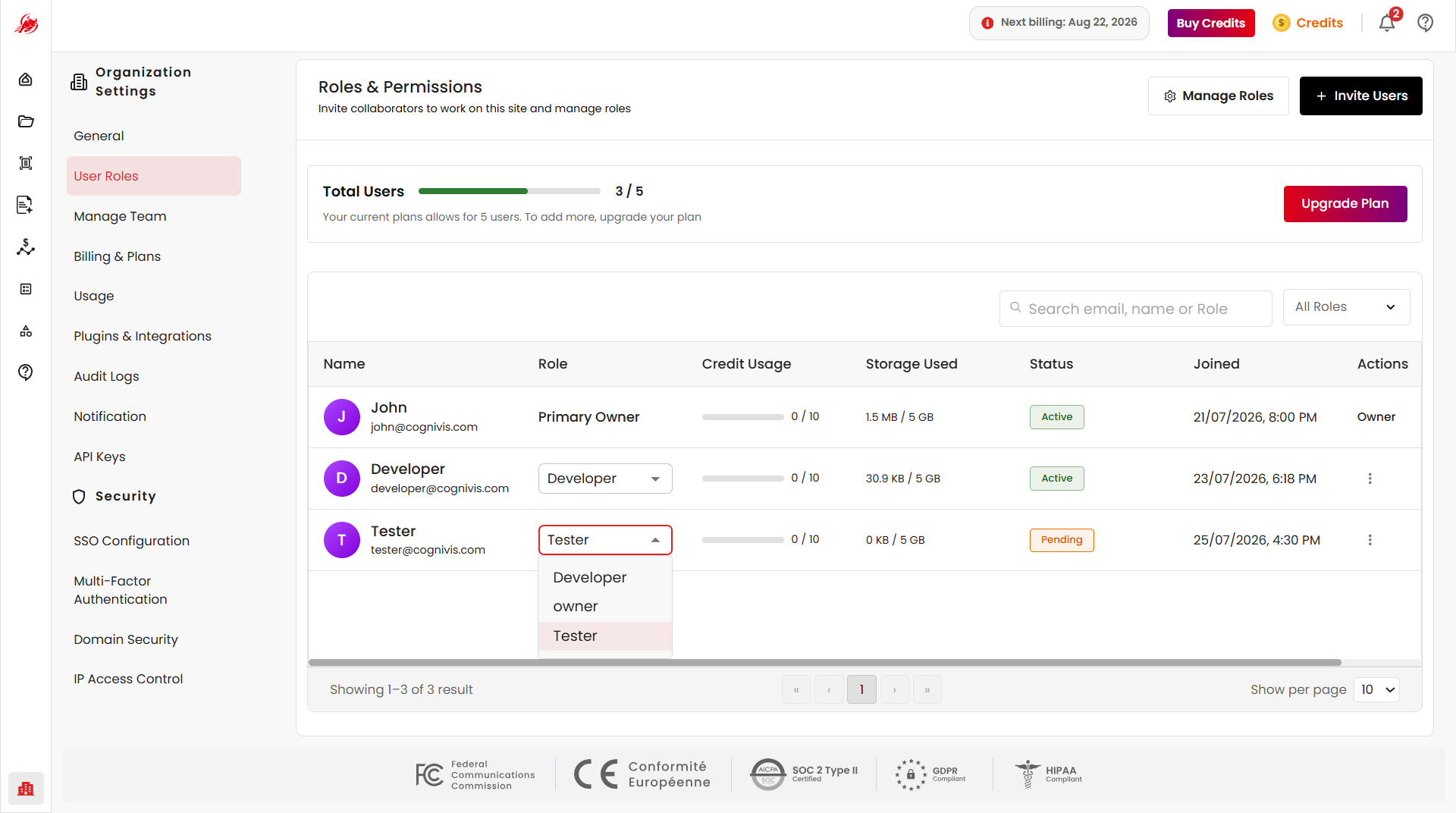
The Actions menu provides the following user management options:
- Activate – Restores access for an inactive user.
- Deactivate – Temporarily disables the user's access without removing the account.
- Remove User – Permanently removes the user from the organization and revokes their access.
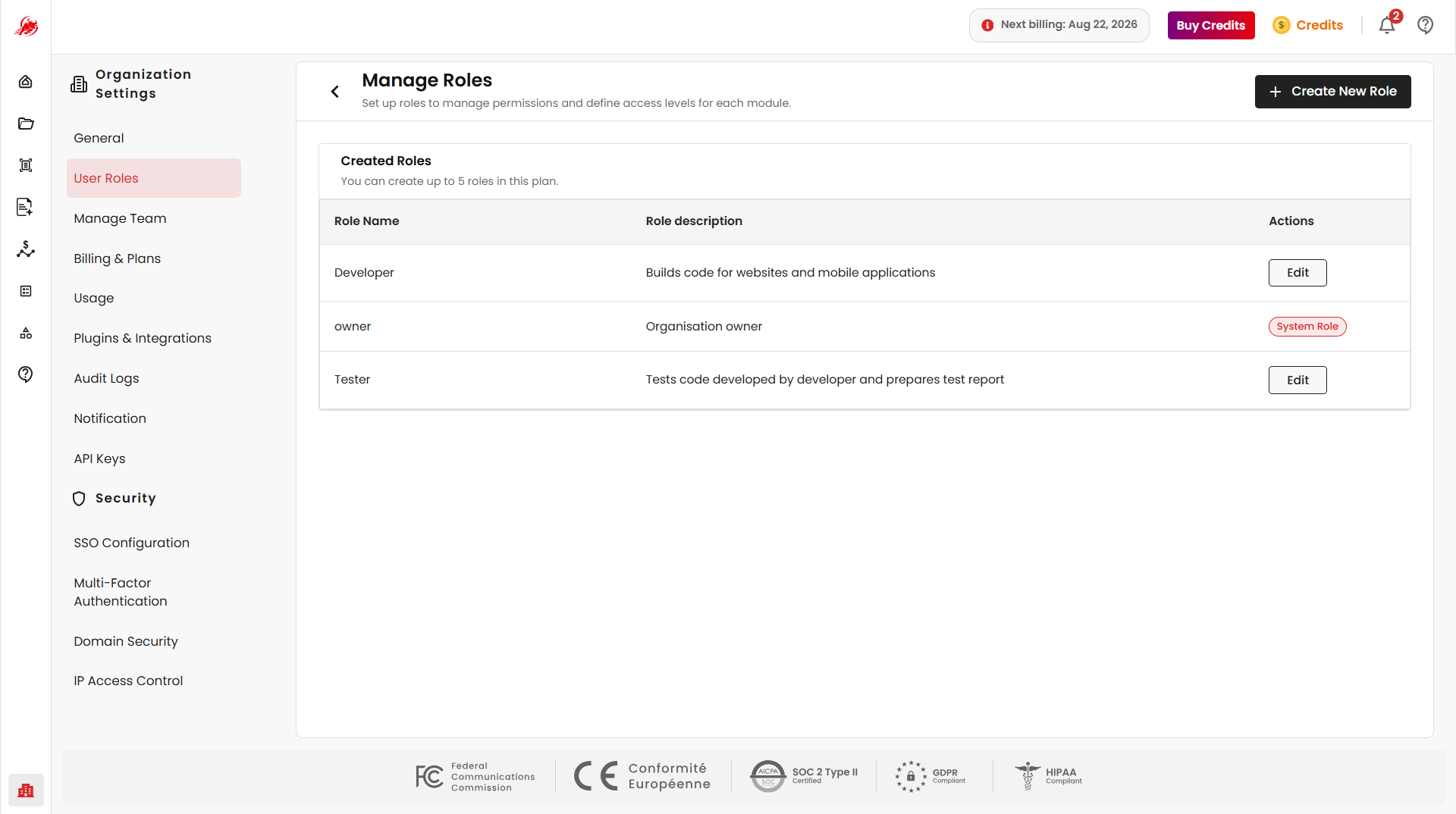
Manage Roles
The Manage Roles page allows administrators to create, view, and manage roles for the organization. The Created Roles section lists all available roles along with the role name, description, and available actions.
System Roles
System roles are built-in roles managed by the platform and cannot be modified or deleted. The Owner role provides full administrative access to the organization.
Custom Roles
Custom roles are administrator-created roles used to assign specific permissions to organization users. They can be created, edited, and deleted at any time to match the organization's access requirements.
Create New Role
Click Create New Role to open the role creation page.
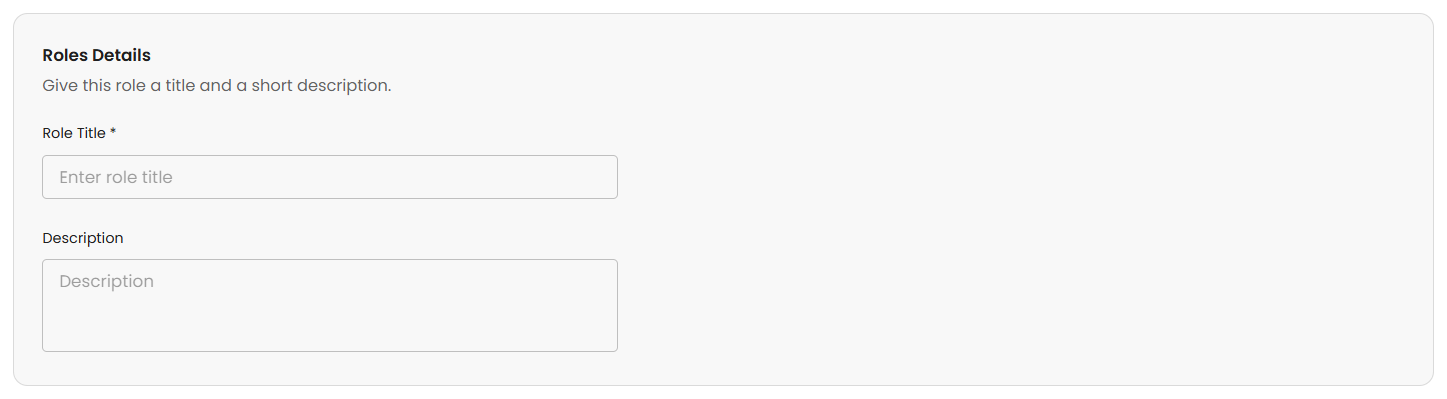
Role Details
Provide a Role Title and Description for the new role.
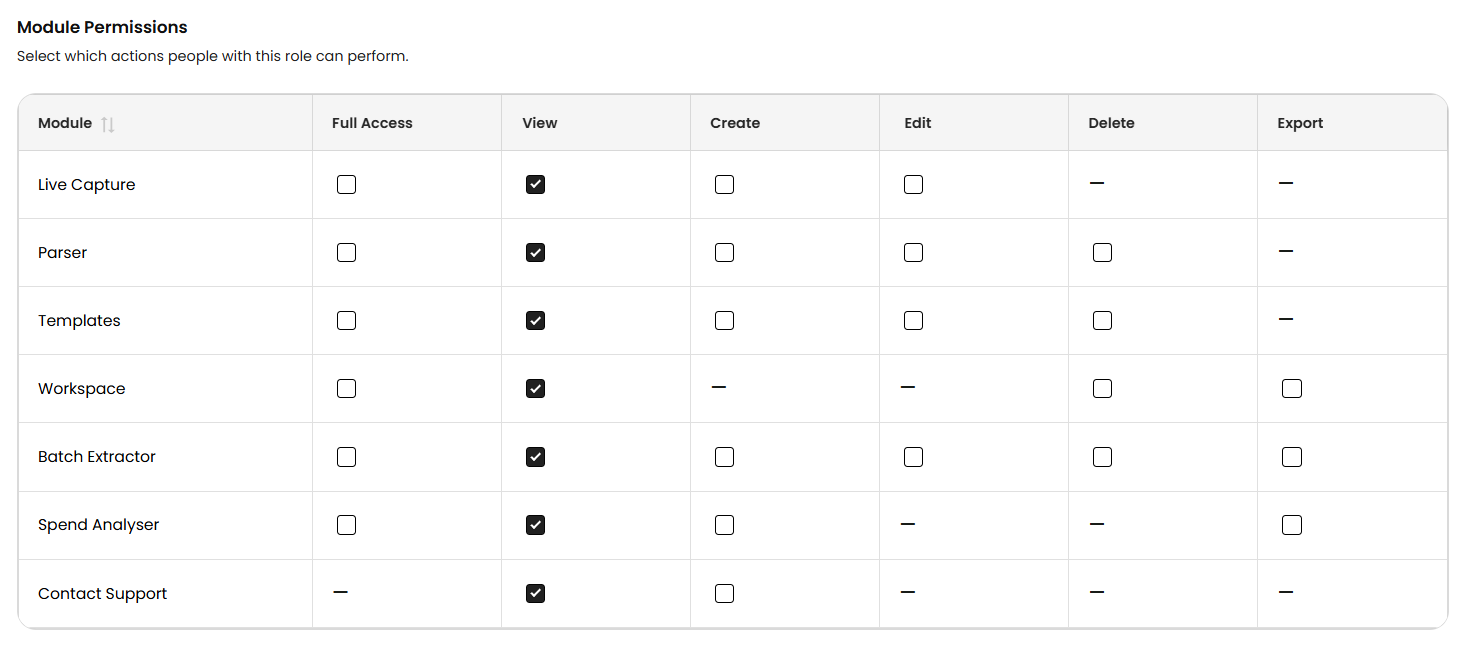
Module Permissions
Select the permissions that users with this role can perform for each module. Available permission types include Full Access, View, Create, Edit, Delete, and Export. Permissions can be configured individually for each supported module.
Save Role
After configuring the required permissions, click Save to create the role. The role becomes immediately available for assignment when inviting users.
Edit Role
Administrators can update an existing custom role by modifying its name, description, or module permissions. Select the role and click Edit, make the required changes, and click Save. Changes take effect immediately for all users assigned to the role.
Note: Only custom roles can be edited.
Delete Role
Administrators can delete custom roles that are no longer required. Open the role, click Delete, and confirm the action in the dialog. Users assigned to a deleted role will lose access until another role is assigned.
Note: Only custom roles can be deleted. Deleting a role is permanent and removes all associated permissions.
Invite User
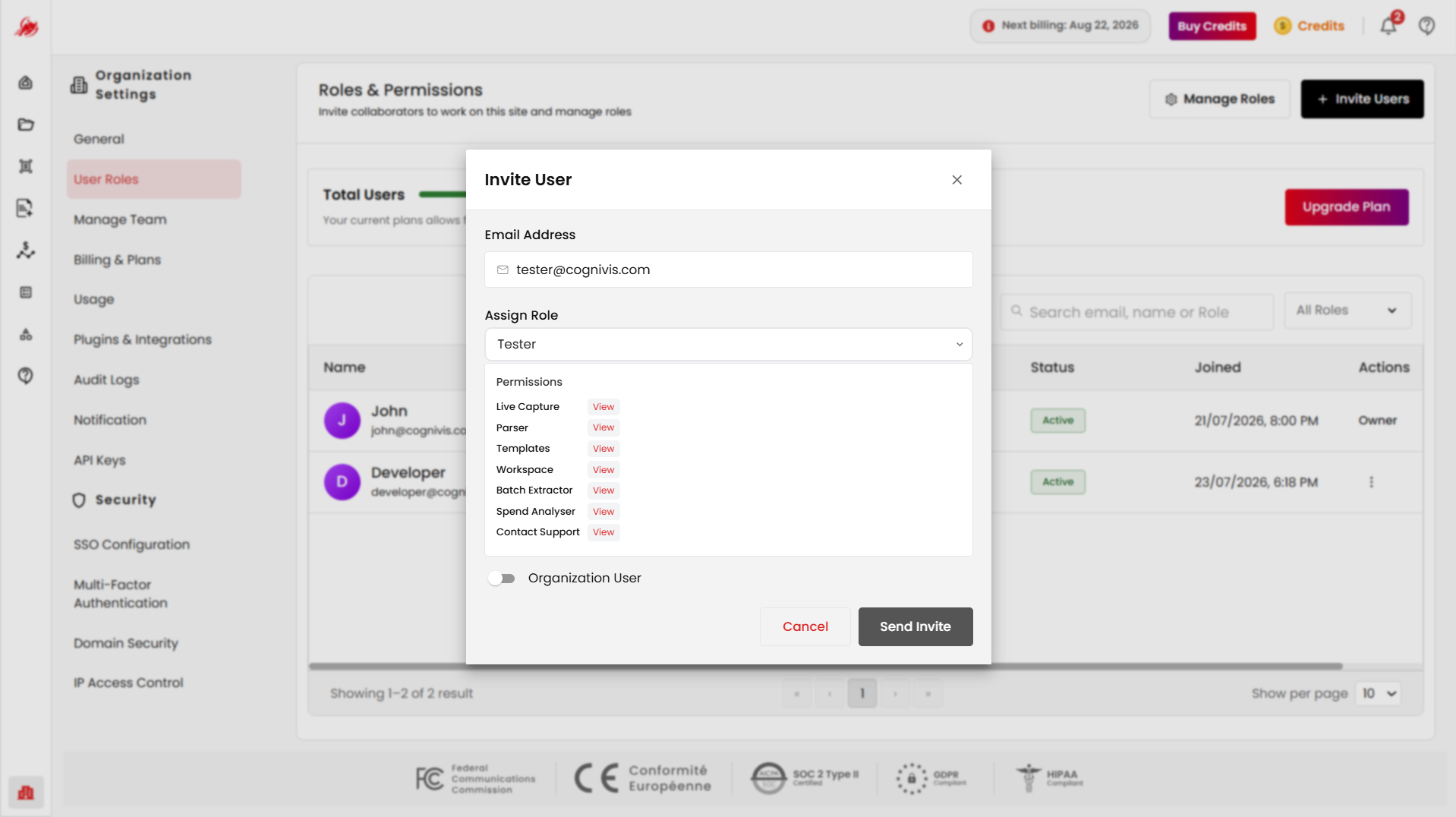
The Invite User allows administrators to invite new users to the organization and assign an appropriate role with predefined permissions.
Note: At least one custom role must be available before inviting users to the organization.
Email Address
Enter the email address of the user to invite. The email domain must match the organization's registered domain.
Assign Role
Select a role for the user. The permissions associated with the selected role are displayed automatically, allowing administrators to review access levels before sending the invitation.
Organization User
Enable the Organization User toggle to grant the user organization-level access based on the selected role, with permissions applied across all permitted modules.
Invitation Expiry
Invitation links expire automatically after 3 days. A new invite must be sent after expiration.
Send Invite
Click Send Invite to dispatch the invitation email to the specified user.
Related
- Manage Team — group users into teams for shared access
- Billing & Plans — manage subscriptions and seats