
Appearance
IP Access Control
Control which IP addresses can reach your organisation's Regoxa account — allow trusted networks, and block ones you don't recognize.
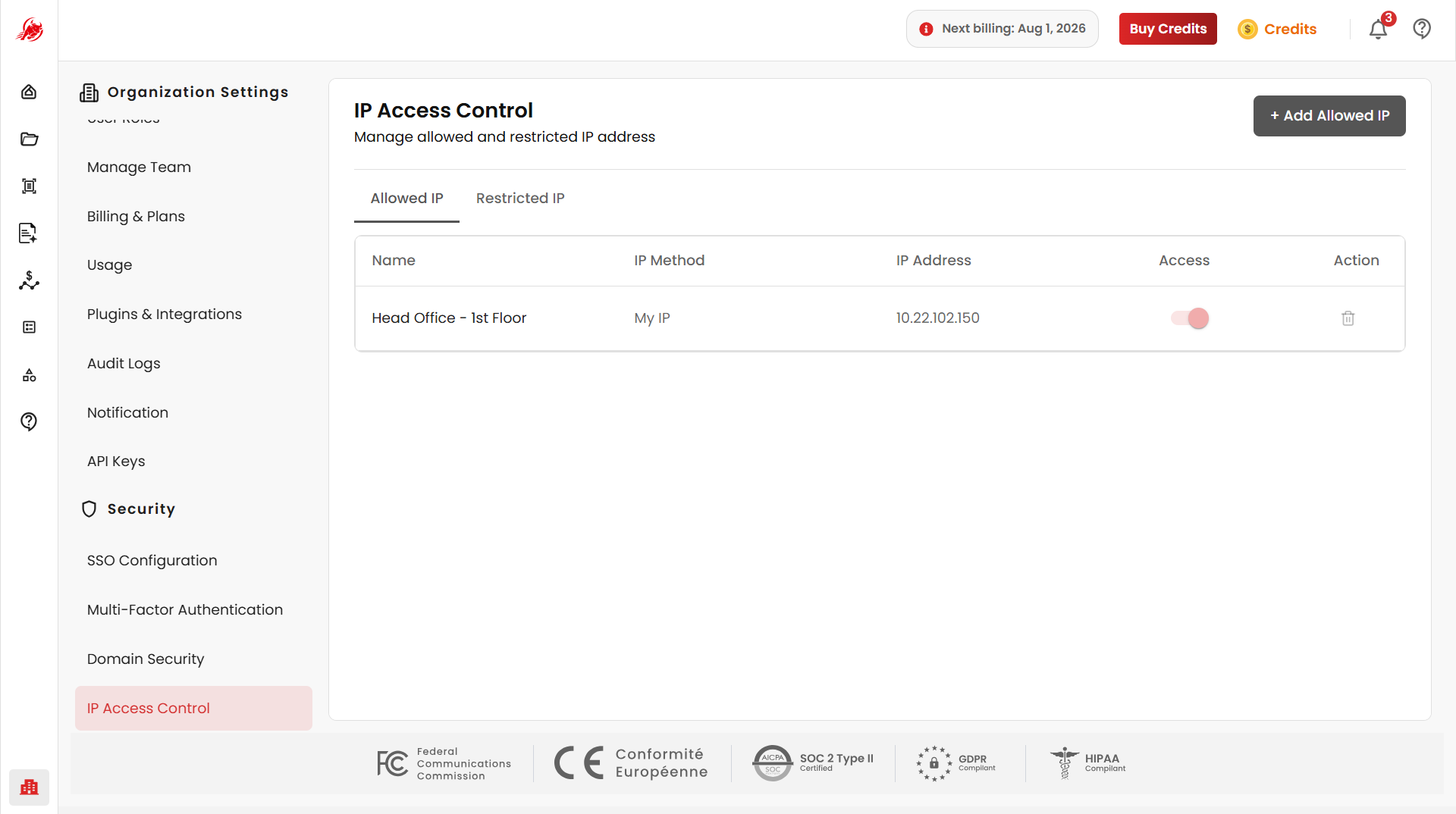
The page has two tabs:
- Allowed IP — networks that are allowed to connect
- Restricted IP — networks that are blocked from connecting
Allow a trusted IP address
On the Allowed IP tab, click + Add Allowed IP.
Fill in the Add IP form with Name, IP Method and IP Address.
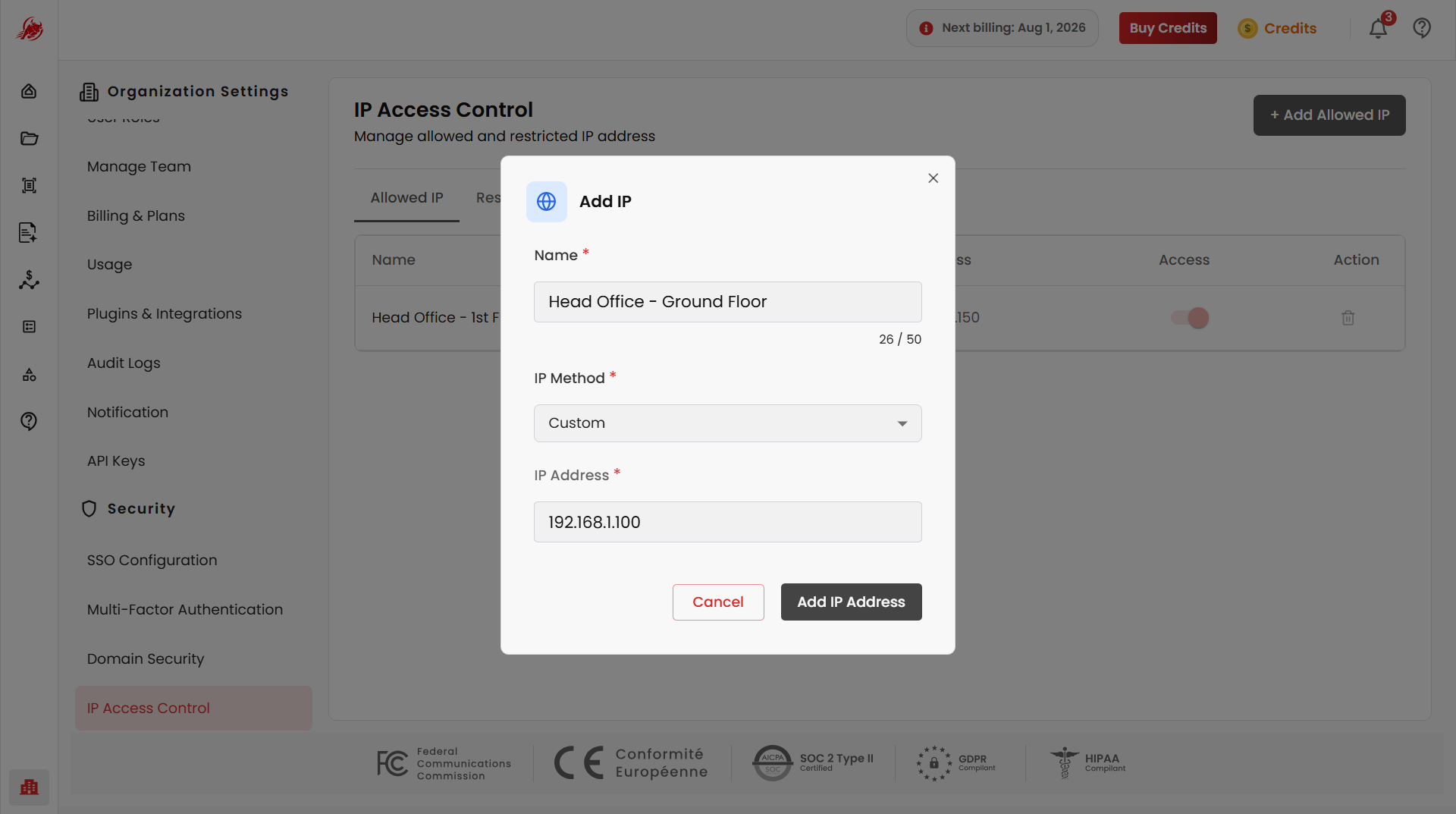
Click Add IP Address to save it.
Each entry in the Allowed IP list shows its name, IP method, IP address, access status, and an action menu to edit or remove it.
Block an IP address
On the Restricted IP tab, click + Add Restricted IP.
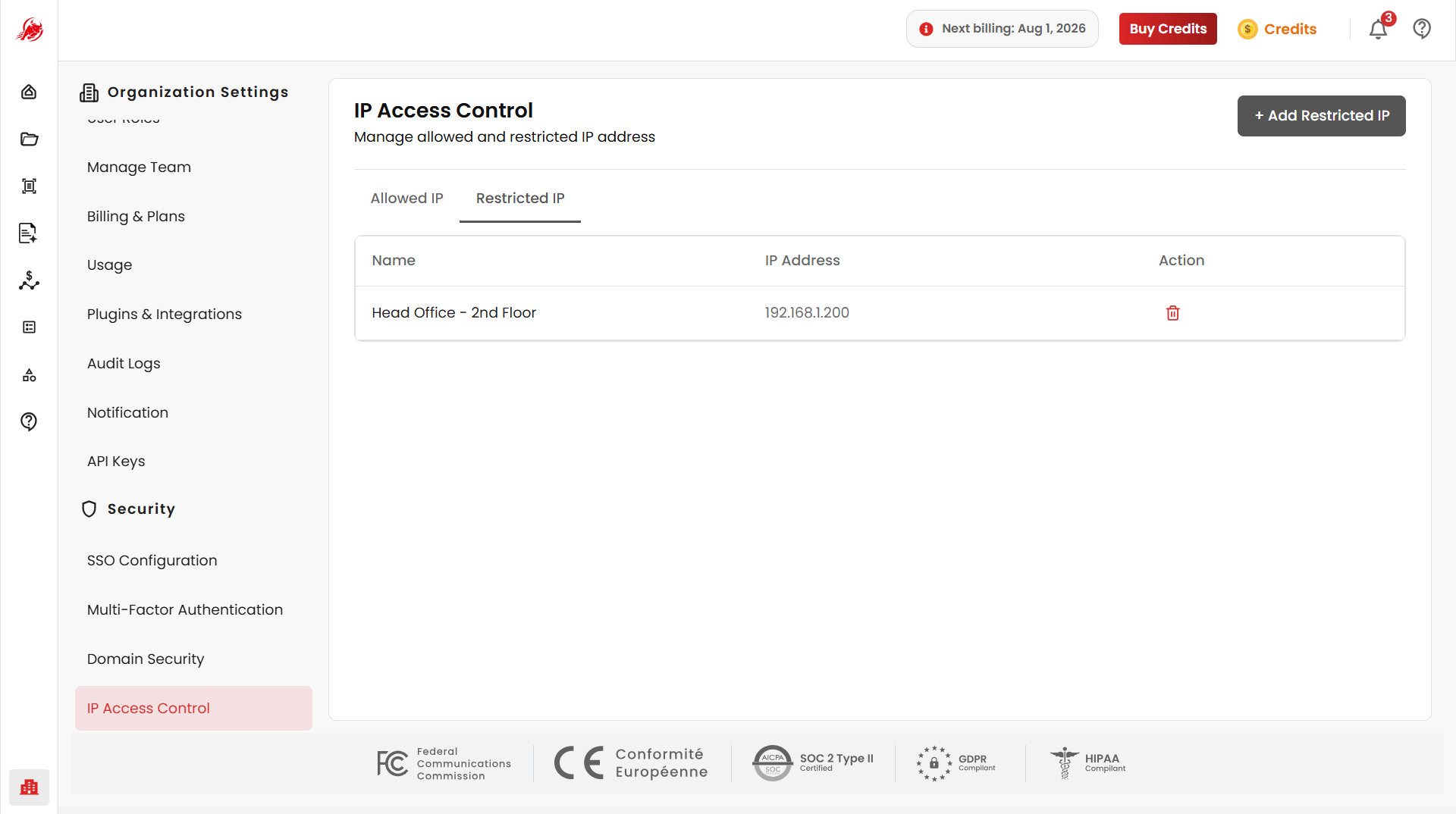
Fill in the Restrict IP form with Name and IP Address.
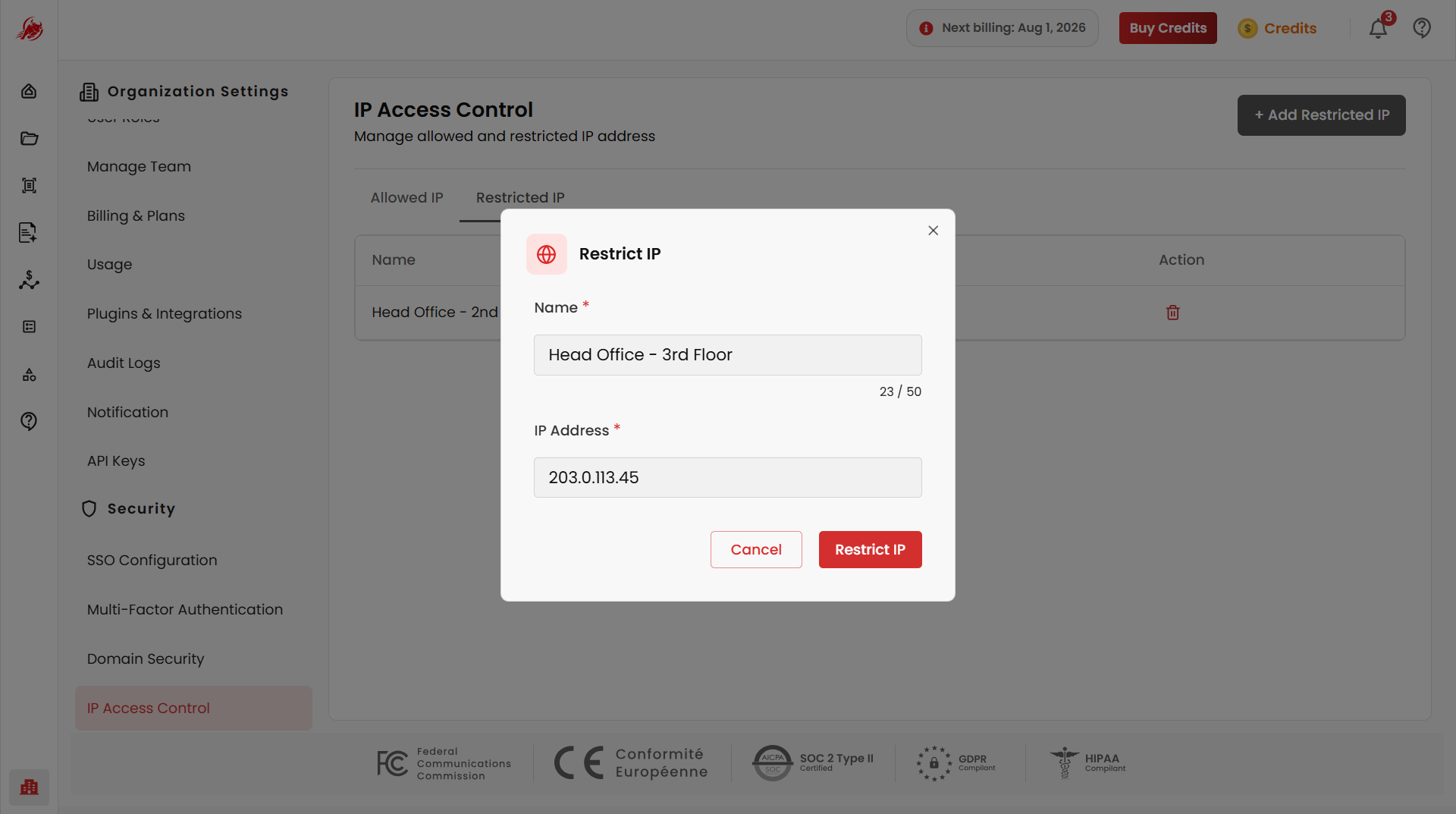
Click Restrict IP to save it.
Once added, that IP address is denied access immediately, regardless of whether the user has valid login credentials.
Related
- Domain Security — verify domains and control sign-in by domain
- Multi-Factor Authentication — require extra verification at sign-in