Appearance
Notifications
The Notifications page allows administrators to configure how system alerts and notifications are delivered across the organization.
Using the Notification Control Panel, administrators can enable or disable notification channels, configure email delivery services, manage in-app notifications, and define notification behavior.
The page is organized into three categories:
- Channels — Configure notification delivery methods
- Events & Rules — Control notification behavior per module
- Snooze & Schedule — Manage notification timing and quiet periods
Channels
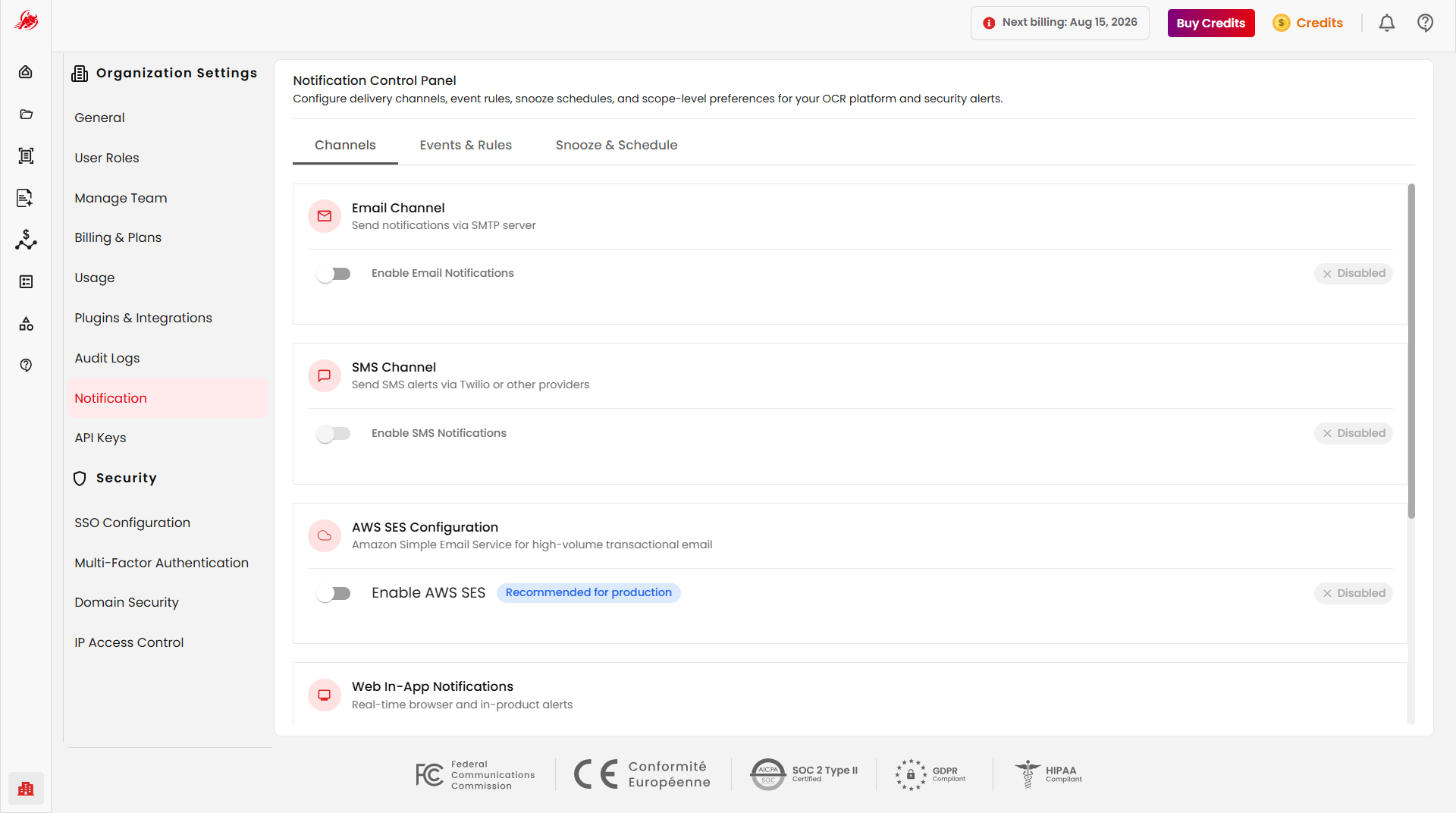
The Channels tab allows administrators to configure the available notification delivery methods. Each channel can be enabled or disabled independently based on the organization's requirements.
| Channel | Description |
|---|---|
| Email Channel | Sends notifications using an SMTP mail server. |
| SMS Channel | Sends SMS alerts using supported messaging providers. |
| AWS SES Configuration | Uses Amazon Simple Email Service for high-volume email delivery. |
| Web In-App Notifications | Displays real-time notifications within the application interface. |
Email Channel
The Email Channel allows administrators to send platform notifications using an SMTP mail server. Enable Email Notifications to configure the following fields:
- SMTP Host
- SMTP Port
- SMTP Username
- SMTP Password
- From Address
- Reply-To Address
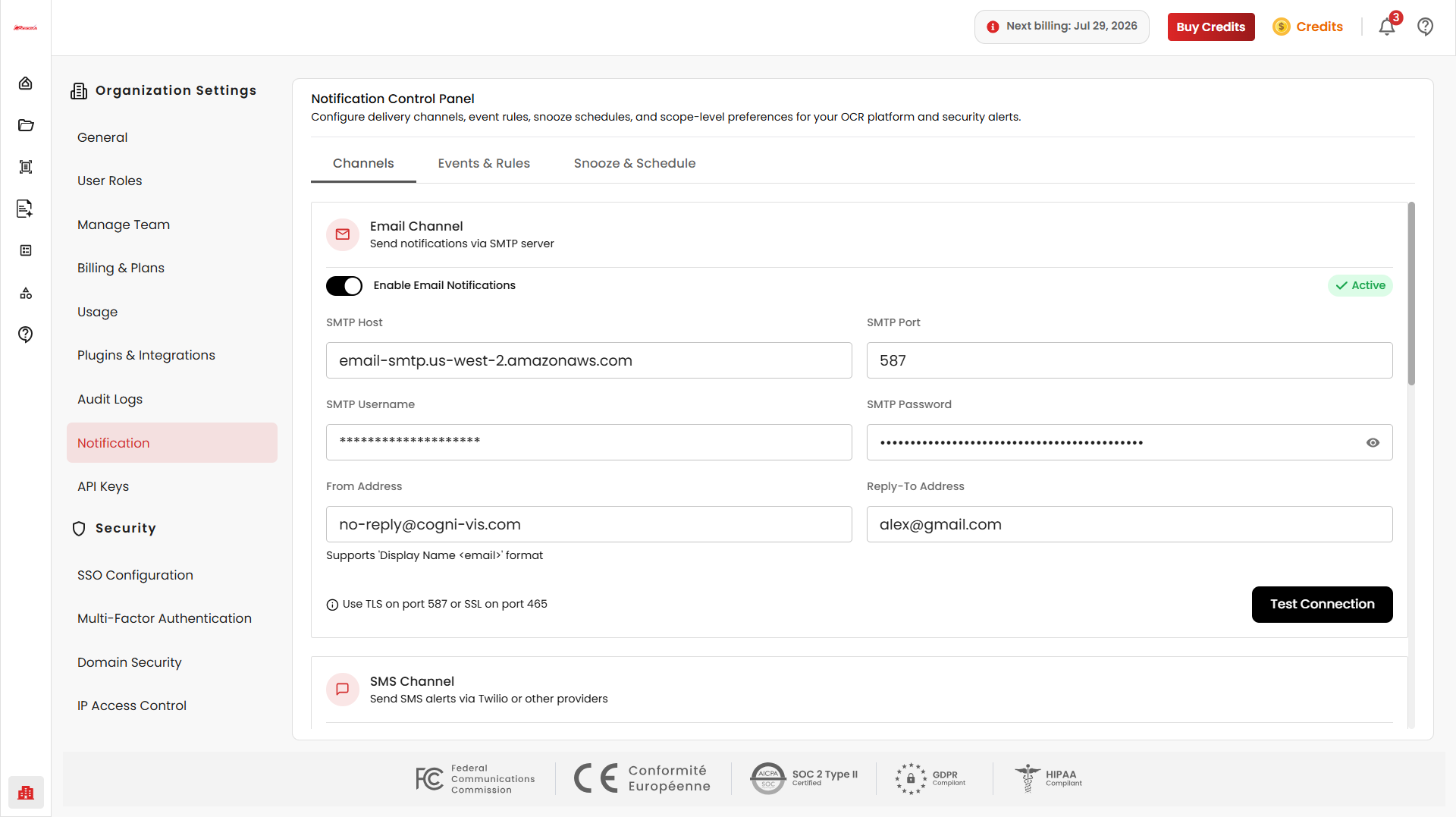
Click Test Connection to verify the SMTP configuration before use.
Note: Use TLS on port 587 or SSL on port 465 depending on your mail server configuration.
SMS Channel
The SMS Channel allows organizations to send SMS notifications for authentication alerts, security events, and operational notifications. SMS notifications are currently disabled and can be enabled when a supported provider is configured.
AWS SES Configuration
The AWS SES Configuration section allows organizations to use Amazon Simple Email Service (SES) for sending transactional emails. Enable AWS SES and provide the following details:
- AWS Region
- From Email Address
- Access Key ID
- Secret Access Key
- Configuration Set (Optional)
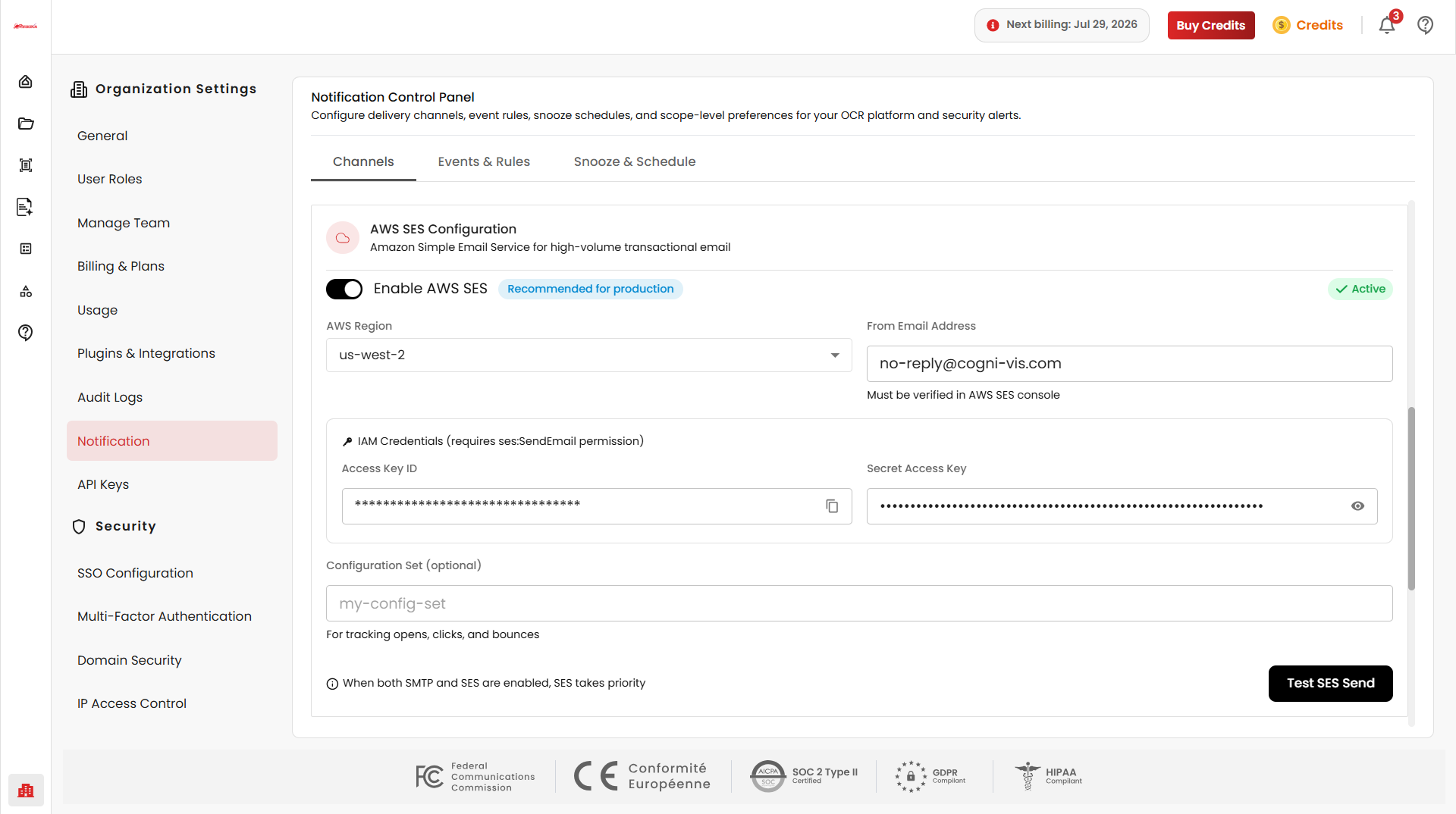
After entering the required information, click Test SES Send to verify the configuration.
Note: The From Email Address must be verified in the AWS SES Console before use. When both SMTP and AWS SES are enabled, AWS SES takes priority for email delivery.
Web In-App Notifications
The Web In-App Notifications section controls real-time notifications displayed within the application. Enable In-App Notifications to receive browser-based alerts while using the platform.
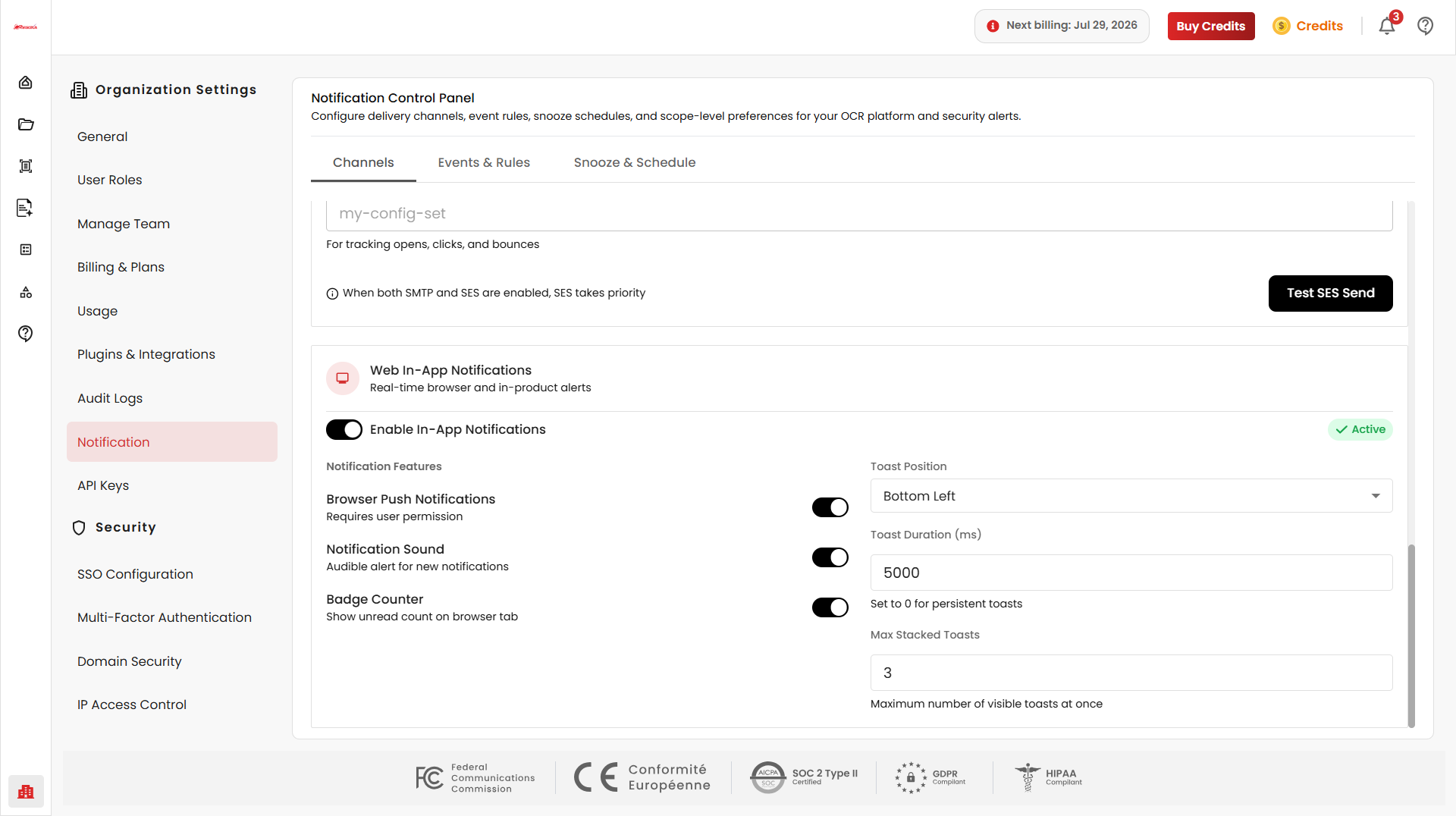
Available notification options include:
- Browser Push Notifications – Displays browser notifications after user permission is granted.
- Notification Sound – Plays a sound when a new notification is received.
- Badge Counter – Displays the unread notification count on the browser tab.
Administrators can also configure toast display settings:
| Settings | Description |
|---|---|
| Toast Position | Select where notification pop-ups appear on screen. Options include Top Right, Top Left, Top Center, Bottom Right, Bottom Left, and Bottom Center. |
| Toast Duration (ms) | Specify how long a notification remains visible. Set to 0 to keep notifications visible until dismissed. |
| Max Stacked Toasts | Set the maximum number of notifications displayed simultaneously. |
Events & Rules
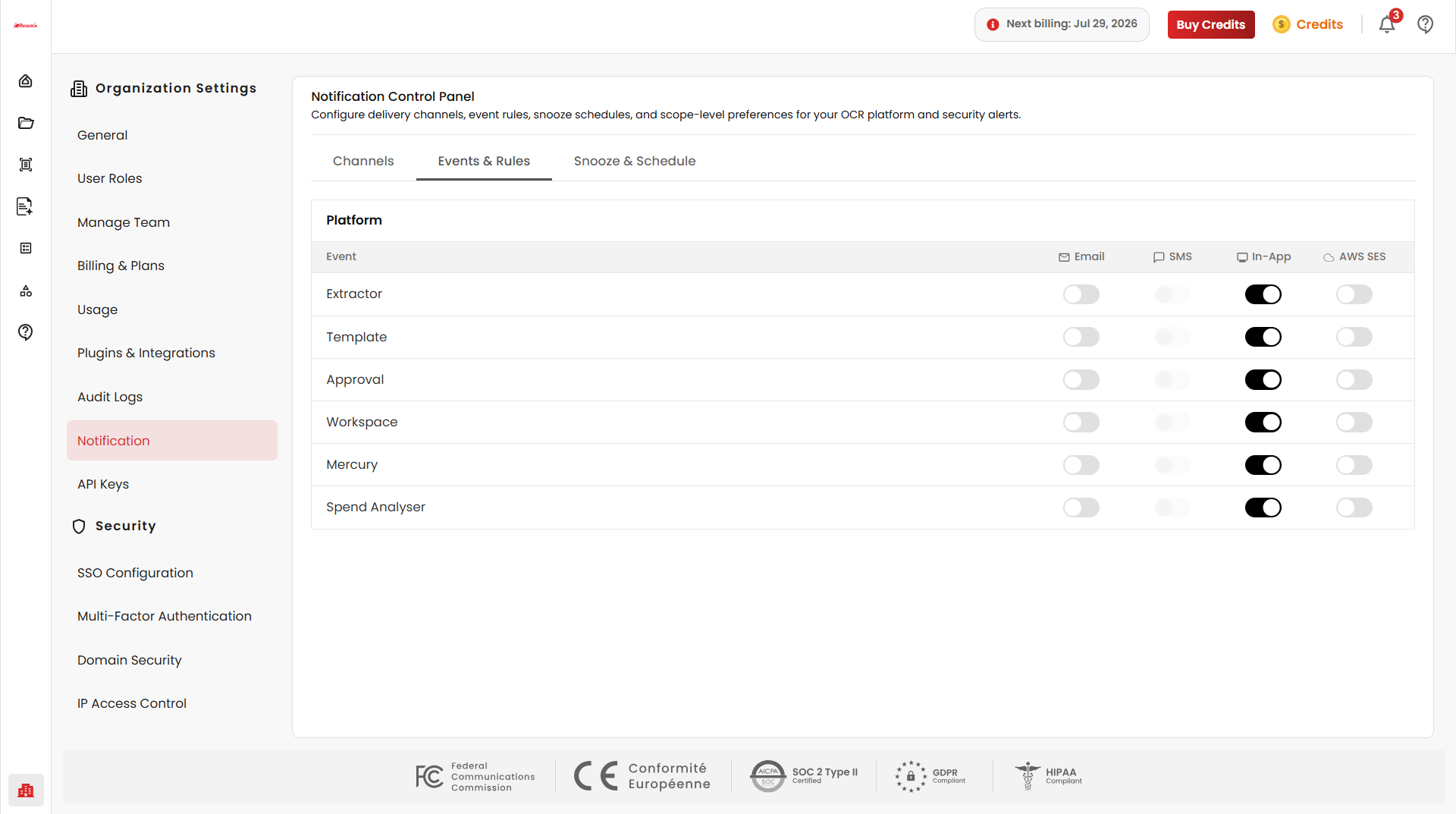
The Events & Rules tab allows administrators to control how notifications are delivered for different platform modules.
Platform Notifications
The notification matrix displays available platform modules alongside supported notification channels — Email, SMS, In-App Notifications, and AWS SES. Administrators can enable or disable notification delivery for each module using the corresponding toggle switch.
Note: A notification channel must be configured and enabled in the Channels tab before it can be used for platform events.
Snooze & Schedule
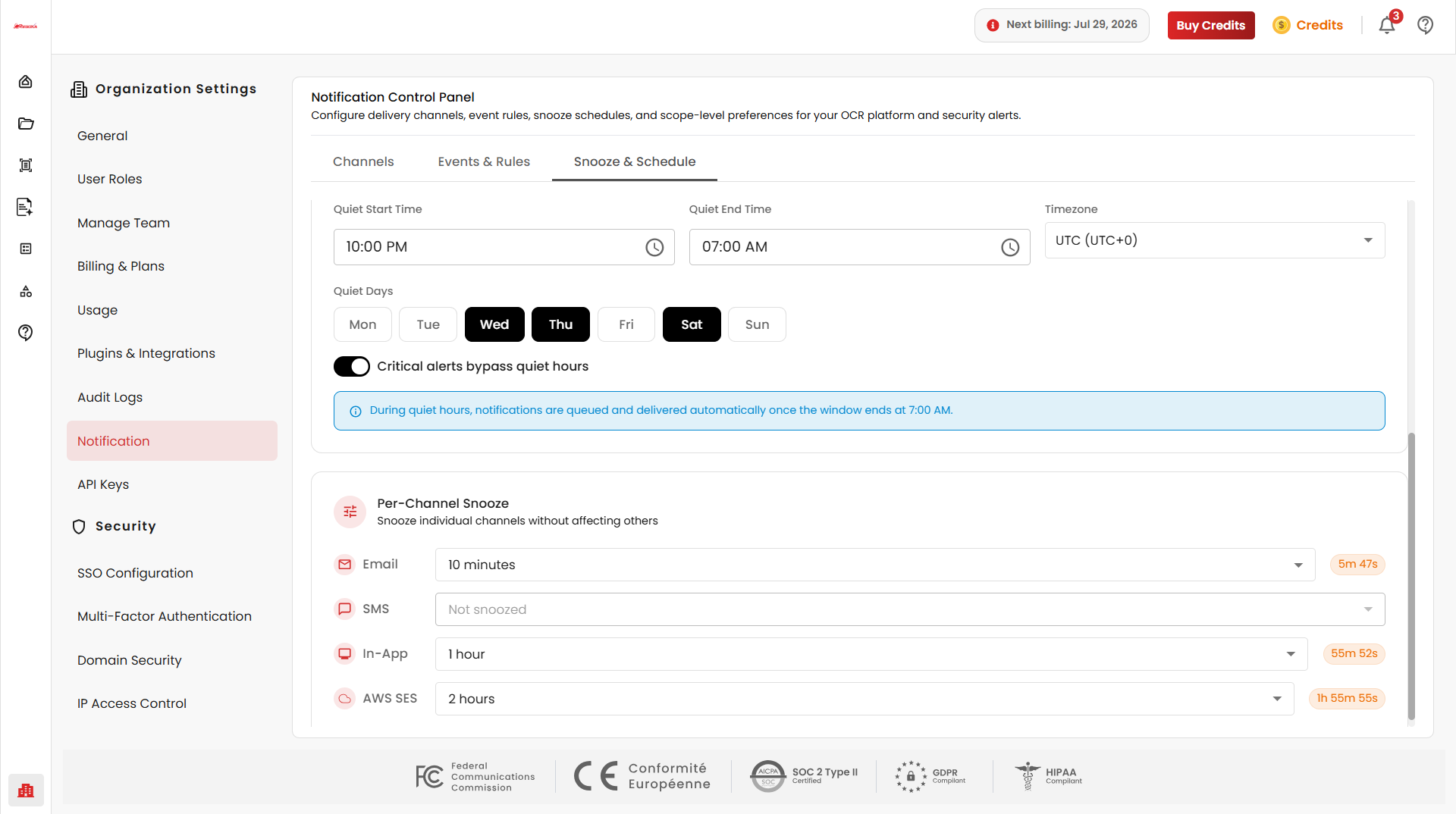
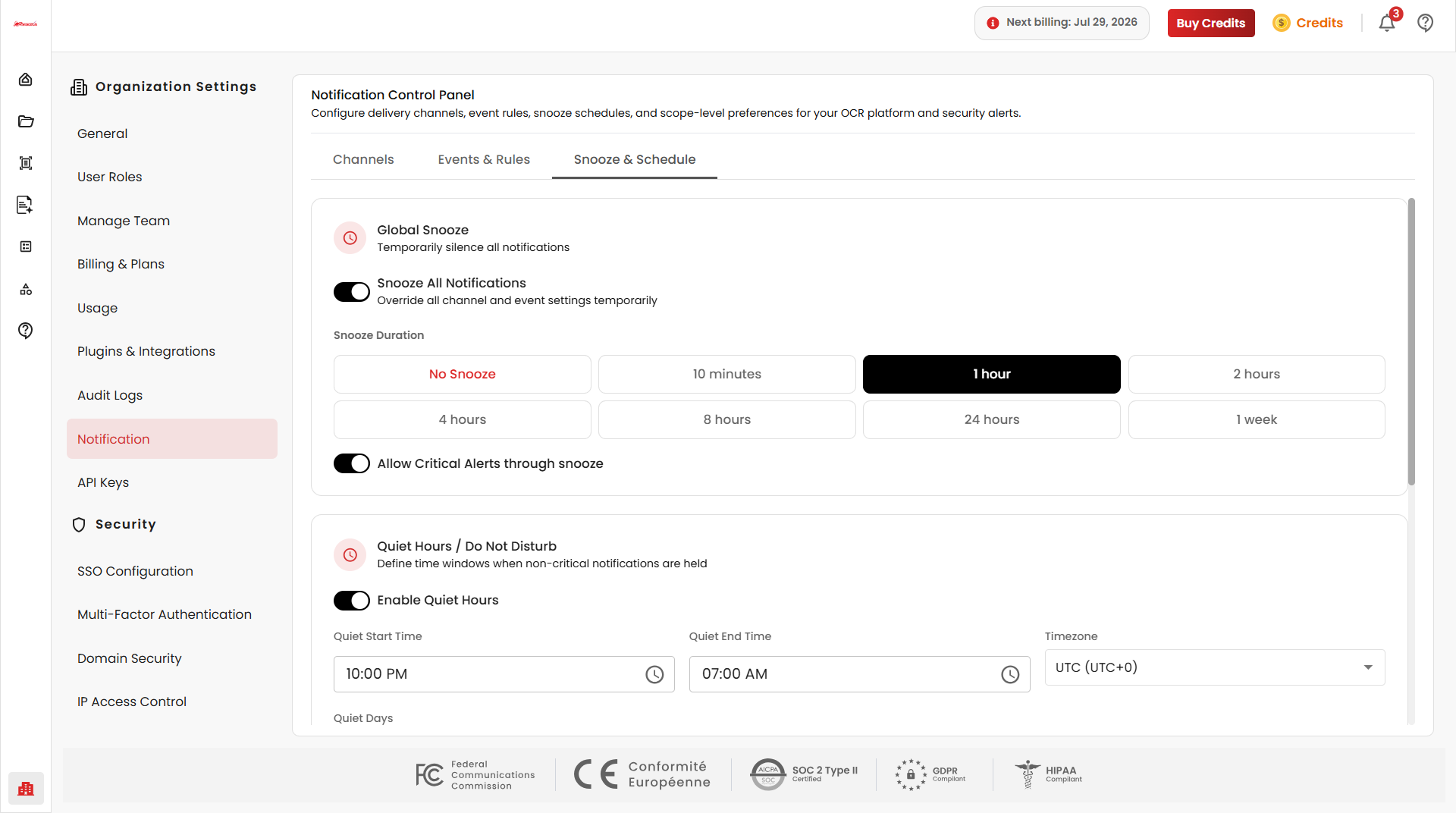
The Snooze & Schedule tab allows administrators to temporarily pause notifications or schedule when notifications should be delivered, including global snooze settings, quiet hours, and channel-specific snooze durations.
Global Snooze
The Global Snooze section temporarily pauses notifications across all enabled channels. Administrators can enable Snooze All Notifications, select a snooze duration, and optionally allow critical alerts to continue during the snooze period.
Note: Global Snooze temporarily overrides all configured notification channels and event rules.
Quiet Hours / Do Not Disturb
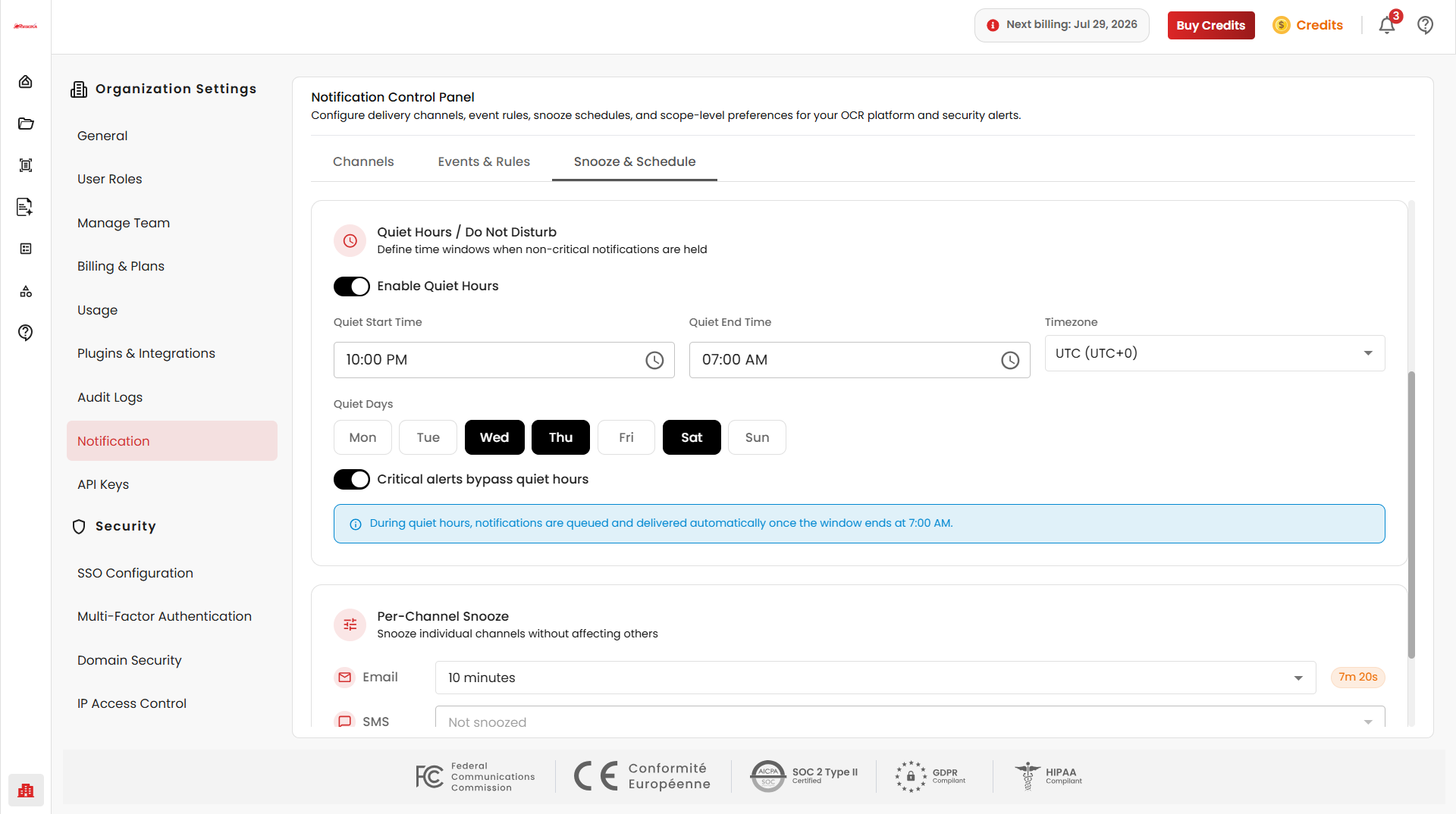
The Quiet Hours section prevents non-critical notifications during selected hours. Administrators can configure the start time, end time, time zone, quiet days, and whether critical alerts should bypass the quiet period. Queued notifications are delivered automatically once quiet hours end.
Per-Channel Snooze
The Per-Channel Snooze section allows each notification channel — Email, SMS, In-App Notifications, and AWS SES — to be snoozed independently without affecting the others. Each channel can be configured with its own snooze duration, allowing organizations to pause specific channels while keeping others active.