
Appearance
Plugins & Integrations
Seamlessly connect tools, storage platforms, and enterprise services to improve productivity, collaboration, and data accuracy across the organization.
The Plugins & Integrations module provides centralized visibility into all supported connectors available within the platform.
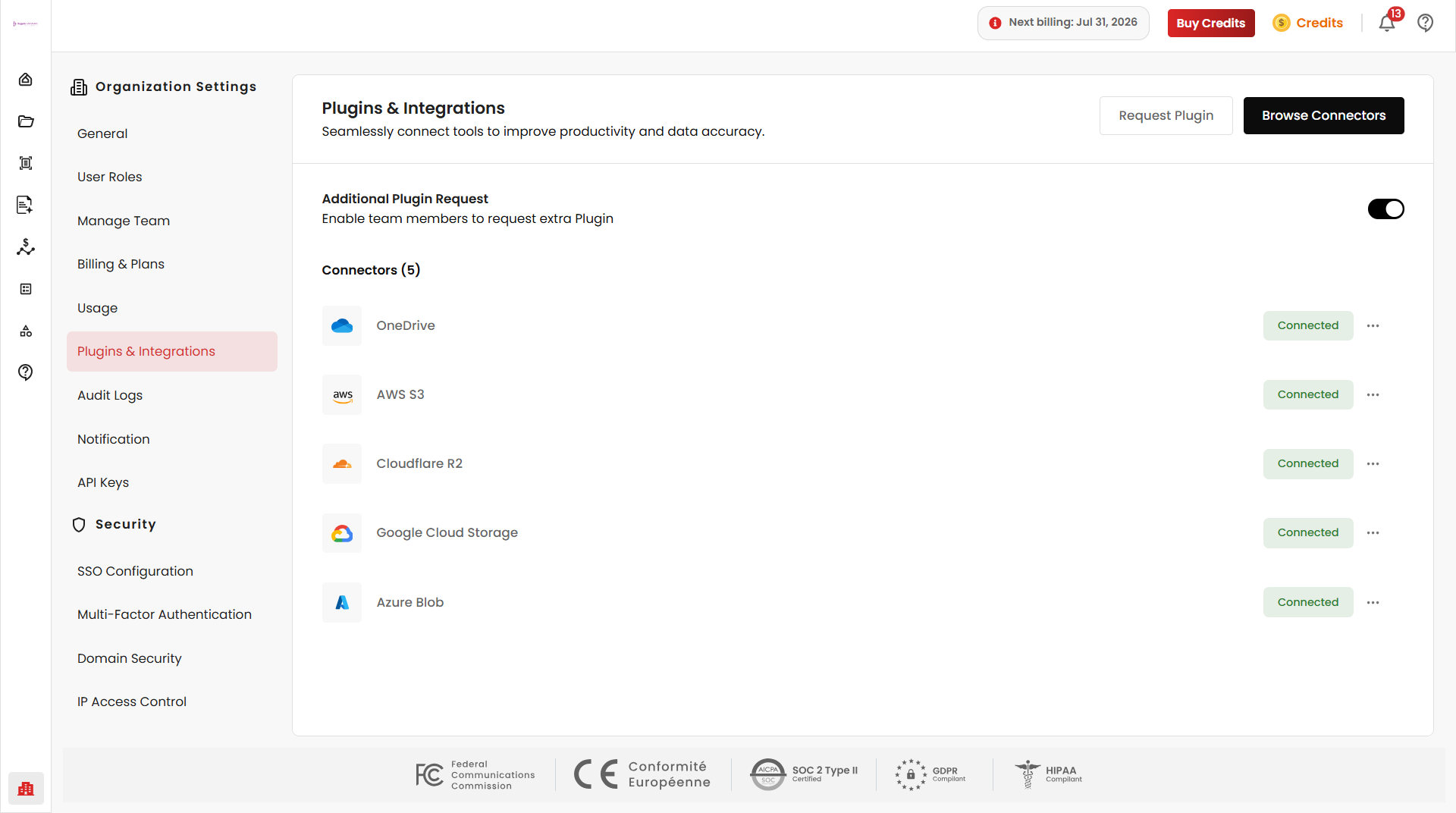
Request Plugin
The Request Plugin feature allows organization members to submit requests for additional integrations or connectors that are not currently available in the organization.
When enabled by an administrator, users can request new plugins and provide a description explaining the business need.
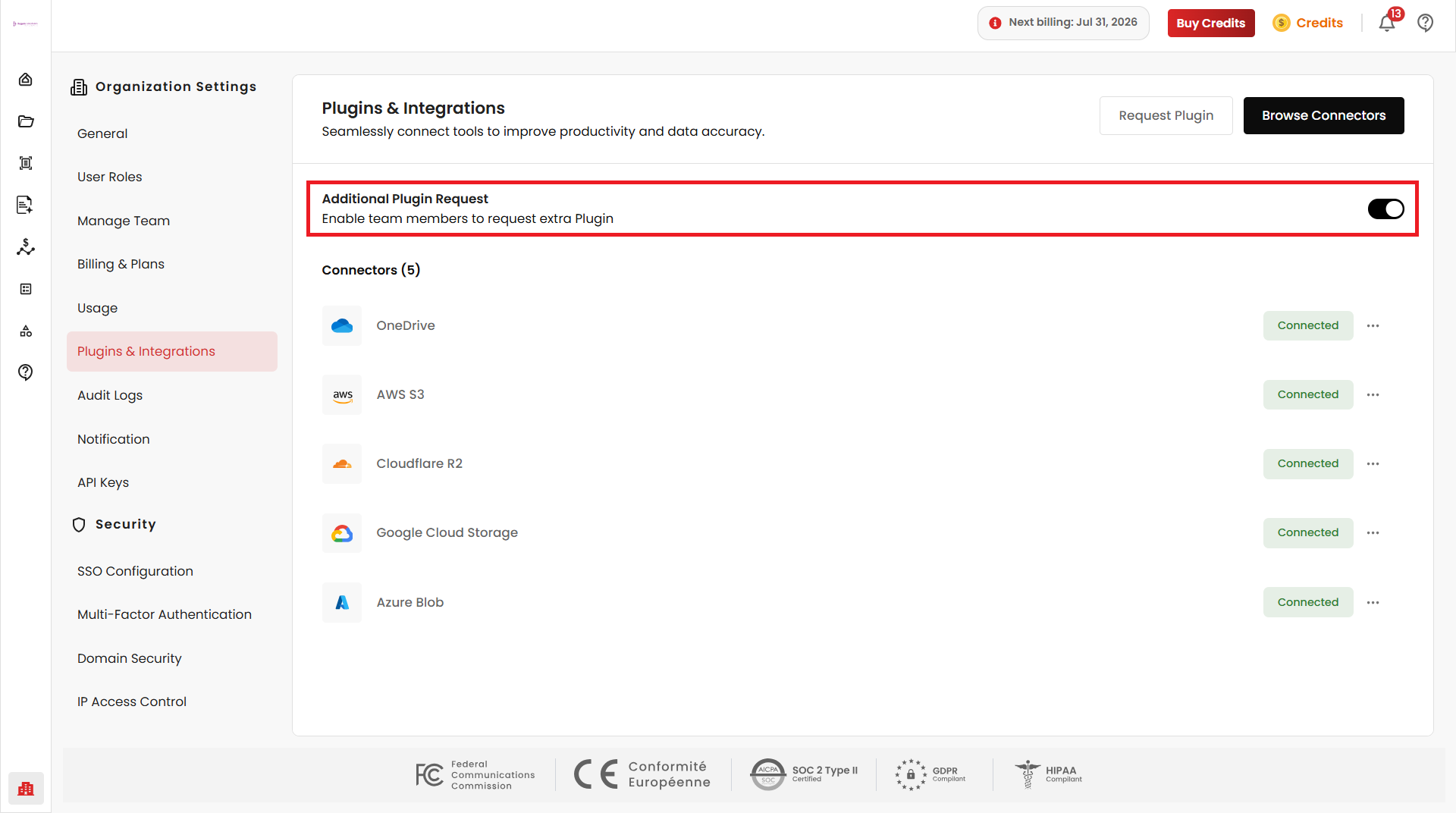
Enable Plugin Requests
Organization administrators can enable or disable plugin requests from the Plugins & Integrations page.
To enable plugin requests:
- Navigate to Plugins & Integrations
- Locate the Plugin Request option
- Enable the toggle switch
- Click Request Plugin
Once enabled, organization members can submit requests for new plugins.
Viewing Plugin Requests
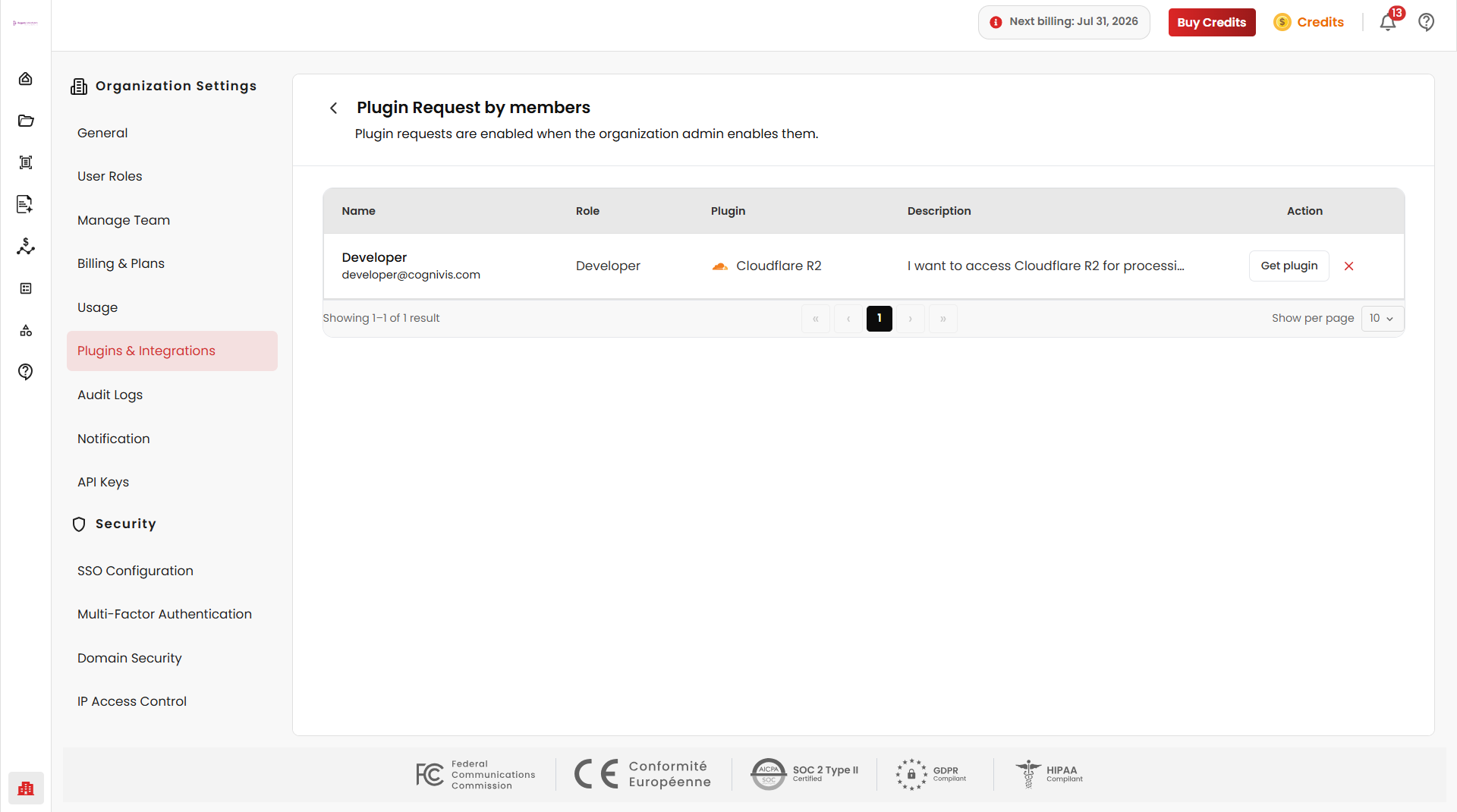
Administrators can review all submitted plugin requests from the Plugin Request by Members page.
The request list includes:
- Name of the user who submitted the request
- User's organization role
- Requested plugin or integration
- Description provided by the requester
- Current request status
Browse Connectors
Under Actions, administrators can click Get Plugin to open the Connector Marketplace and add the required plugin, or select Browse Connectors to add a plugin directly.
Connector Marketplace
The Connector Marketplace allows organizations to browse and manage trusted integrations available within the platform.
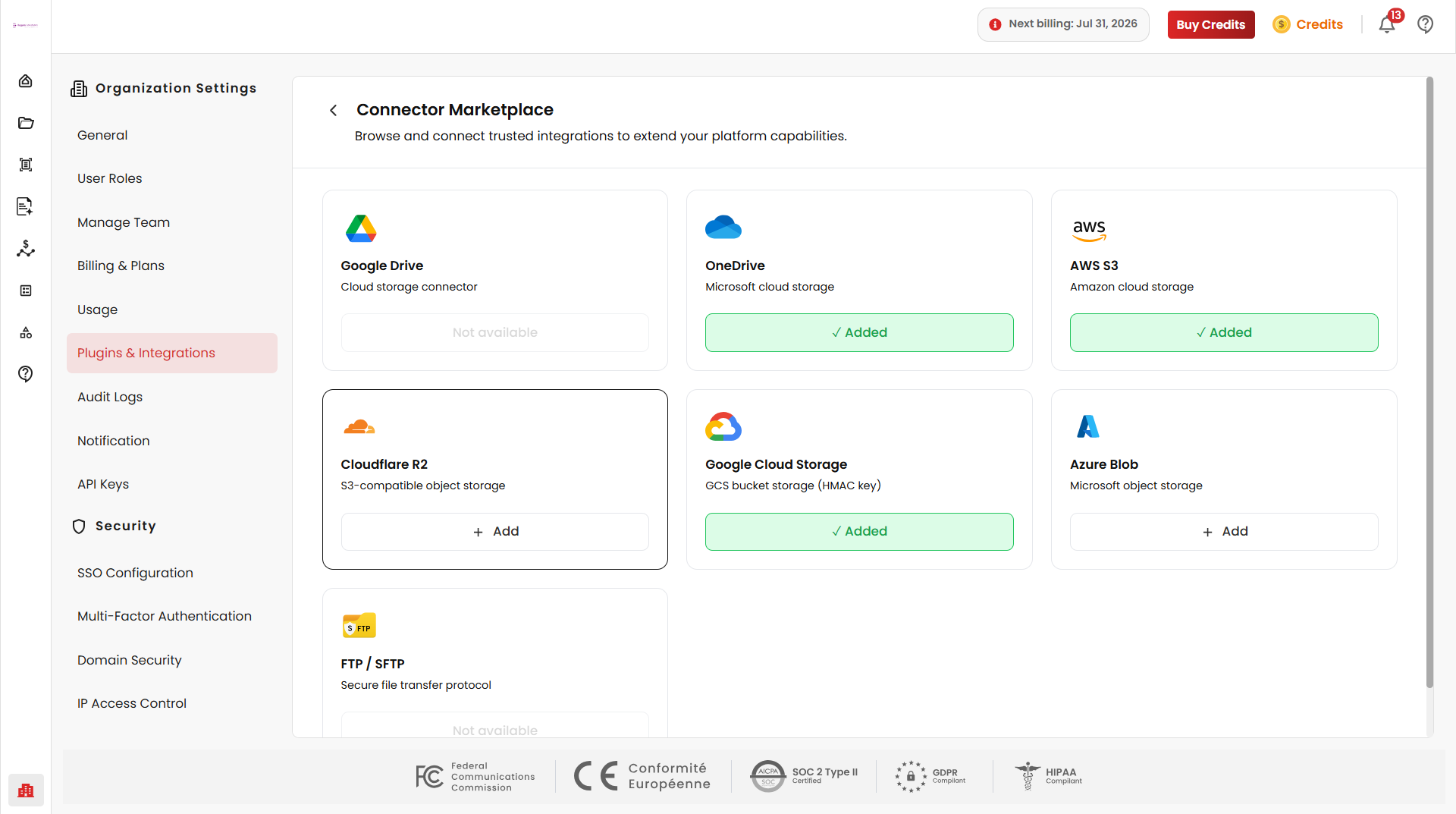
Google Drive
Sign in with your Google account to link your Drive.
Microsoft OneDrive
Connect your Microsoft OneDrive for centralized document access.
AWS S3
Connect an AWS S3 bucket to access and process documents stored there using:
- AWS Access Key ID
- AWS Secret Access Key
- AWS Region
- Input Bucket
- Output Bucket
Cloudflare R2
Connect a Cloudflare R2 bucket for document storage and processing using:
- Account ID
- Access Key ID
- Secret Access Key
- Input Bucket
- Output Bucket
Google Cloud Storage
Connect a Google Cloud Storage bucket using:
- Access Key ID
- Secret Access Key
- Input Bucket
- Output Bucket
Click Test to verify your credentials before saving.
Azure Blob Storage
Connect an Azure Blob Storage container using:
- Account Name
- Account Key
- Input Container
- Output Container
Click Test to verify your credentials before saving.
FTP / SFTP
Connect an external file server using FTP or the more secure SFTP.