
Appearance
Manage Team
Group your organisation's members into teams to organize collaborators and manage access together, instead of one user at a time.
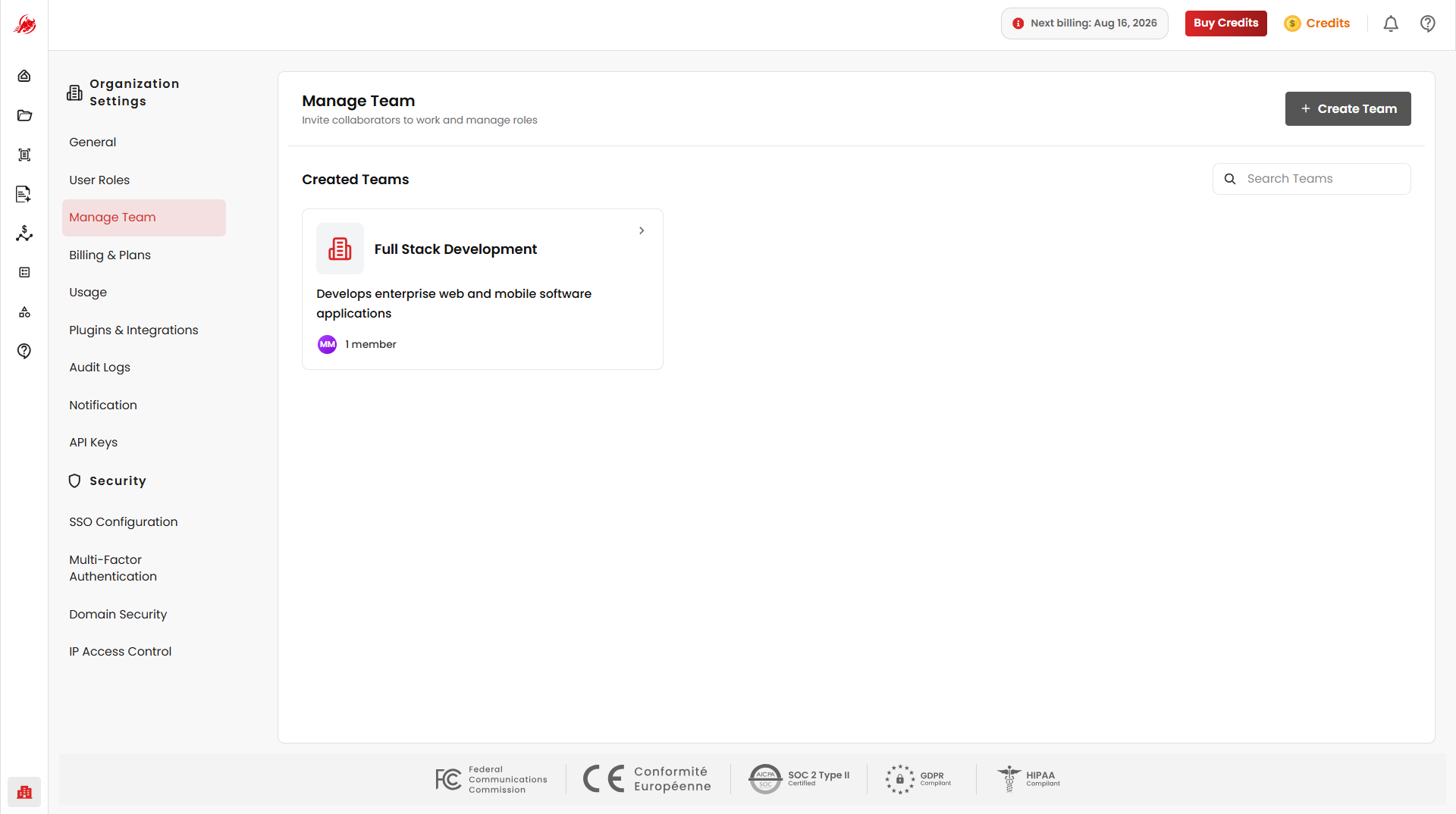
Create a team
Click Create Team, then enter a name and description for the team.
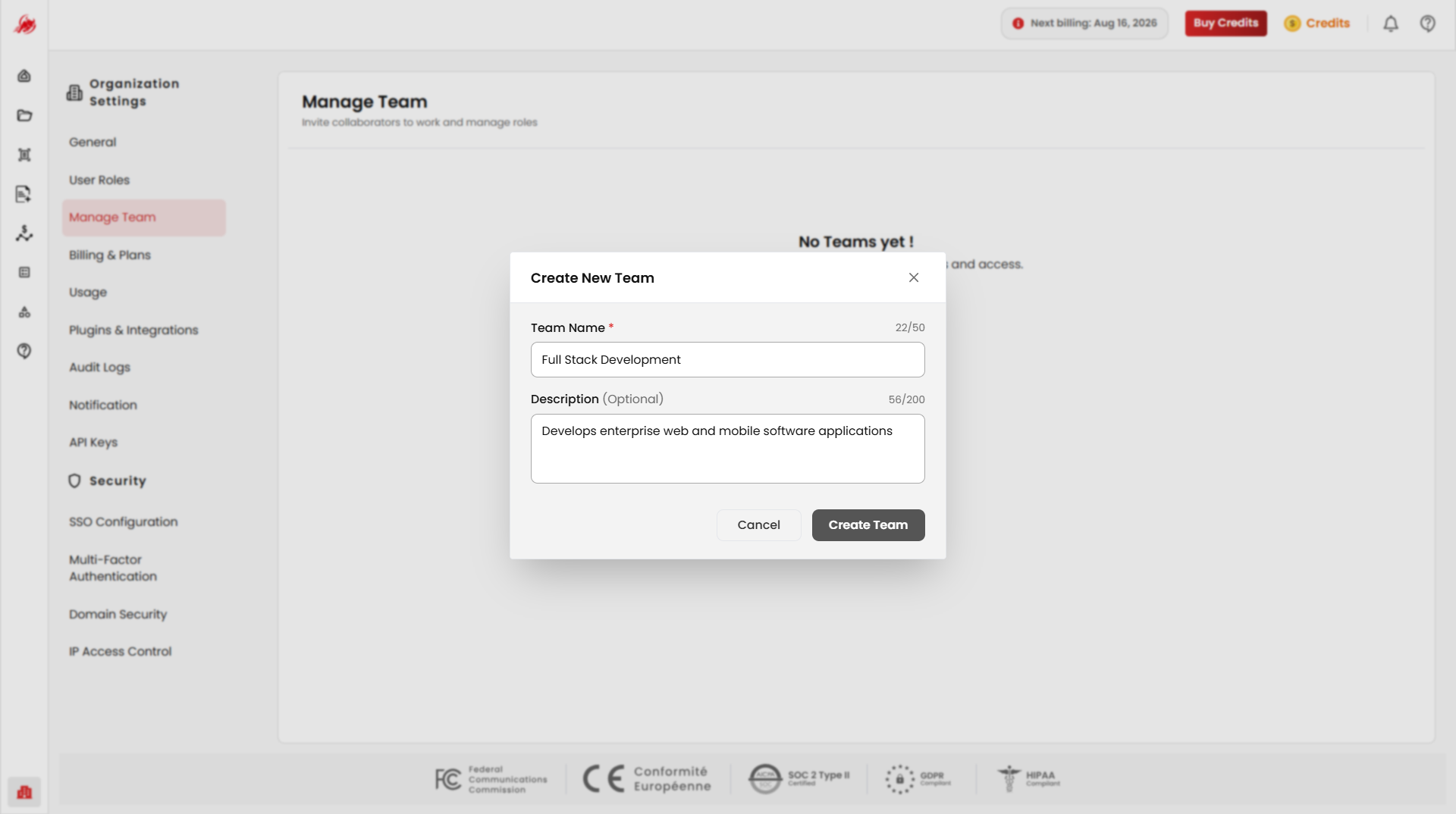
View your teams
Every team you create appears as a card showing its name, description, member count, and access options. Use Search Teams to find one by name.
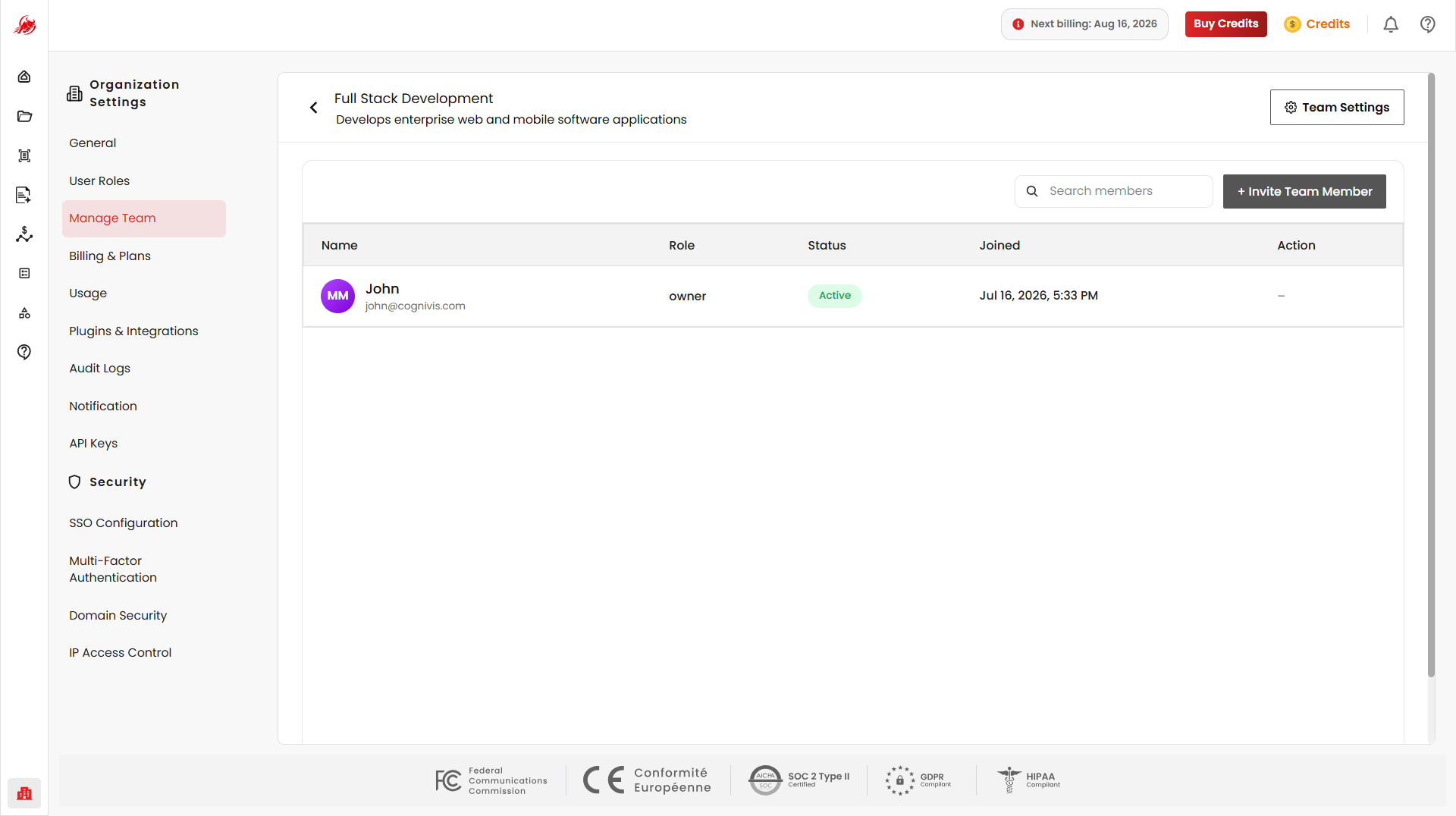
Invite team members
Open a team to invite members, in one of two ways:
Invite by Email — enter one or more email addresses from your organisation's domain, choose a role, optionally add a personal message, and click Send Invite.
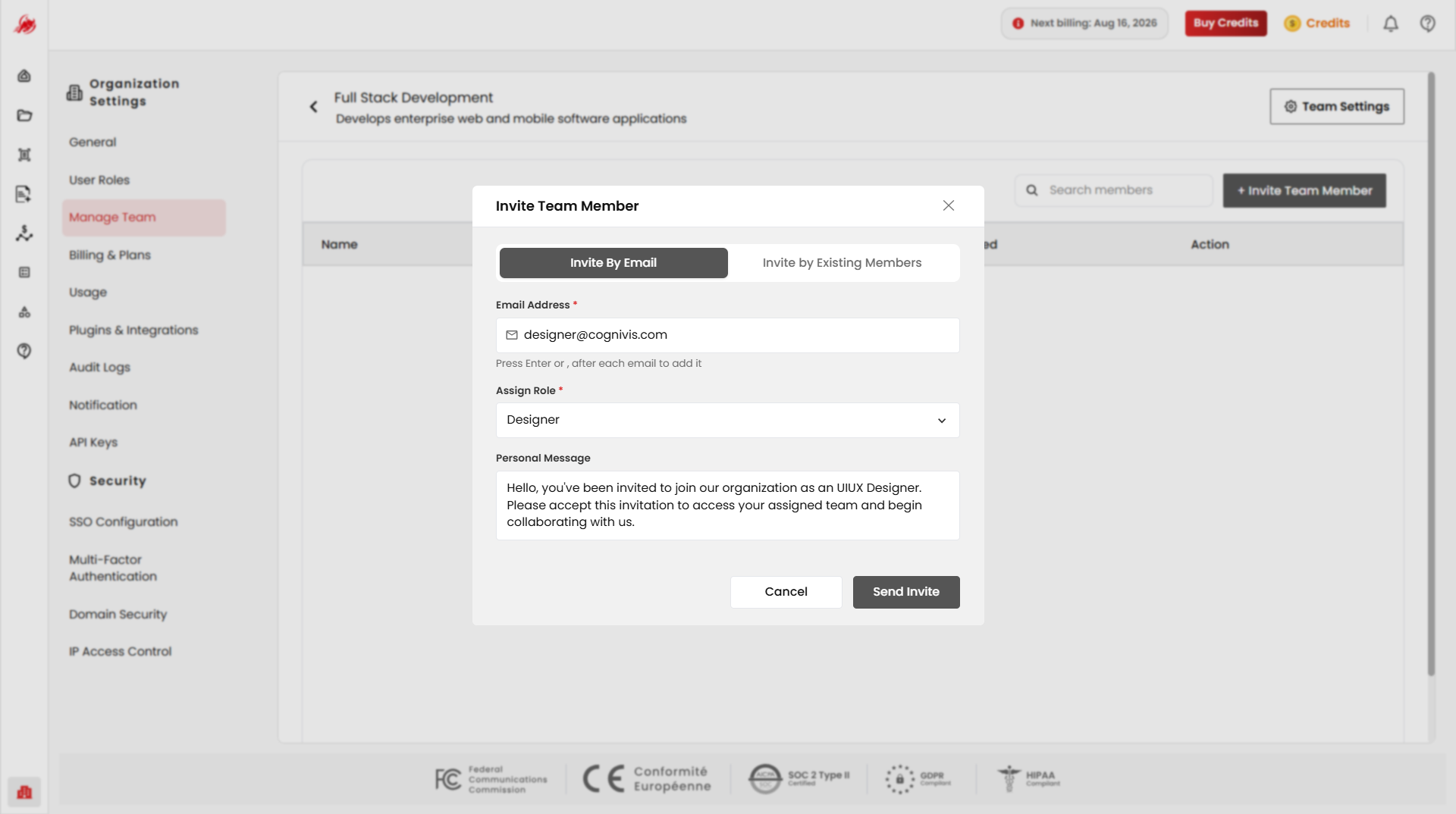
TIP
Users already in your organisation can't be invited by email again — you'll find the same invite flow on the User Roles page.
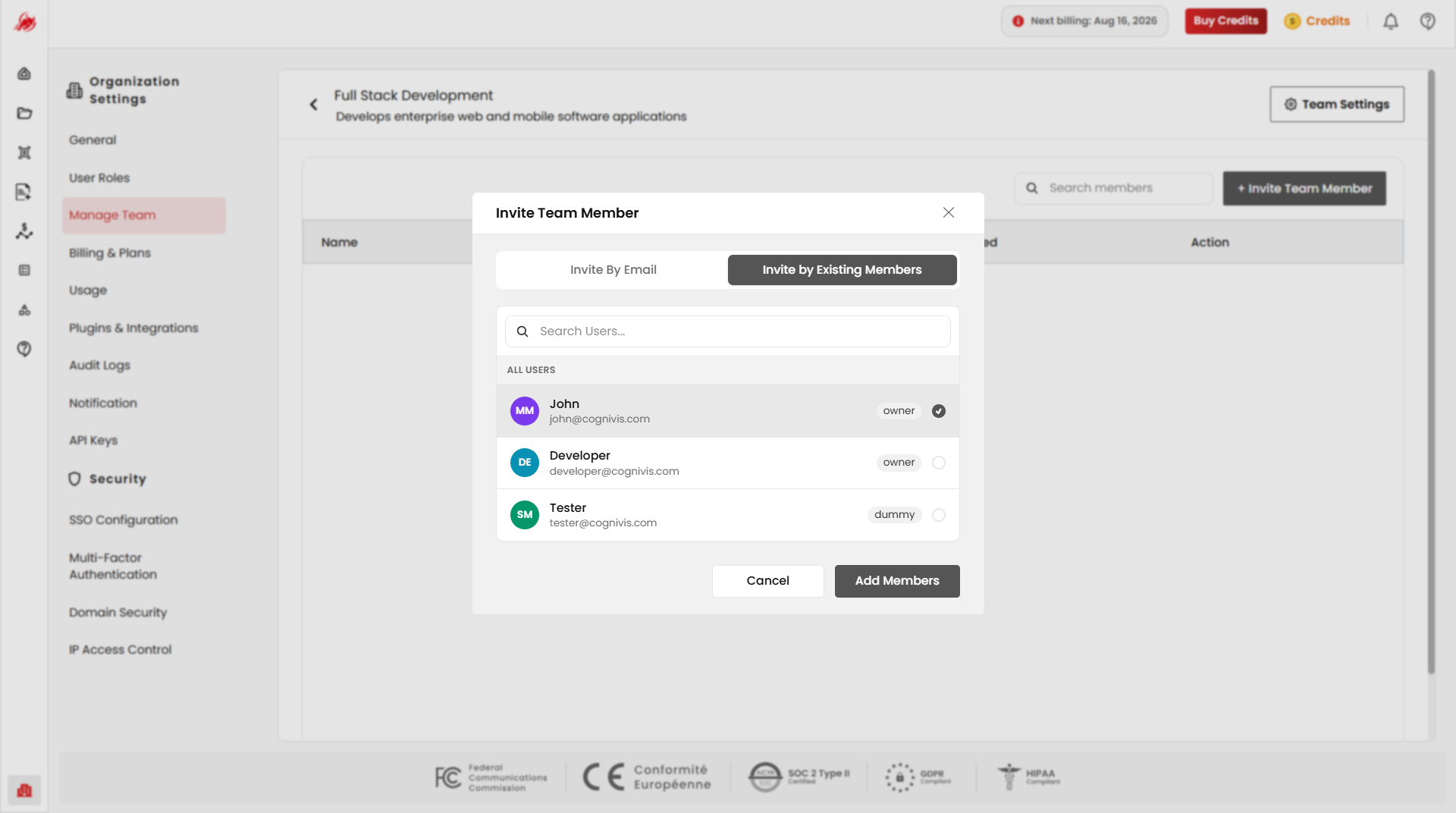
Invite by Existing Members — search for people already in your organisation, select one or more, and click Add Members.
Remove a team member
Find the member in the team's list and click Remove User in the Action column.
TIP
This only removes them from the team — they stay in your organisation and can be added to another team anytime.
Team settings
Open a team's Team Settings to edit its name and description, or delete it.
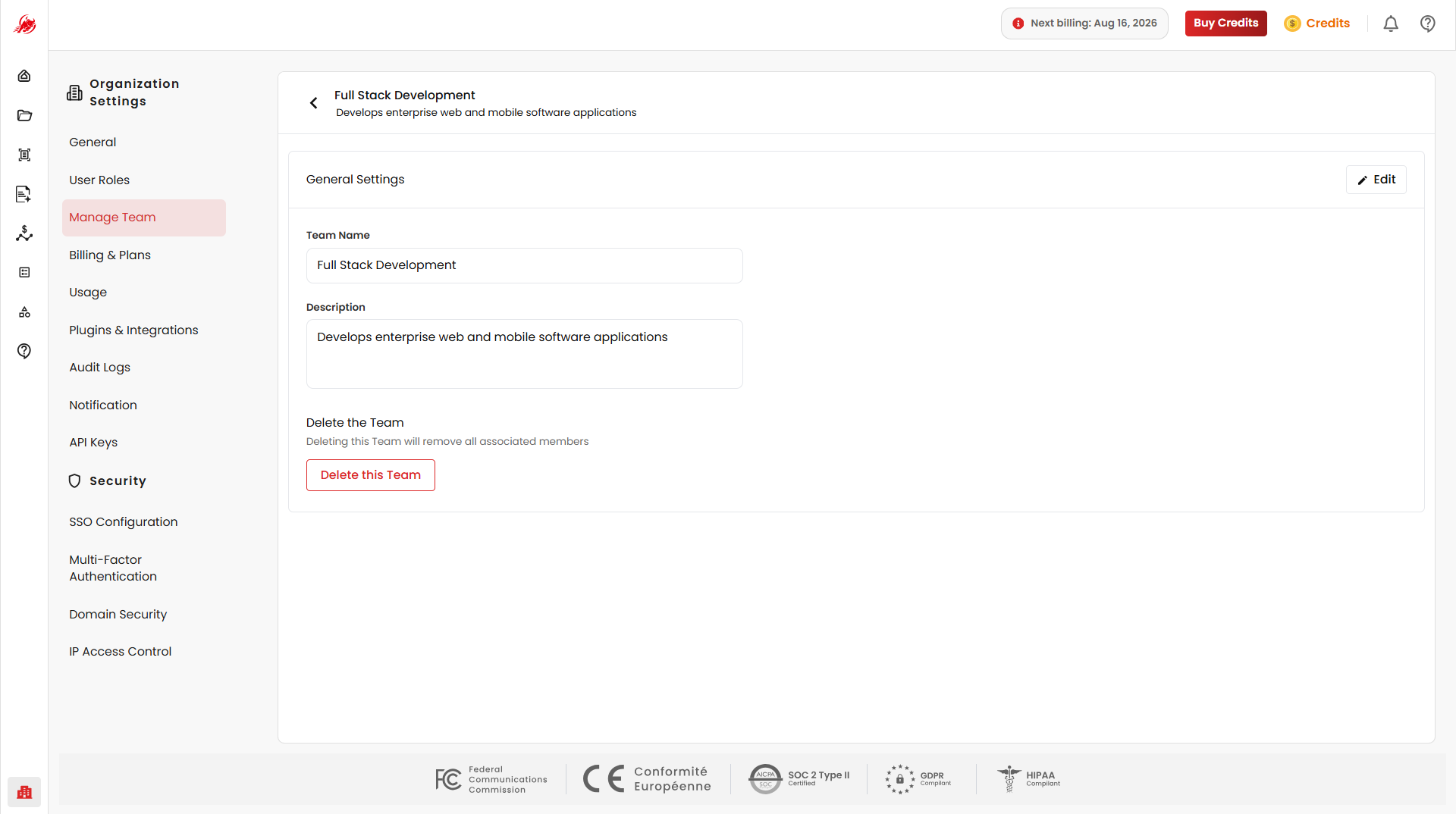
- Click Edit, make your changes, and click Save Changes.
- Click Delete this Team and confirm to remove it permanently.
WARNING
Deleting a team can't be undone. It removes the team and its memberships, but doesn't remove any users from your organisation.
Related
- User Roles — invite users and assign roles and permissions